5.3.5
Games
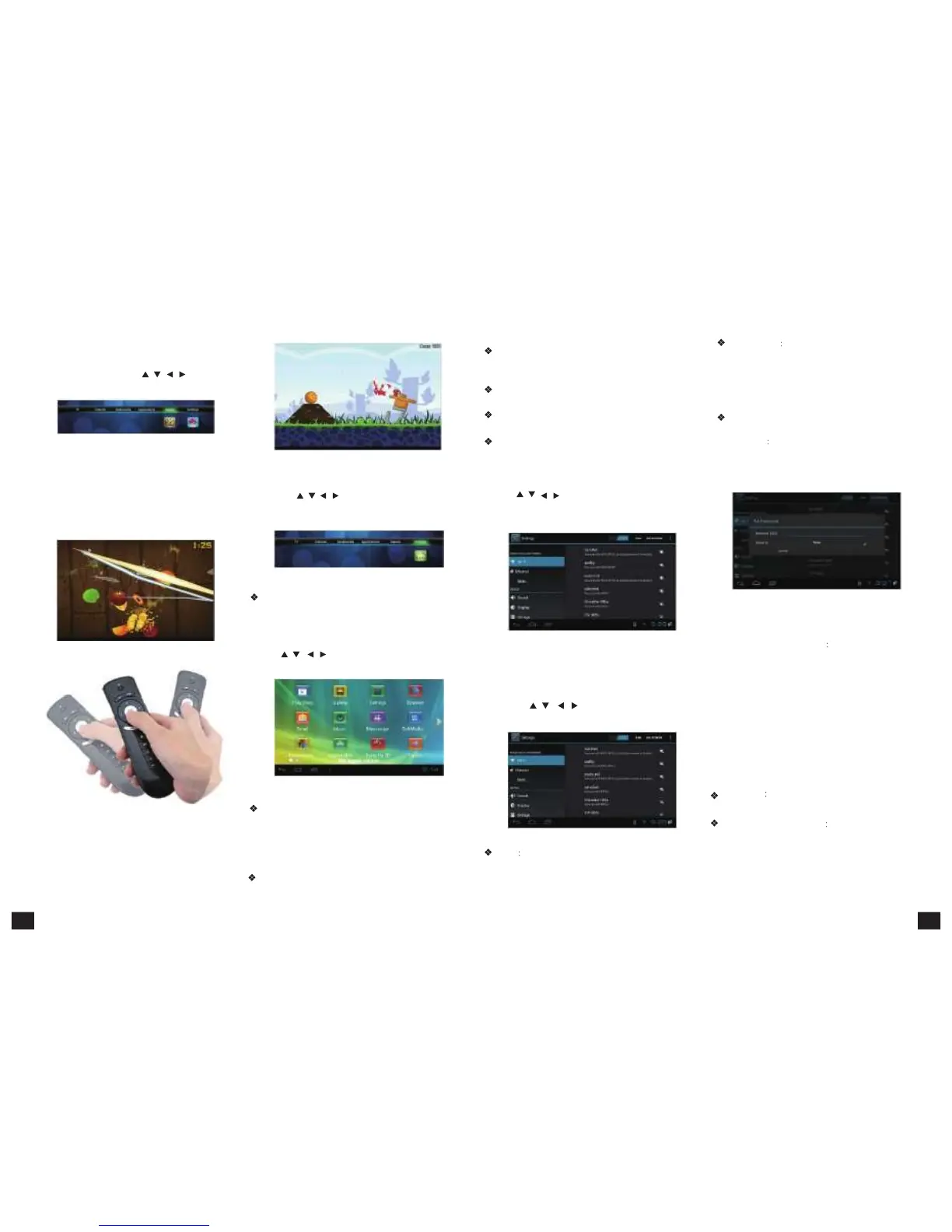
Games includes the well-known “Fruit Ninja”
and “Angry Birds”. Press【 /
、
/ 】and【OK】
to enter in. As picture 5-3-35 shows:
Figure
5-3-35
Using Air Mouse RCU you may easily manage the
OSD game interface. You have only to use central
OK button and your own hand movement as this
RCU has integrated movement sensor.
“Fruit Ninja” – the aim of the game is to chaff as
many fruits as possible.
Video
player
: Play all the videos from storage
device, including SD card, USB, etc, support various
mode of AVI、WMV、MPEG.
Music
player
: Support various pattern of music,
play your favorite song at any time.
Picture
browser
: Clear picture browsing modes
help you browse local pictures quickly.
Installation
: Read the installation file from the
storage device, click to install the software you want.
5.3.6.
System
Setup
5.5
System
Setup
Press【
/
、
/
】and【OK】to enter in sub Press【
/
、
/
】and【OK】to enter in “System
menu of "Settings", seeing picture 5-3-36. Setup”. Then you can use the same way to enter
in from main UI.
Figure
5-3-36
System Setup: Please refer to the System Setup
of 5.5 part.
Wi-Fi
Setting
Setup and manage wireless
access point.
System will auto search Wi-Fi Internet when
Wi-Fi is open and display the result on Interface.
If no internet is searched, you can add WLAN
access point by hand.
Adding
WLAN
access
point
by
hand:
Following options are in Wi-Fi list:
Scanning
Automatically scan WIFI wireless
internet
Add
network:
Press【OK】button, the
dialog box pops up, as shown in picture 5-5-3:
Figure
5-5-3
“Angry
Birds”
. The player has to shoot from
slingshot by birds to shatter different fortifications.
Game management: Press and keep【OK】 button
to activate the slingshot.
5.4
Application
Function
Press【
/
、
/
】and【OK】to enter in application
interface as shown in picture 5-4-1.
Figure
5-4-1
IE Browser, connecting Google by default. If you
want to log in other website, please use remote
control or fly mouse to type the website address
you want, for detailed information please take a
reference on Internet Function part.
Email
: Build-in email software, send and receive
emails at any time. Input right correct account number
Figure
5-5-1
Detailed setting method will be explained as
following.
5.5.1
Wireless
&
Internet
Press【
/
、
/
】and【OK】to enter in
“ Settings”, seeing picture 5-5-2:
Figure
5-5-2
Wi-Fi
Turn on or turn off WLAN function
Choose upper right "BLUE" button, then press
【OK】button. WIFI is open when it shows “ON”.
Advanced setup Interface is as below:
Choose
Static
state
IP
Choose whether to
use Static state IP mode.
If choose static state IP mode, the IP address,
Gateway, Netmask and DNS become available,
you need to setup this parameter correctly. If not,
all these settings are invalid.
Use IR remote control to choose static state IP,
press【OK】button to enter in.
5.5.2
Ethernet
Settings
Ethernet
Click this option , press【OK】button
to turn on or off Ethernet.
Ethernet
configuration
Set Internet IP and
other parameters.
Click this option, entering Ethernet configuration
interface. Like picture 5-5-4 shows:
and password, click NEXT, set up mailbox and log in.
19 20



 To Next Page