5.Functions
5.2
TV
Interface
5.2.2
Switch
Channel
5.2.4
Program
Search
This Android TV box is based on Android 4.0
operating system of smart phone, aiming at
providing full variety of Internet applications,
keeping your family in heart full of enjoyment
on widescreen beyond which smart phone can
bring to you.
5.1
Starting
Up
Guidance
When first booting or after upgrading the system,
it will enter a simple setting up interface which
guides users to some basic settings of system in
order to facilitate the use of in the future.
After setting up boot guidance interface, it will
enter into the full-screen broadcasting TV program
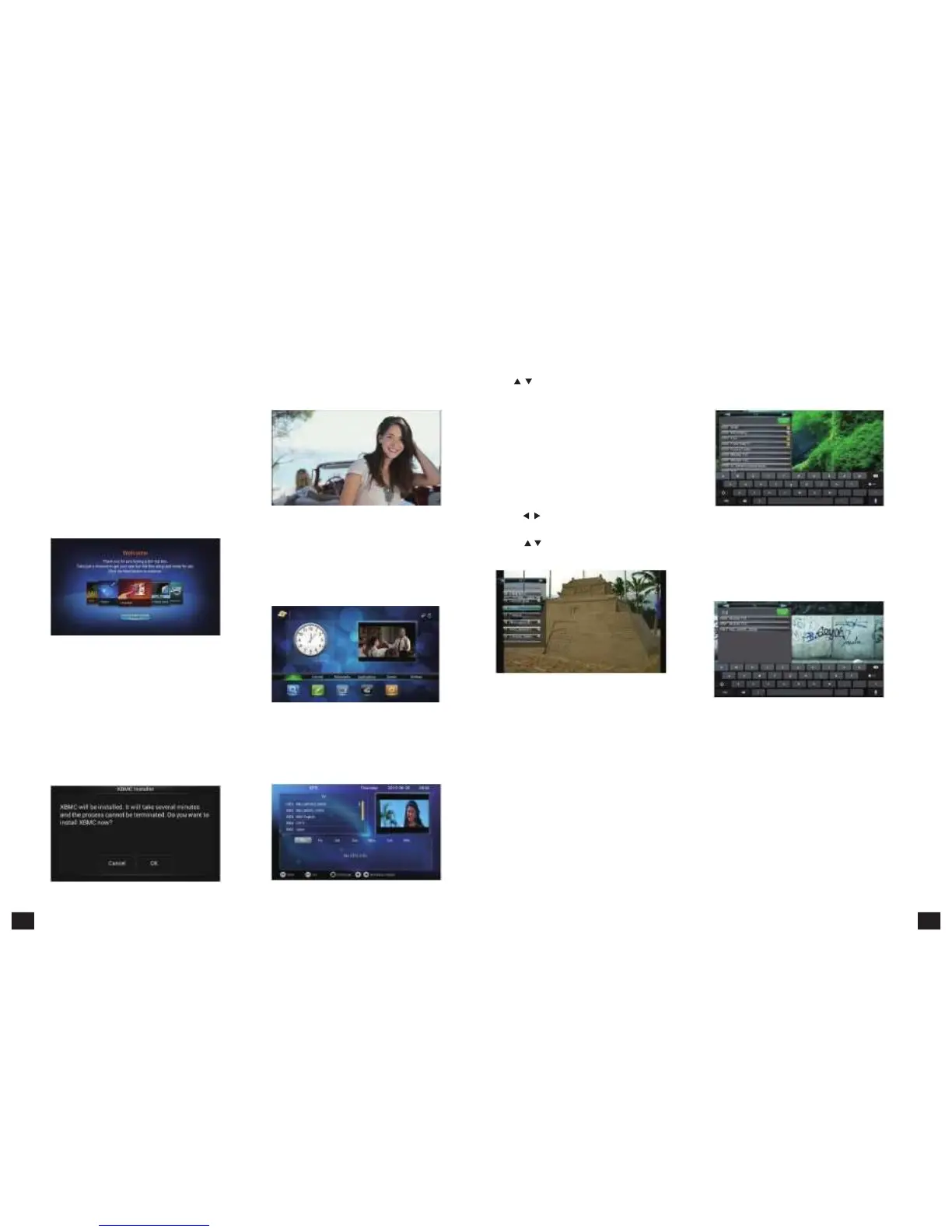
interface, as shown in figure 5-2-1:
Figure
5-2-1
5.2.1
Main
UI
and
EPG
1. Press【MENU】, skip to main interface. Press
【EXIT】or【MENU】to return to televise interface,
The main UI as shown in figure 5-2-2:
1. Press【OK】or【FAV】, program list pops up.
Press【
/
】to switch channel. Press【OK】to
enter into the channel.
2. Press【CH +/-】to switch channel.
3. Press numeric keys to skip to the corresponding
channel.
4. Switch channel on EPG interface. (Please refer
to the EPG function for detailed information)
5.2.3
Program
List
1. Press【OK】or【FAV】, program list pops up.
2. Press【
/
】 to view TV program list or all the
program lists.
3. Press【
/
】to select the program on the list.
Press 【OK】to enter in the selected program.
1. Press【OK】or【FAV】, program list pops up.
2. Press【RED】key to search the program, as shown
in figure 5-2-5:
Figure
5-2-5
3. Input key words or letters into input field, matched
programs will appear below. Choose your demanded
program in the search results, press【OK】to enter in.
As shown in figure 5-2-6:
Figure 5-1-1
In this guidance, you can setup the system
language, the region, country, city and time-zone
of your place. Besides, you can set the display
position to adjust the video output with your TV
Set. What’s more, you can setup the configuration
of the network.
You
can
choose
to
insta ll
the
XBMC
in
the
guidance.
Figure 5-1-2
Figure
5-2-2
2. On televise interface, press【EPG】, jump to EPG
interface, then press【EXIT】, return to televise
interface. EPG interface is shown in figure 5-2-3:
Figure
5-2-3
Figure 5-2-4
4. If you are using the air mouse, click the left part Figure
5-2-6
of the screen to call the program list, click the right
part of the screen to call the favorite program list,
click
the
bottom
part
of
the
scree n
to
call
the
1.
Press
【
VOL+/-
】
to
adjust
the
volume.
Above
the
information bar and click the top part of the screen
screen
will
display
the
volume
progress
bar.
to call the function panel.
again to turn on.
the remote control buttons which are showing on
screen can be clicked by air mouse. This is also
available on the other UI.
9 10



 To Next Page