Figure
5-2-7
5.2.6
Parent
Lock
This
function
is
to
encrypt
programs.
(For
encryption
steps,
please
refer
to
the
program
editing and parent lock settings section). Only by
inputing correct password can play the encrypted
programs.
2. When setting up sound track, press【
/
】to
select track types and【OK】to confirm. Press
【EXIT】 to quit setting without saving.
Figure
5-2-10
3. When setting up language, press【
/
】to select
and 【OK】to confirm. Press 【E XIT】 to quit
setting without saving.
5.2.9
Program
Info
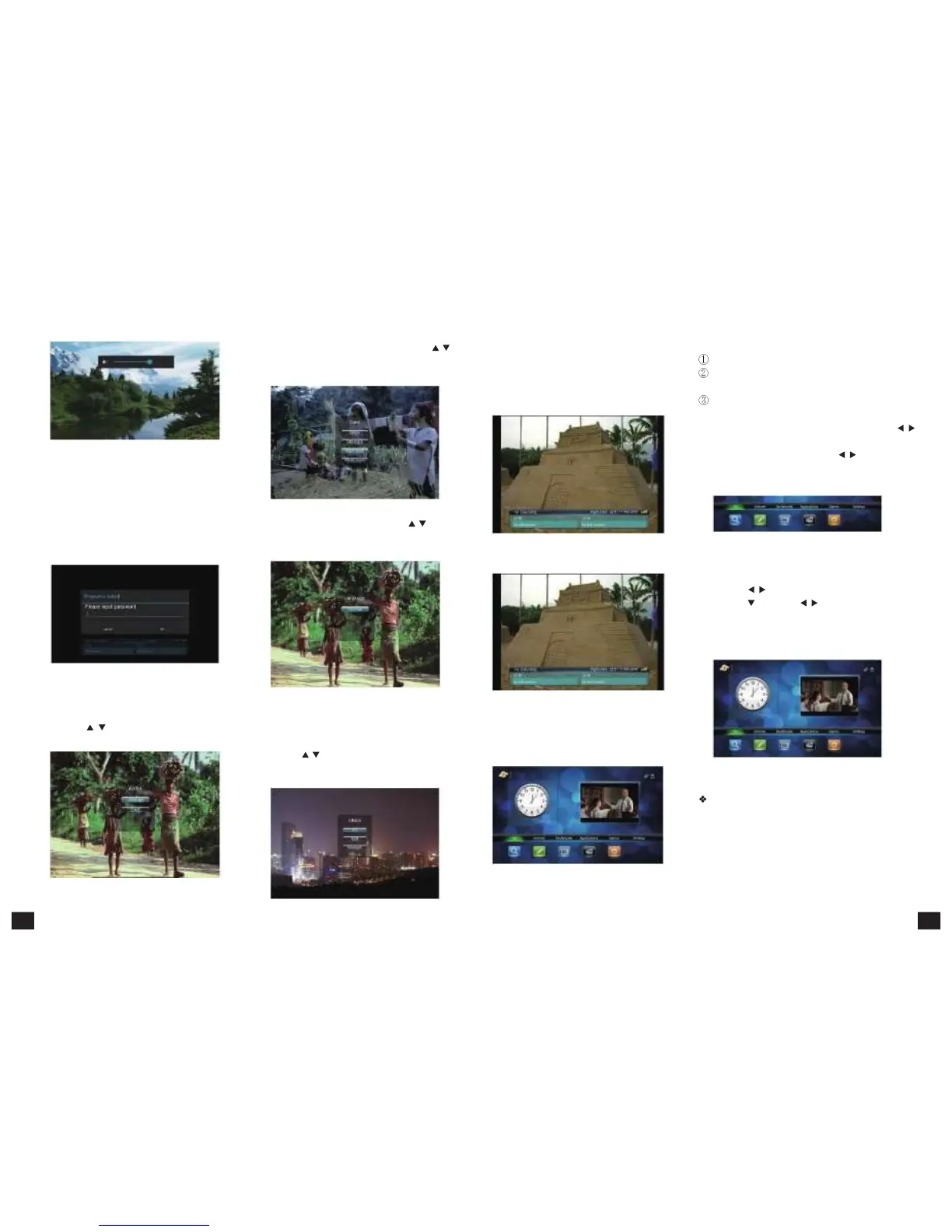
1. Press 【INFO】, program info pops up.
2. When switching channel, program info pops up.
The info includes the current playing program info
and next two programs info of the channel.
Figure
5-2-13
If there is no info, it will show as:
There are three parts:
Time: show the current time and date.
Televising contractible window: press 【EXIT】to
back to the full-screen televising state.
Main menu: on the
bottom of main UI, as shown
in 5-3-2. There are six options: TV, Internet, Multimedia,
Applications, Games and Settings. By pressing【
/
】,
you can select the between the options. Each option
has several son options. Press【
/
】and【OK】to
enter into the chosen son option. Press【EXIT】to
return to televising interface.
Figure
5-3-2
5.3.1Program
Management
1. Press 【
/
】to move the cursor to "TV" option.
2. Press 【
】, and 【 /
】to select between son
options of "Program Edit", "Program Search", "EPG",
"PVR", "Manual Search", and "TV Settings".
3. Press 【OK】to enter in.
Figure
5-2-8
5.2.7
Audio
Settings
1. Press【AUDIO】, the audio setting menu pops
up, press【
/
】to choose language or sound
track, then press【OK】.
Figure
5-2-11
5.2.8
Video
Aspect
Ratio
1. Press【V.RATIO】, the video aspect ratio setting
menu pops up .
2. Press 【
/
】to aspect ratio types.
3. Press【OK】to confirm; press 【EXIT】 to quit
setting without saving.
Figure
5-2-14
5.3
Main
UI
Under televising state, press【MENU】, then
the main UI will pops up as in figure 5-3-1:
Figure
5-3-3
Program
Search
Click into program search, then the auto search
interface pops up as shown in figure 5-3-4 below.
The satellite list lies left and antenna settings lies right.
Figure
5-3-1
Figure
5-2-9
Figure
5-2-12
11 12



 To Next Page