2.5
Air
Mouse
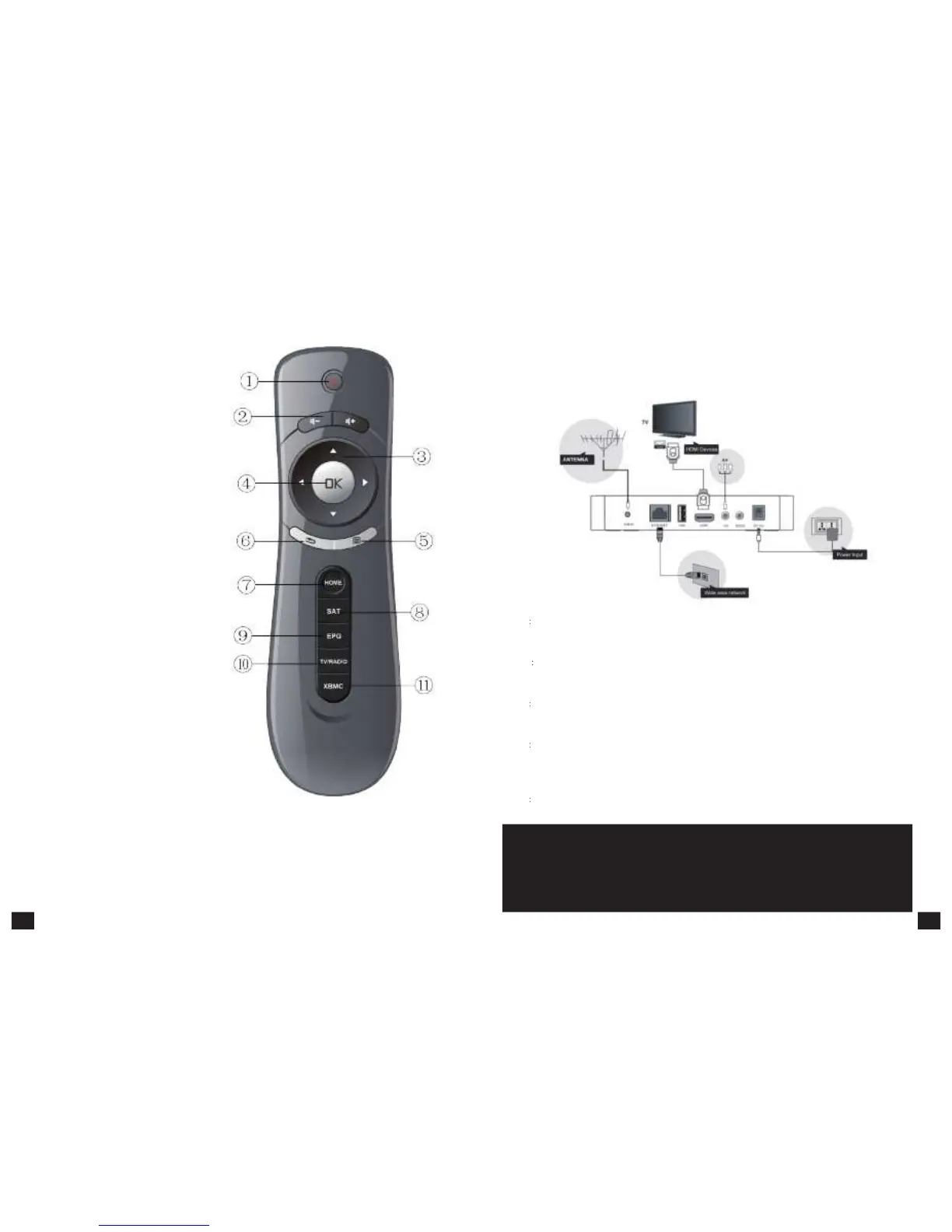
1.Power/Standby Button
2.Volume +/- Button
3.Direction Button
4.Mouse Left Click Button
5.Exit Button
6.Menu Button
7.Home Button
8.Satellite Button
9.Electronic Program Guide Button
10.TV/Radio Switch Button
11.XBMC Button: Launch XBMC Application
3.System
Connection
Please connect with your power, TV set, and other related devices according to the picture shows
below, if you need to connect with more devices, please contact with your local operator.
4.Quick
Installation
Guide
Step
1 Check
system
connection
Please make sure antenna, TV, STB connected correctly, you can take a reference on system
connection picture.
Step
2
Switch
TV
into
Video
Status
Make sure all the port in rear panel connect properly, turn on the TV, and switch the TV into
Video Status.
Step
3 Plug
the
power
line
of
Android
box,
turn
on
the
box.
After power line connected, press POWER button to power on the BOX, the indicator LED
light in front of panel will on.
Step
4 Standby
and
Standby
Recovery
When machines in turned on ,press standby button ,machine will in standby mode ,and Standby
indicator light will on, the box will in low power consumption status .Press standby button
again will end standby mode and recover to normal working mode .
Step
5 Power
off
After powered off, please pull up the power line.
Note:
All features can be achieved through your remote control buttons, also
you can achieve parts of functions through the buttons in front panel of the box,
if you have difficulty on using this unit, please refer to the instructions in the relevant
chapters. If you still can not resolve the problems encountered, please contact the
operator to find a solution.
7 8



 To Next Page