Template Module, Version 2.1, 11.08.2020 / Template Basiseinstellungen: Version X,X - xx.xx.xxxx
Settings
Gigaset GL7 / LUG IE-UK_INT en / A31008-N1199-L101-1-7619 / settings.fm / 7/4/22
56
Geolocation
For functions such as Google Maps, location details of the phone are
required. For this, to Geolocation must be activated.
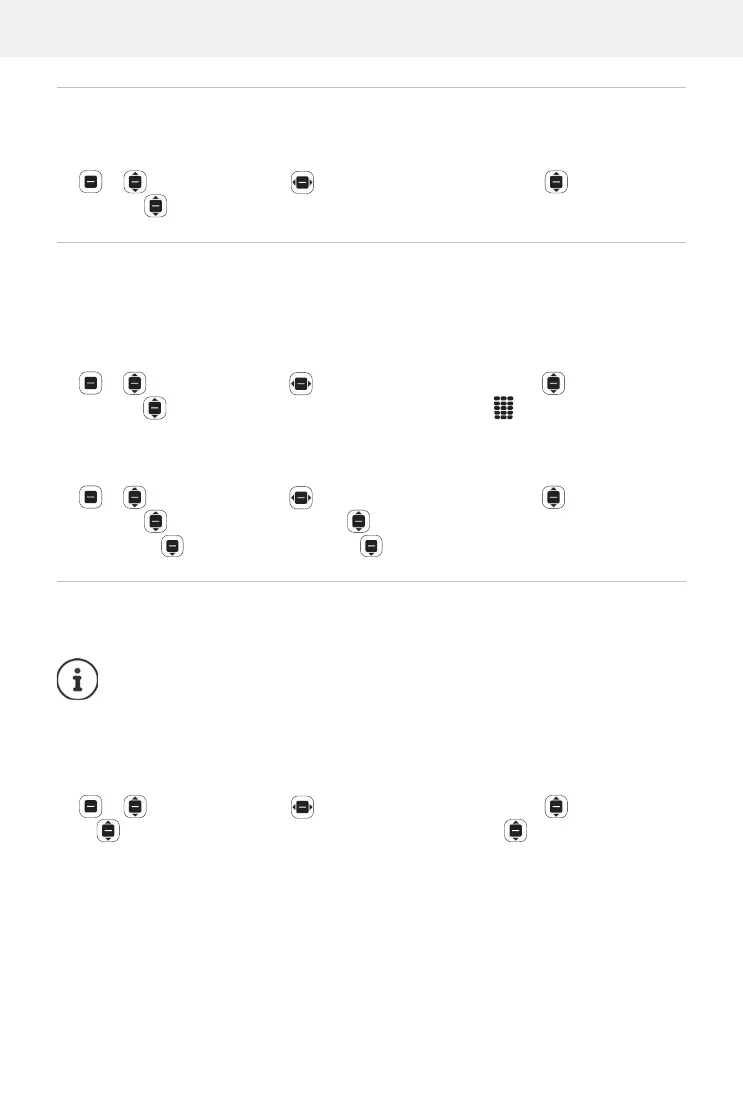
Settings OK Network & Connectivity Geolocation
OK Enable/disable to Geolocation OK
Settings for the SIM cards
Use the SIM manager to configure settings for the SIM cards.
Changing a SIM card name
Specify the name of the SIM card for how it is shown on the start screen.
Settings OK Network & Connectivity SIM Manager
OK Select a SIM card OK Name OK Change the name of
the SIM card
Save
Changing a SIM card PIN
Settings OK Network & Connectivity SIM Manager
OK SIM Security OK Select PIN 1/PIN 2 OK Enter the
old PIN
Enter the new PIN Confirm the new PIN Done
Operator-specific settings for calls
From the Calling menu, you can configure operator-specific settings for calls.
Permit/suppress Call waiting
When the function is enabled during a call, another incoming call is signalled
by a call waiting tone.
Settings OK Network & Connectivity Calling OK
Select a SIM card OK Call Waiting OK Enable or disable
Call waiting
OK
The settings are dependent on network operator.
Please heed any information from your provider.


 To Next Page