EasyManua.ls Logo

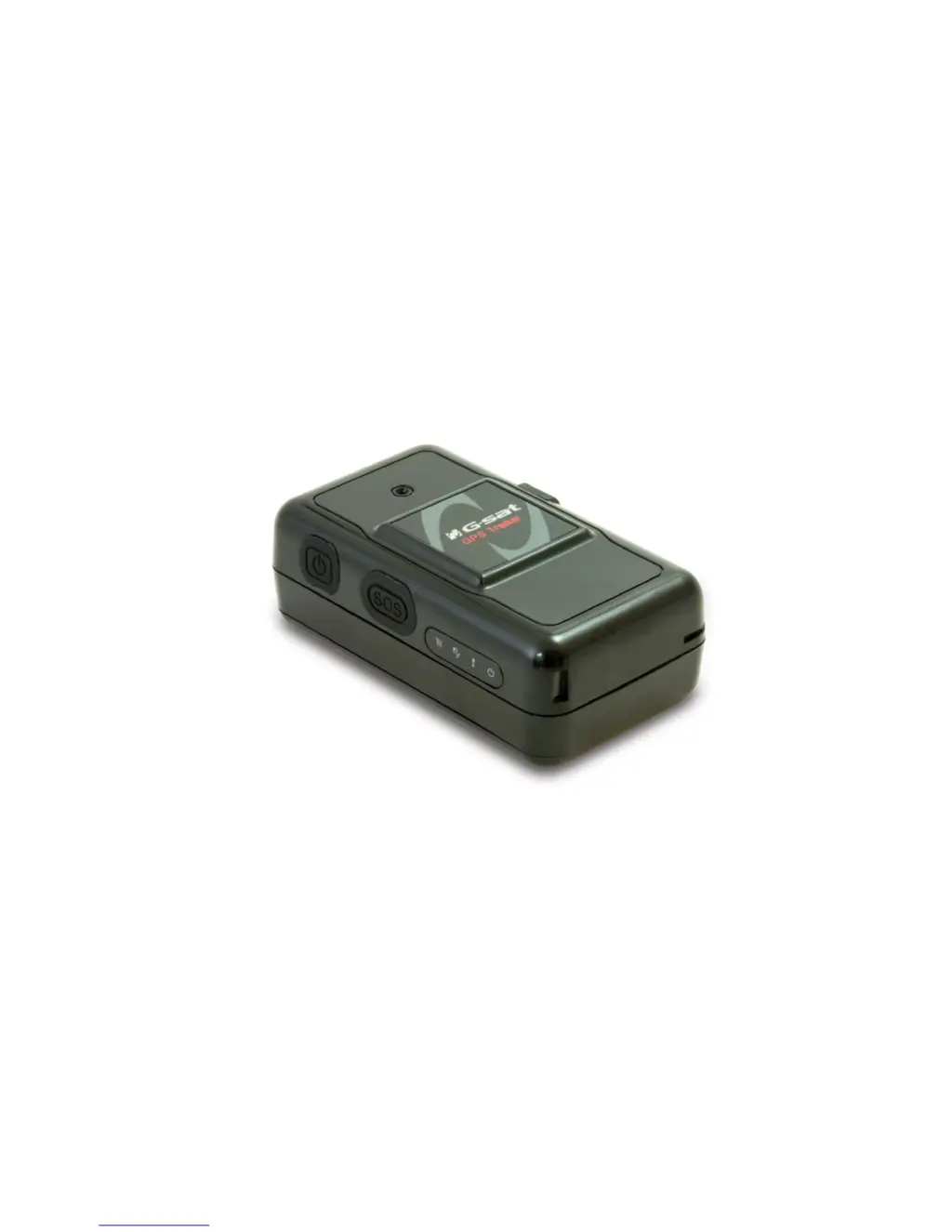
Globalsat TR-151 - User Manual

Globalsat TR-151
18 pages
Print Icon
To Next Page IconTo Next Page
Loading...
TR-151_user guide _v0 5_TraqLogic.Eng.doc
Page 1 of 18
TR-151 Vehicle/ Asset Tracker
User’s Manual
V0.5

Other manuals for Globalsat TR-151

Questions and Answers

  • K
    kenneth64Aug 8, 2025
    What to do if GlobalSat Adapter is running but Protocol Adapter SDK shows 'Client has been idle' message?
    • H
      huntpamelaAug 8, 2025
      If the GlobalSat Adapter device is running and reporting data to the server, but the Protocol Adapter SDK only shows 'Client has been idle, sending websocket ping...', it indicates the device can't connect to the Protocol Adapter SDK. Review the GlobalSat settings to match the configuration section, and ensure the GPRS server hostname is set to the public IP address of the computer/AWS server running the Protocol Adapter SDK. Click 'set to device' and wait for the 'setting message OK' message before closing the configuration tool.
  • B
    Brianna MorrisAug 13, 2025
    How to fix the issue when I cannot open the Setting menu in the GlobalSat Adapter Configuration Tool?
    • K
      Katrina JonesAug 13, 2025
      If the GlobalSat Configuration tool can't open the Setting menu, make sure the device has the newest firmware version. Also, check that you're using the latest version of the configuration tool (v1.8 or later). Ensure DIP switch no. 3 on the device is in the ON position and that the device battery is disconnected. If problems persist, close the configuration tool, disconnect and reconnect the USB cable, and then reopen the tool.
  • S
    Sarah GriffinAug 23, 2025
    How to resolve 'unable to open/connect to a COM port' in GlobalSat Adapter Configuration tool?
    • A
      Anthony PerezAug 23, 2025
      If the GlobalSat Configuration tool is unable to open or connect to a COM port, check if DIP switch no. 3 of the device is in the ON position and that the device battery is not connected. Close the configuration tool, remove and re-insert the USB cable into the device and your computer, then re-open the tool. Ensure that you get a solid red light on the device; if not, repeat the previous steps. Also, confirm that your computer has the correct COM port drivers installed. If not, open Device Manager and manually add a COM/LPT port device driver.
  • G
    George BoydAug 28, 2025
    What to do if settings will not update/write to the GlobalSat Adapter Device?
    • J
      joanna20Aug 28, 2025
      If settings are not updating or writing to the GlobalSat Adapter Device, ensure that the device is running the latest firmware. DIP switch 3 should be ON while making setting changes via the configuration tool and then turned OFF after setting the device. Also, make sure to click the 'set to device' button and wait until all the settings are loaded.
  • S
    scottperkinsSep 2, 2025
    Why Protocol Adapter SDK for GlobalSat Adapter gives 'Connection authentication/registration FAILED' error?
    • C
      Crystal WilsonSep 2, 2025
      If the Protocol Adapter SDK is giving the error 'Refilling connections on [endpoint 0, uri: ws://localhost:80/Thingworx/WS] failed : Connection authentication/registration FAILED', ensure that the config.json file has the correct port number, server address, and Application key for the Thingworx application. Also, make sure that Tomcat and ThingWorx are running at the specified port. Verify that the specified port is open and that your URL is correct; try connecting with SSL disabled.
  • K
    karen33Nov 17, 2025
    Why Protocol Adapter SDK for GlobalSat Adapter accepts connection but the message doesn't start with '$' or '?'?
    • A
      Angela GallagherNov 17, 2025
      If the Protocol Adapter SDK accepts the connection but the info message from the Protocol Adapter does not begin with a long string starting with '$' or '?', it could be due to the GPS not being fixed on the device. Connect the GlobalSat Adapter device to your computer via USB and open the COM Port using a terminal application like PuTTY. Restart the device and allow a minute for it to connect to the network service of your SIM card. Check the messages on the COM Port for a string similar to '$355632004245866,1,1,040202,093633,E12129.2252,N2459.8891,001 61,0.0100,147,07,2.4!'. If GPS is still not fixed, restart the device. Ensure the SIM card supports GSM and can send SMS & GPRS messages. Also, check the GlobalSat settings; the report mode should be set to 'GPRS Period report : Mode 9', an...

Summary

TR-151 Vehicle;Asset Tracker: Safety Warnings

Welcome to the TR-151 Tracker

TR-151 Introduction and Features

TR-151 Overview and Capabilities

Details the TR-151 as a durable, water-resistant GPS/GSM/GPRS tracker with SMS communication.

Understanding TR-151 LED Indicators

Explains the status and meaning of various LED indicators for GSM, GPS, status, and power.

Operating the TR-151 Tracker

TR-151 Device Charging Guide

Instructions for charging the TR-151 device using AC adapter or USB cable for optimal battery life.

Installing SIM Card and Battery: Initial Steps

Steps to unscrew the device and remove the back cover for SIM card and battery installation.

TR-151 SIM Card Insertion and DIP Switch Setup

Guide to inserting the SIM card and setting DIP switch positions for proper device function.

Connecting and Placing the TR-151 Battery

Instructions for connecting the battery connector and placing the battery into the device compartment.

TR-151 Power On;Off Procedure

How to turn the TR-151 device ON and OFF using the power button and observing LED status.

Using the TR-151 Emergency Button

Procedure for using the emergency button to send an SOS SMS after receiving a GPS fix.

TR-151 Safety Information

TR-151 Limited Warranty Terms

TR-151 FCC Compliance Notices

Globalsat TR-151 Specifications

General IconGeneral
Weight60 g
BatteryLi-ion rechargeable battery
GPS Accuracy2.5m CEP
Data LoggingYes
ChipsetSiRF Star III
Channels20
FrequencyL1, 1575.42 MHz
Update rate1 Hz
Acquisition timeHot start: 1 sec, Warm start: 38 sec, Cold start: 42 sec
InterfaceUSB
ProtocolNMEA 0183
Tracking Sensitivity-159 dBm
Operating Temperature-20°C to +60°C
Storage Temperature-30°C to +70°C
Power5V DC
Baud Rate4800 bps

Related product manuals