Traffic information is delivered to the
vehicle by the XM Radio satellites.
XM NavTraffic provides continuously
updated traffic information.
XM NavTraffic currently broadcasts
the traffic information for many
markets nationally. The service may
be available in more cities in the
future. Visit www.xmnavtraffic.com
for more details on local coverage.
To turn XM NavTraffic on or off:
1. Press the CONFIG hard key,
continue pressing the CONFIG
key until Nav is selected or press
the Nav screen button.
2. Touch the Traffic Information
button.
3. Select the Traffic button. This
button highlights and a check
mark displays when active.
Selecting Alert for Approaching
Traffic Events displays a screen
to notify of possible traffic events
ahead.
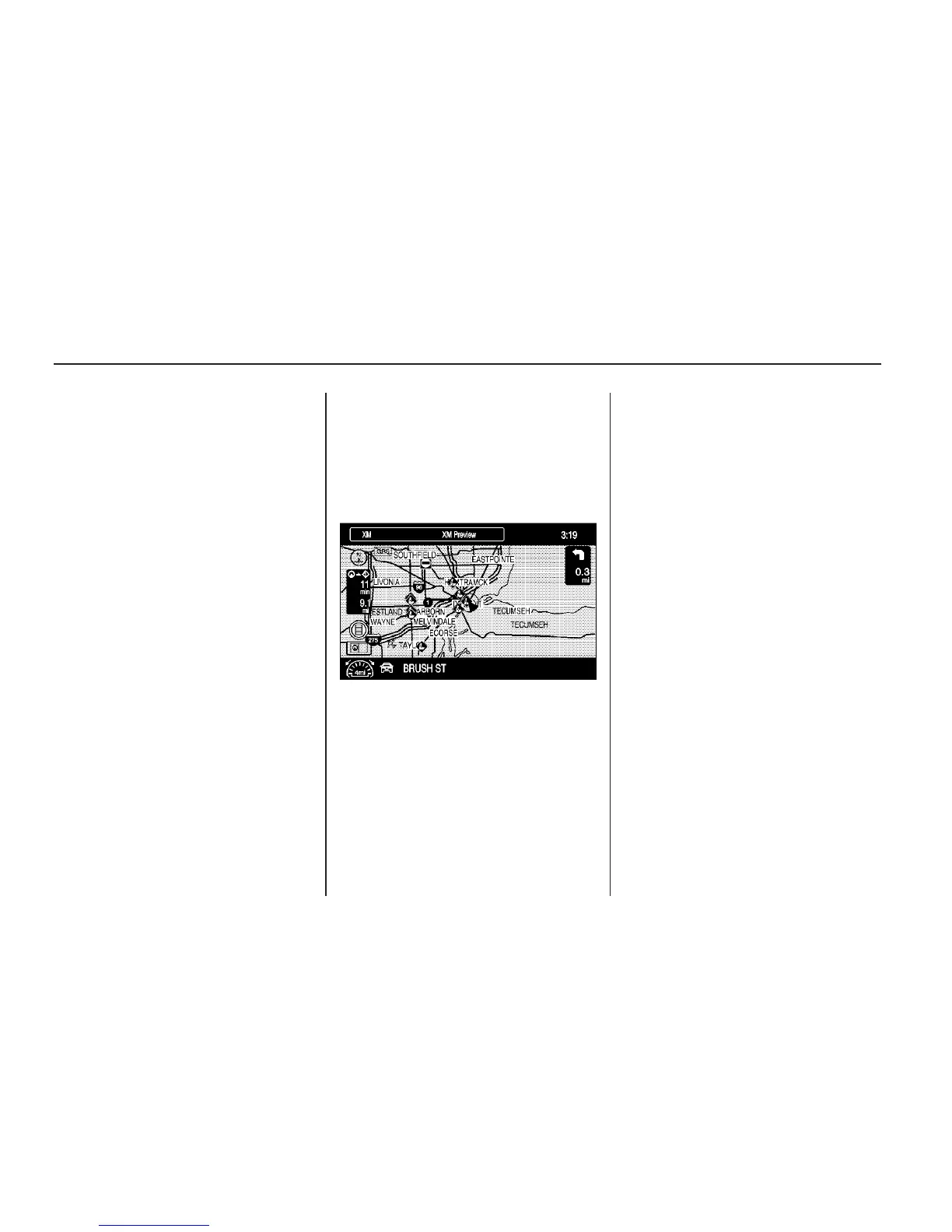
Traffic Icon
When traffic conditions are found
in the local area, the Traffic
Icon appears in the lower left-side
of the map.
The Traffic Icon has three different
condition displays. These are:
• No icon displays if there is no
XM NavTraffic™ subscription
or traffic events.
• A single car icon displays if there
are traffic events in the area, but
none are on route.
• A multiple car icon displays if
there are traffic events on the
route.
It could take some time to sort the
received information. The list of
traffic conditions display in the order
of distance from the vehicle, for up
to approximately 125 km (75 mi).
With a route planned, traffic events
display on the route. Not all traffic
conditions may display.
66 Infotainment System


 To Next Page