To view the traffic condition location
and information on the map:
1. Press the NAV key to show the
map, then press the SELECT
hard key for the map menu.
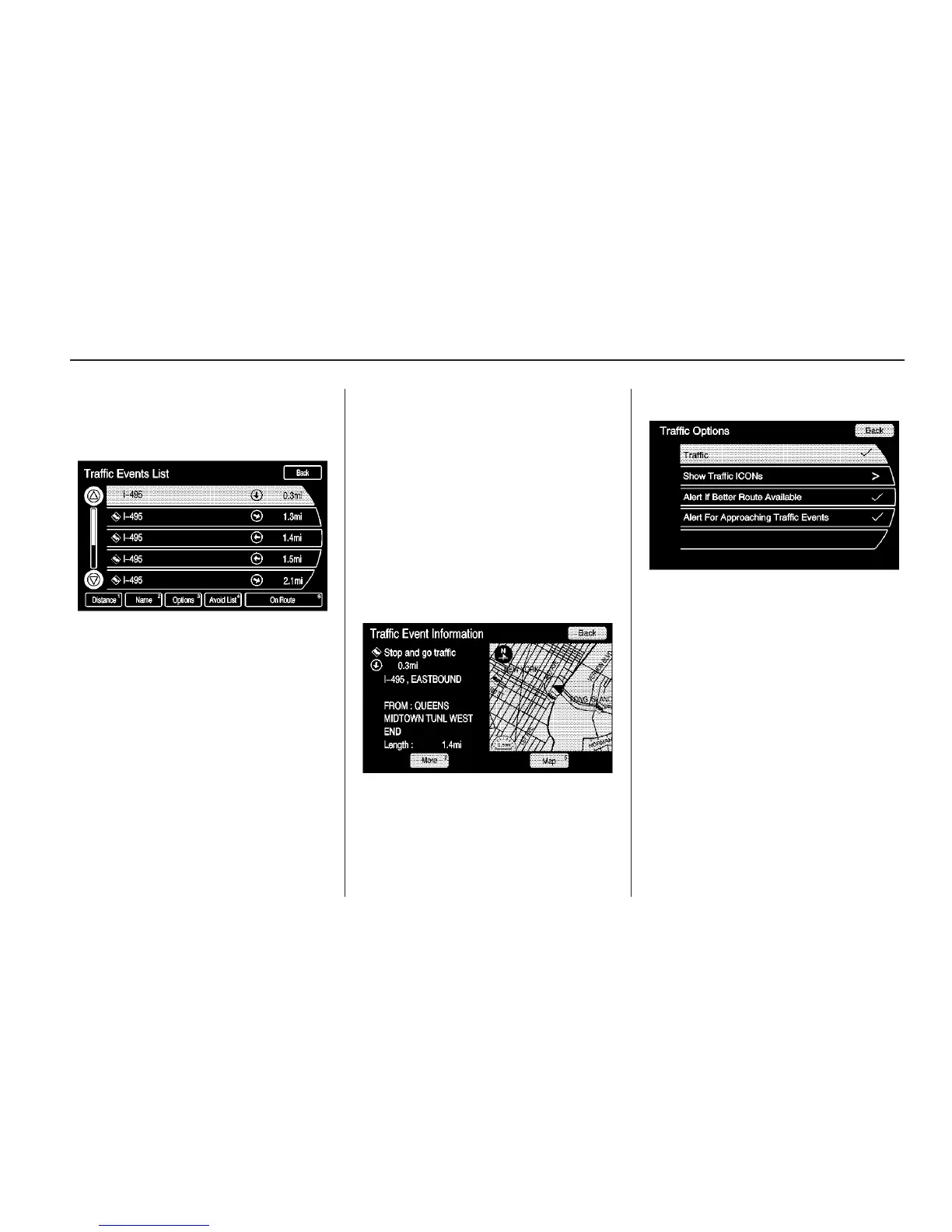
2. Scroll down and select the Traffic
screen button. A list of traffic
conditions with distance from
the vehicle’s current position
displays.
An arrow can appear before the
distance. The arrow indicates the
distance is a straight line distance
and the direction of the event
from the vehicle’s current
position. If no arrow appears, the
distance indicates how far the
event is ahead on current route.
No more than three pages of
traffic events may be viewed
while the vehicle is moving.
3. Select a traffic condition to get
more detailed information.
Select the Options screen button.
A Traffic Options menu displays.
Select the traffic related option.
Traffic: Select to enable or disable
the traffic function.
Infotainment System 67


 To Next Page