16
Playing Audio Files
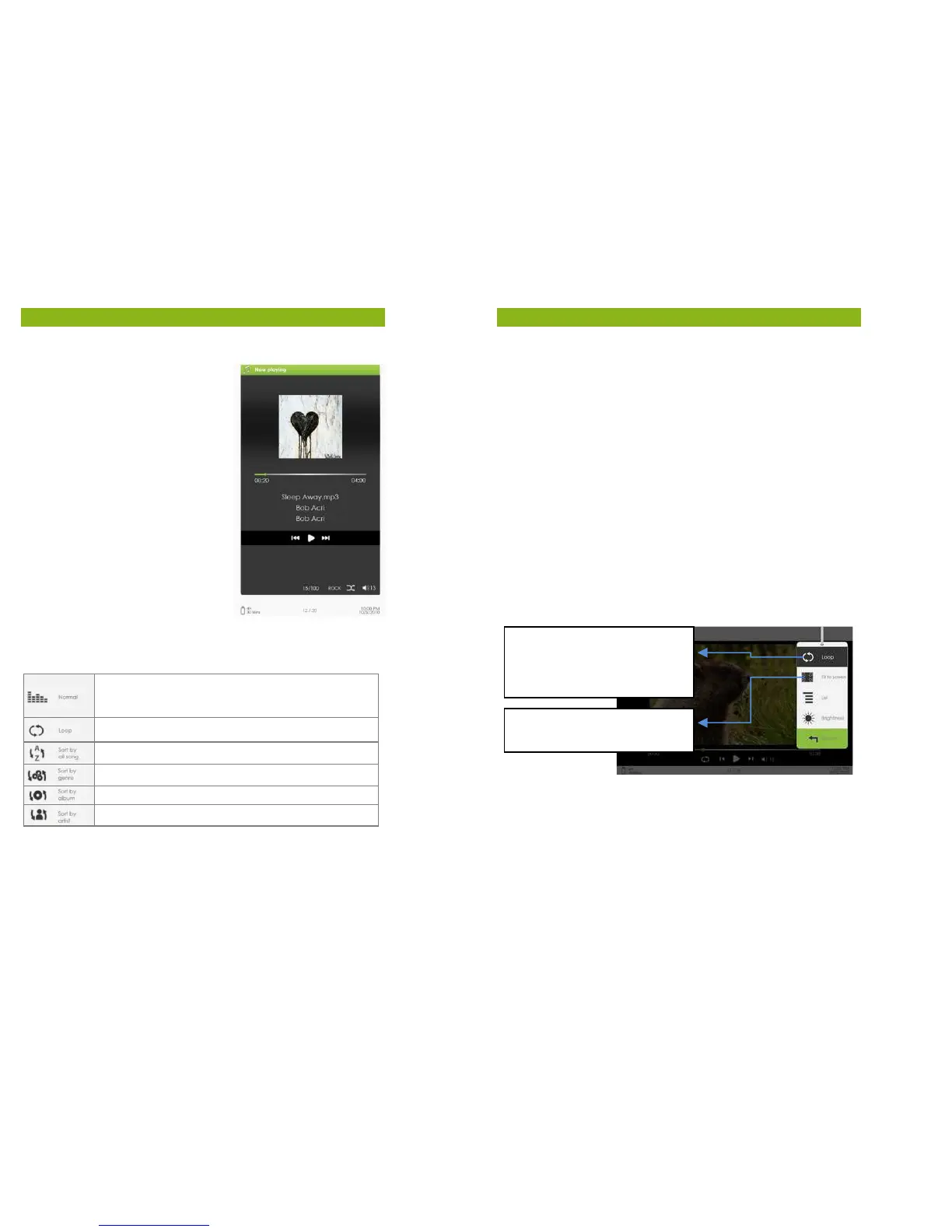
Music Player
• From the Home Menu, press
<Menu> to display the Option
Menu.
• Move the cursor to [Music] and
press <OK> to confirm.
• In the Music player, press <OK>
to play/pause music playing.
• Press <Directional Right> to play
the next song, or press and hold
to Fast Forward button.
• Press <Directional Left> to play
the previous song, or press and
hold to Rewind.
• Press <Directional Up> to
increase the volume.
• Press <Directional Down> to
decrease the volume.
Using the Option Menu in Music Player
EQ settings – move the cursor to [EQ Settings], press
the [Left] or [Right] button to select the desired EQ
mode.
move the cursor to [Play Mode], press the
[Left] or [Right] button to select the desired Play mode.
To view all stored audio files.
To sort audio files by genre
To sort audio files by album.
To sort audio files by artist.
17
Playing Video Files
Video Player
•
From the Home Menu, open the Option menu and select
and enter the video library.
• In video library, move the cursor to your desired video file and
press <OK> to start playing.
• During video playback, the button functionality is as indicated
below:
Increase/Decrease Volume Press <Directional-Left/Right> button
Next Video / Fast Forward
Using the Option Menu During Video Playback
During video playback, press the <Menu> button to display the
Option Menu.
To Display Subtitles during Video Playback
• The eReader supports subtitles of sub, ssa, srt, and lrc format.
• The file name of the subtitles must be identical to that of the
video file. The subtitles will be loaded automatically during
video playback.
Press the <Left>/<Right> button
to switch between [Loop] &
: to play all video files
: repeat the current video
[Full Screen] or [Fit to screen


 To Next Page