10
Reading eBooks
Opening an eBook
• eBooks transferred to eReader will be listed in the Home
Menu.
• The eReader supports eBooks in EPUB, PDF, and TXT formats.
• Use the <Directional> buttons to move the cursor to select a
eBook and press <OK> to open.
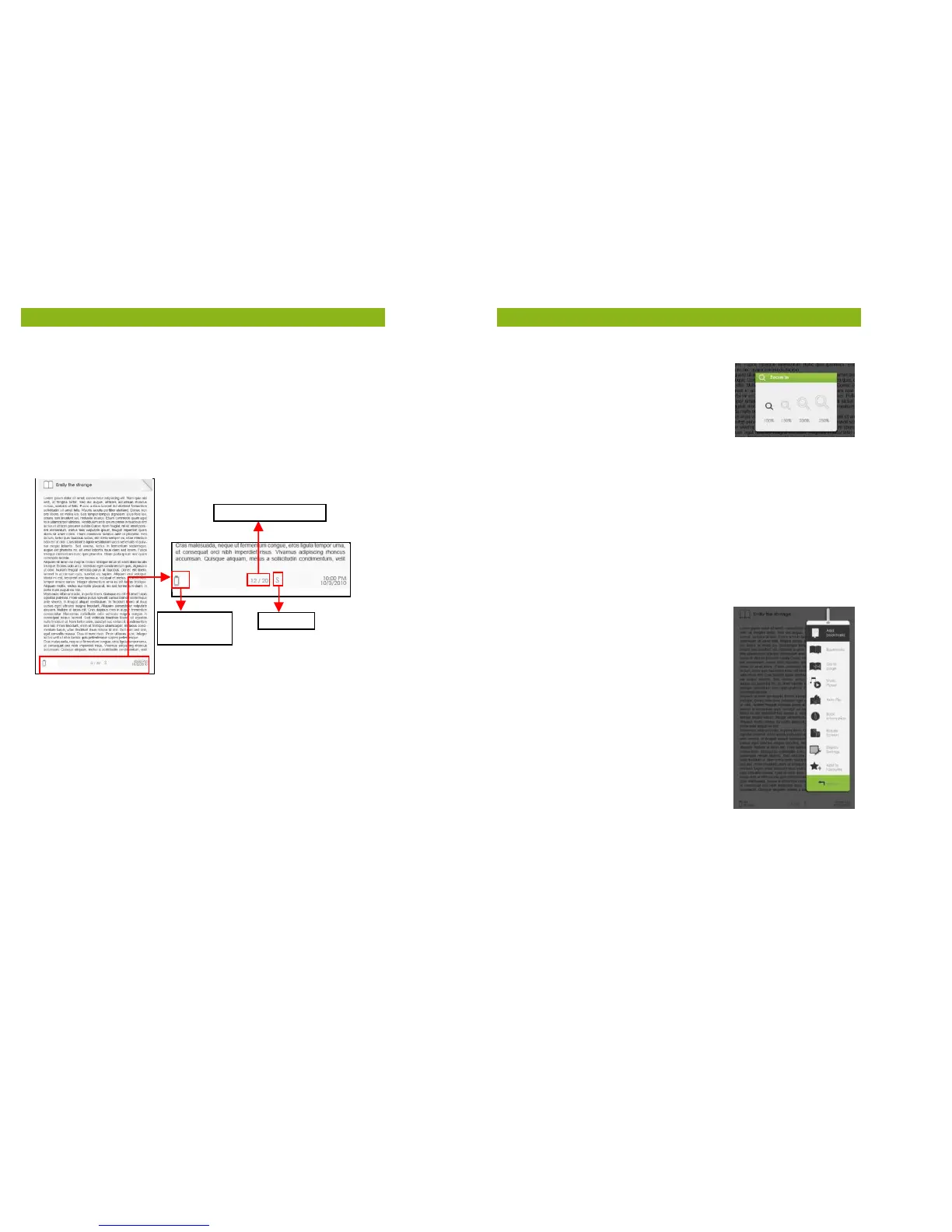
eBook Page Interface
Turning eBook pages
• When reading a page, press <Next Page> or the <Directional-
Right> button to turn to the next page. To turn to the previous
page, press <Previous Page> or the <Directional-Left> button.
Adjusting the Font Size
• When reading a page, press the <Zoom> button to enter the
font size menu.
• There are 5 font sizes available:
Small, Medium, Large, XLarge and XXLarge.
• Move the cursor to the desired font size
then press <OK> to confirm.
• It may take some time for the fonts to be resized.
Current Page / Total Page
11
Reading eBooks
Zooming In/Out
• You will need to use the zooming
function to enlarge images available
in the eBook (EPUB & PDF file).
• From the size menu, select [Enlarge].
• The zoom menu will appear.
• Move the cursor to the desired zoom level and press <OK>.
• In zoom mode, use the <Directional> buttons to pan across the
zoomed page.
• Page turning is disabled in zoom mode.
• Press <Return> to exit zoom mode, return to the original size
and resume normal eBook reading functions.
Using the Option Menu when Reading
When reading a page, press the <Menu> button to enter the
Option Menu.
Available options:
1. Add / Delete Bookmark
2. Bookmarks
3. Go to Page
4. Music
5. Auto flip
6. eBook Information
7. Rotate
8. Display Settings
9. Add to Favourite
Adding a Bookmark
When reading, turn to the desired page that you would like to
bookmark. Press the <Menu> button, move the cursor to [Add
Bookmark] and then press <OK>.


 To Next Page