12
Reading eBooks
Deleting a Bookmark
• Turn to the bookmarked page that needs to be deleted. Press
<Menu> and move the cursor to <Delete Bookmark>. Press
<OK> to confirm.
• Alternatively, you can delete the bookmark from the Bookmark
List.
• In the Bookmark list, press <Menu> and select [Delete] to
delete the selected bookmark.
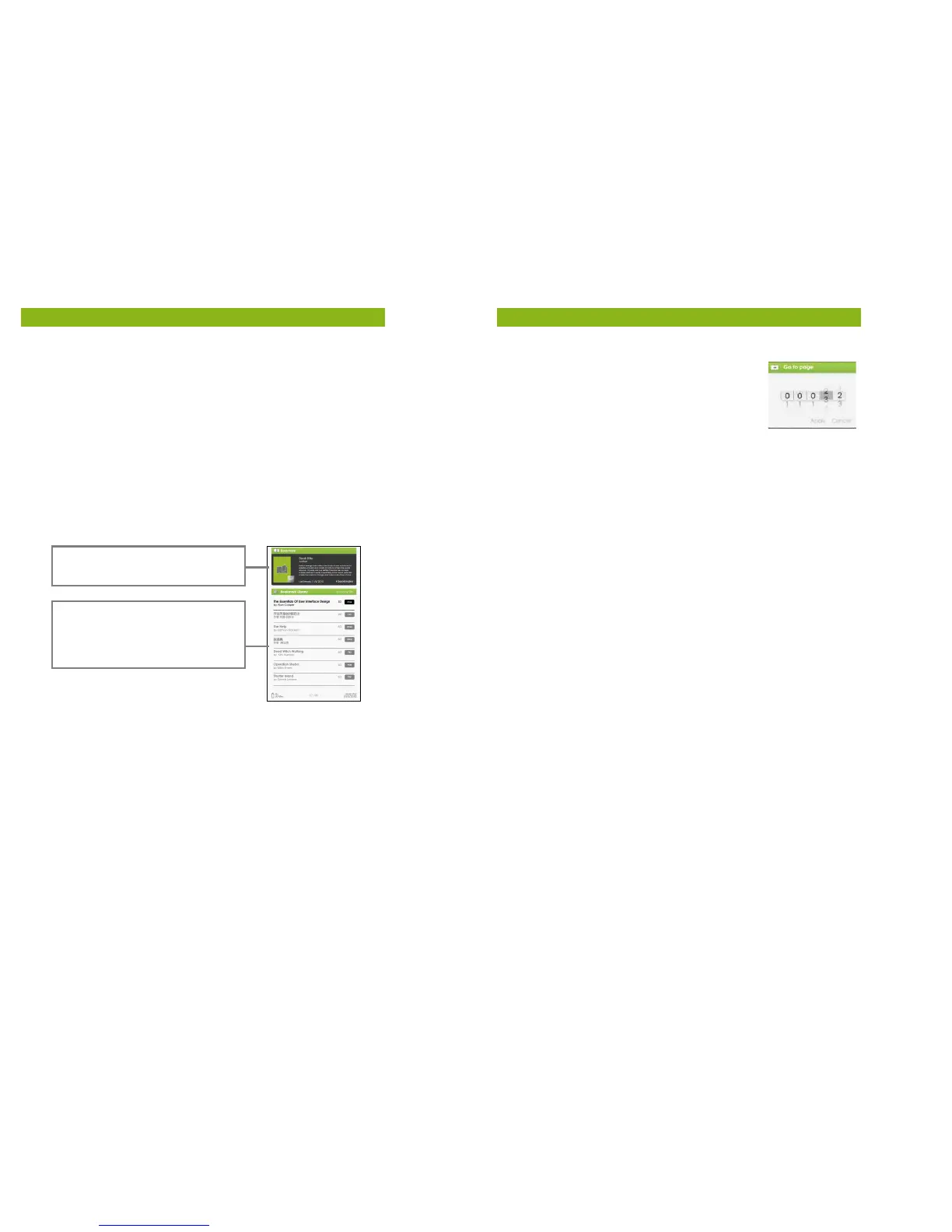
Read from Bookmarks in Home Menu
• From the Home Menu, press <Menu> and select [Bookmarks]
to enter Bookmark List.
• In the Bookmark List, move the cursor to the desired
bookmark; press <OK> to open.
• To delete the bookmark from the Bookmark List, press <Menu>
to display the [Option Menu] and select [Delete] to confirm.
Read from Bookmarks in Current eBook
• When reading a page, press <Menu> and select [Bookmarks] to
enter into the Bookmark List.
• In Bookmark List, move the cursor to the desired page and
press <OK> to open.
• To delete the bookmark from the Bookmark List, Press <Menu>
to display the Option Menu and select [Delete] to confirm.
preview of the selected eBook.
13
Reading eBooks
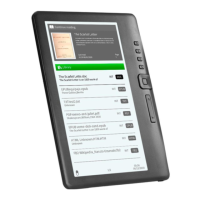
Go to Page
You can skip to pages using the [Go to Page]
option.
• In the Option Menu, select [Go to Page].
• Once in the Go to Page menu, move the
cursor using the <Directional-Left/Right> button.
• Input the desired page number using the <Directional –
Up/Down> button.
• Move the cursor to [Apply] then press <OK> to apply settings.
Auto Flip
You can set the eReader to [Auto Flip] mode to automatically turn
the page. The auto flip durations available are: 10s, 20s, 30s, 40s,
50s, 1 min.
eBook Information
You can check the information of the current eBook from the
[eBook Information] option. This will show:
• Title
• Author
• Publisher
• File Type
• Date added
• File size
• Expiration
Depending on the source of the eBook that you have
downloaded/purchased, some of the information may not be
available.


 To Next Page