14
Reading eBooks
Rotate
The [Rotate] option allows you to rotate the display orientation
90
o
in a clockwise direction to a landscape orientation. To return
to the original orientation, press <Menu> and enter <Rotate>
once again.
For models fitted with G sensor, simply rotate the eReader in a
clock wise direction to rotate the viewing orientation.
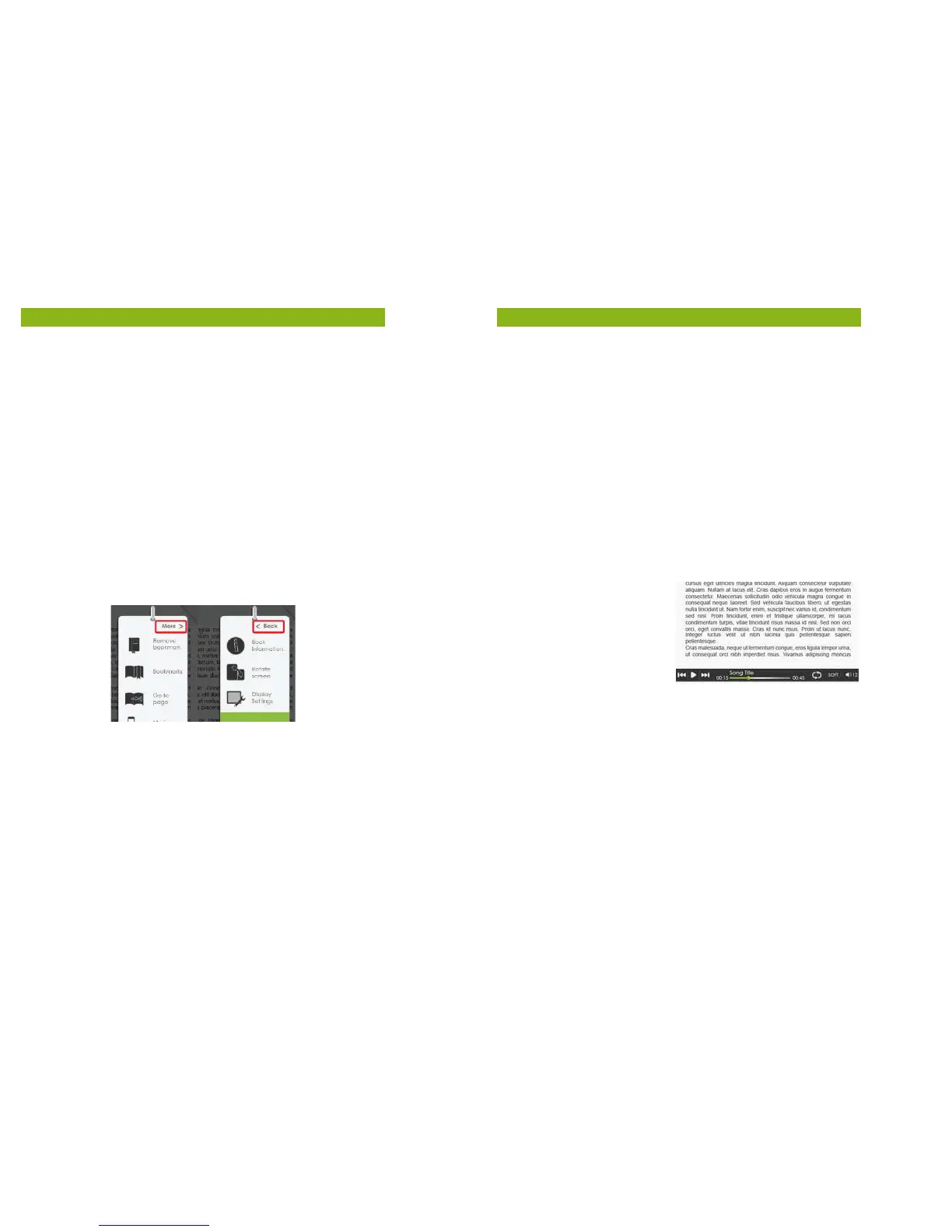
• In landscape view, the Option Menu is divided into 2 pages. To
access options in the second page, move the cursor to the
[More>] icon in the top right corner of the Option Menu and
then enter.
• To return to the previous page, move the cursor to [< Back]
and then enter.
Display Settings
• To adjust the font colour, background colour, or brightness
during reading.
• Changing of font colour and background colour are only
applicable to TXT and EPUB documents.
15
Reading eBooks
Add to Favourite
• You can add eBooks to your Favourite List. In the Option menu,
move the cursor to [Add to Favourite] to add current eBook to
your Favourite List.
• To view eBooks in your Favourite List, from Home Menu, press
<Menu> button and select [Favourite].
• To remove a eBook from Favourites:
1. Enter your Favourite List from Home menu. Move the cursor
to the desired eBook title. Press the <Menu> button and
select [Delete] from the dropdown list.
2. From reading page, press the <Menu> button and select
[Remove from Favourite] from the Option Menu.
Background Music Playback while reading a eBook
• The eReader supports
background music playing
when reading eBooks or
viewing photos.
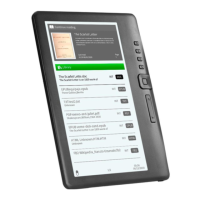
• To control music playback
while reading a eBook,
press the <Music> button
and a mini music player control bar will appear at the bottom
of the page.
• Press the music control buttons to control music playback.
• To return to the eBook page, press the <Return> button and
resume normal eBook reading controls.


 To Next Page