2
Getting Started
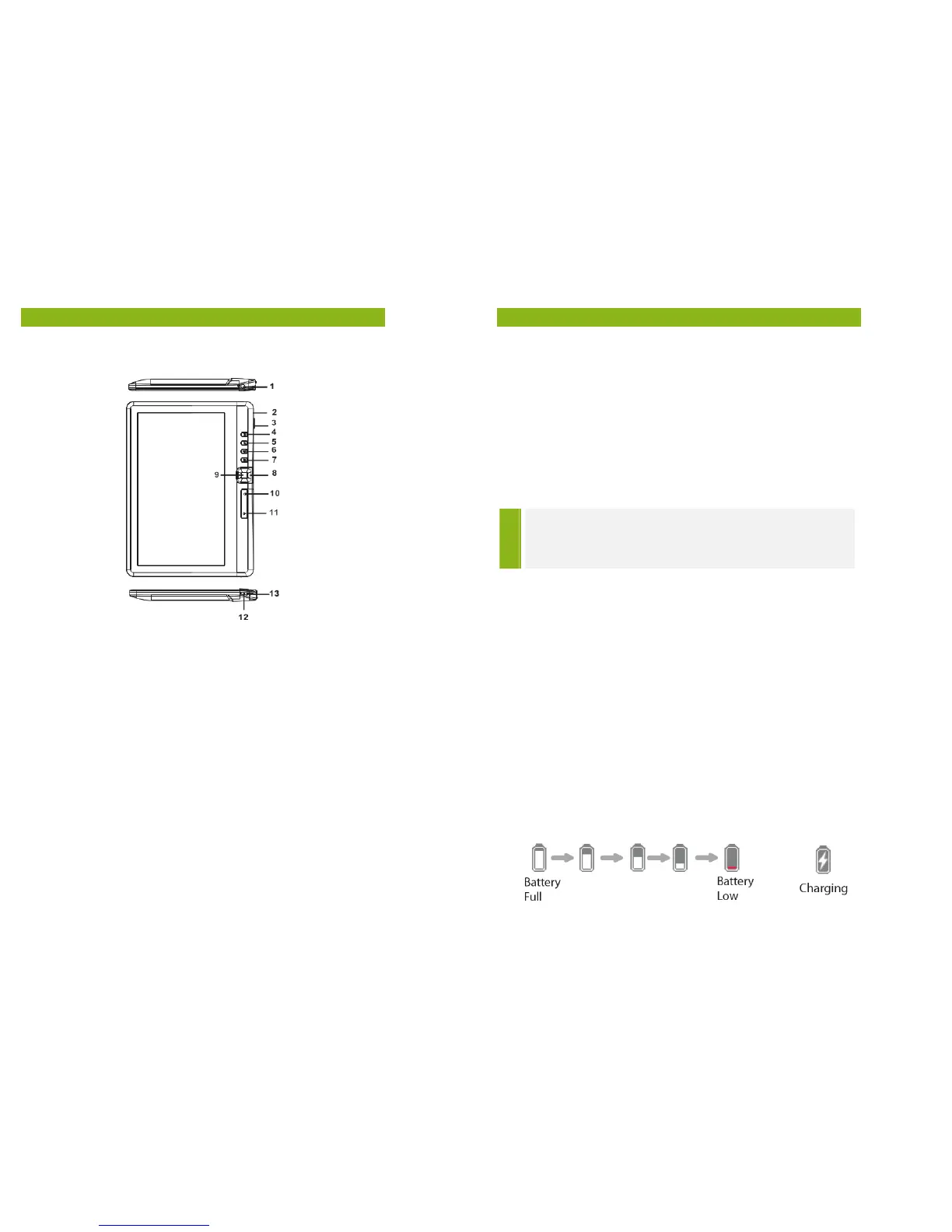
Parts and Controls
1. Audio jack
2. Mini USB port – for data transfer and emergency charging
3. microSD card slot – supports microSD card
4. Menu button – press to display Option Menu
5. Zoom button – press to adjust font size or to zoom in/out
6. Play/Pause button – to enter into music playing menu
7. Return button – press once to return to previous menu,
press and hold to return to Home menu
8. Directional buttons – to move cursor
9. OK/Enter button
10. Previous page button – press to turn to previous page
11. Next page button – press to turn to next page
12. Power button – press and hold for 3 seconds to turn on/off,
press and hold 6 seconds to reset
13. Charging indicator – when the reader is being charged, red
light is on, when fully charged, blue light is on.
3
Getting Started
Turning the eReader’s Power On and Off
• Press and hold the [Power] button for 2 seconds to turn the
eReader on.
• It may take a few moments for the eReader to turn on and load
its contents.
• If the eReader does not turn on, charging may be required.
• To turn the eReader off, press and hold the [Power] button for
2 seconds.
Charging the eReader
TIP
Please charge your eReader for a minimum of 6 hours
before you use it for the first time. See more info in
‘Battery Care Tips’ section on page 22.
• You need to charge the eReader prior to using it for the first
time or when battery power is low.
• Charge the eReader by connecting it to your computer using
the USB cable supplied.
• Please switch the eReader to standby mode to shorten the
charging process.
• It will take about 6 hours to fully charge the eReader in standby
mode (LCD off).
• When the USB cable is connected to the eReader for charging,
the eReader will automatically enter into standby mode after
remaining idle for 60 seconds. Press the [Power] button to
resume full functionality.
• The battery status is displayed in the bottom left corner. The
remaining battery playback time is displayed right next to the
battery icon.


 To Next Page