6
Getting Started
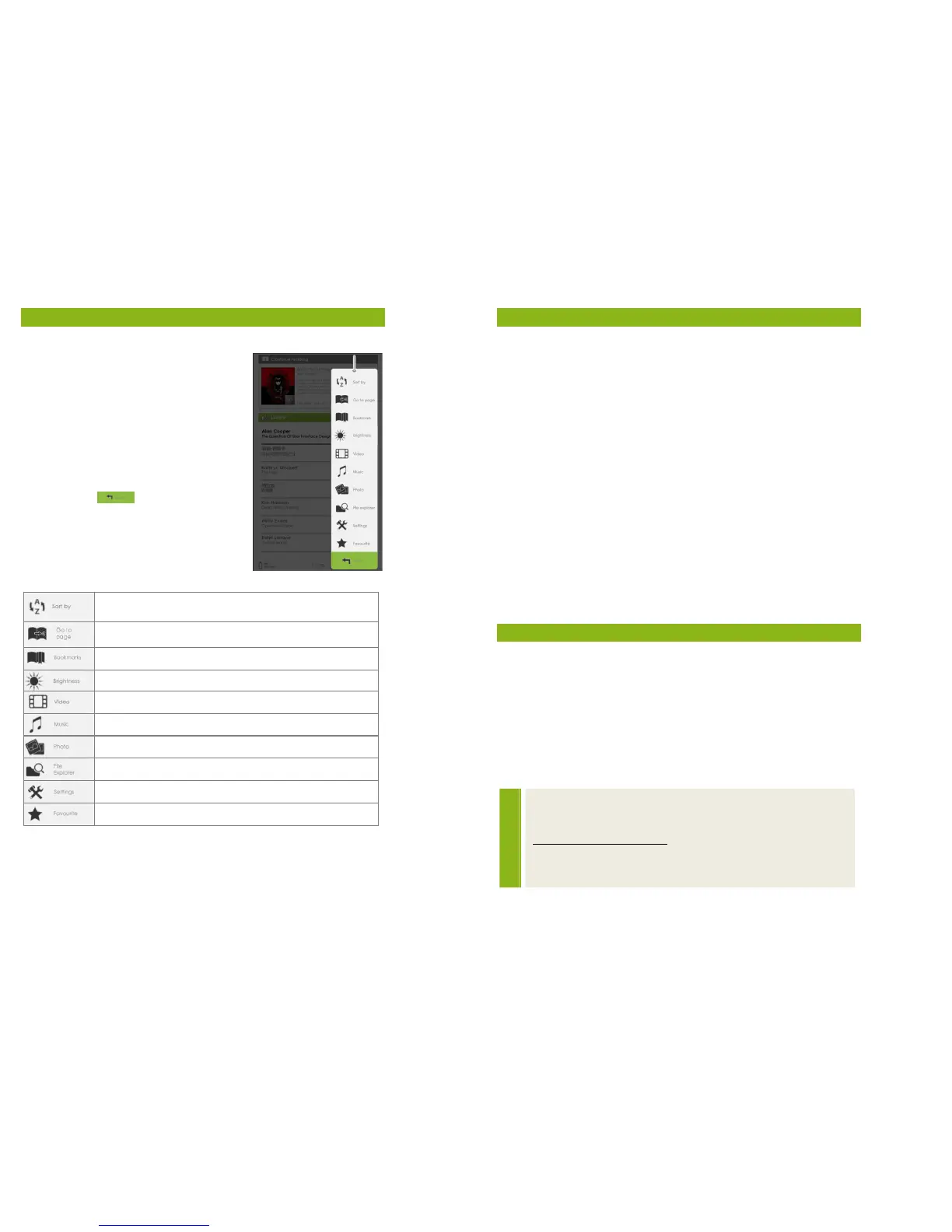
Entering the Option Menu
To access available functions, press the
[Menu] button to display the Option
Menu as illustrated.
Press the directional key to move the
cursor to the desired option. When
you select an option, it will be
highlighted. Press <OK> to enter.
To exit from the Option menu, move
the cursor to and press <OK> to
confirm.
Alternatively, press the <Return>
button to exit.
Open your favourite eBook list.
7
Importing Content
Importing General Content
• The eReader supports USB Mass Storage Device functionality.
• To import contents (eBooks, video, audio, photo etc.) into the
eReader, connect the eReader to your PC via the supplied USB
cable.
• Upon successful connection to your PC, the eReader will enter
USB mode and all operations will be halted.
• Go to [My Computer]; double click on the eReader’s disk to
open.
• Perform normal file management operation like with other
USB devices.
Importing Adobe DRM Protected Content
The eReader supports Adobe DRM protected content. Adobe
Digtial Editions is required to transfer content to the gobii
eReader.
Installing Adobe Digtial Editions
eBooks downloaded from the kalahari.com website are copy
protected using Adobe Digital Rights Management. To load
materials onto your gobii, you first need to download these items
onto your computer. We then use a program called Adobe Digital
Editions to help you organise your library, keep track of what
you’ve read, and decide which books you want to put onto your
gobii and which you’d prefer to keep on your computer.
TIP
View the Getting Started guide on the site:
www.kalahari.com/gobii to see how to install and use
Adobe Digital Editions with the gobii eReader.


 To Next Page