42 43
If you fi nd the auto focus assist beam does not light up, this is because the camera
has got a correct auto focus.
Note:
Auto Focus Assist Beam
In poorly-lit or low-contrast shooting environments, the built-in auto focus
assist beam will automatically light on to make it easier for auto focus. The
beam will light up only when auto focus is diffi cult and get out as soon as the
auto focus becomes correct.
If you want to turn off the auto focus assist beam, set the “AF” to “OFF” in
the C.Fn settings.
Position
Center
Periphery
Effective Range
0.6~10m / 2.0~32.8 feet
0.6~5m / 2.0~16.4 feet
By pointing the flash head toward a
wall or ceiling, the flash will bounce
off the surface before illuminating
the subject. This can soften shadows
behind the subject for a more
natural-looking shot. This is called
bounce flash.
To set the bounce direction, hold the
flash head and turn it to a satisfying
angle.
Bounce Flash
1. If the wall or ceiling is too far away, the bounced flash might be too weak and
result in underexposure.
2. The wall or ceiling should be a plain, white color for high reflectance. If the bounce
surface is not white, a color cast may appear in the picture.
Note
:
Low Battery Warning
If the battery power is low, < > will
appear and blink on the LCD panel.
Please replace the battery immediately.
ZOOM: Setting the Flash Coverage
The flash coverage can be set automatically or manually. It can be set to
match the lens focal length from 28mm to 105mm. In auto zoom mode,
the focal length changes in response to the camera's zoom lens to provide
optimal flash results.
In manual zoom mode, press the
<ZOOM> button.
Turn the select dial to change the
ash coverage.
If <
> is displayed, the ash
coverage will be set automatically.
If you set the flash coverage manually, make sure it covers the lens focal length so
that the picture will not have a dark periphery.
Note
:
TTL/M Mode Switch Function
1. Toggle the TTL/M mode toggle switch in non-wireless mode can switch
flash mode.
2. TCM switch function is workable by default when switched to M manual
mode from TTL mode.
The Reason & Solution of Not Triggering in Godox
2.4G Wireless
Disturbed by the 2.4G signal in outer environment (e.g. wireless base
station, 2.4G wifi router, Bluetooth, etc.)
→
To adjust the channel CH setting on the flash trigger (add 10+
channels) and use the channel which is not disturbed. Or turn off the other
2.4G equipment in working.
Please make sure that whether the flash has fi nished its recycle or
caught up with the continuous shooting speed or not (the flash ready
indicator is lightened) and the flash is not under the state of over-heat
protection or other abnormal situations.
→
Please downgrade the flash power output. If the flash is in TTL mode,
please try to change it to M mode (a pre-flash is needed in TTL mode).
Whether the distance between the flash trigger and the flash is too close
or not (
<
0.5m).
→
Please turn on the “close distance wireless mode”:
X1 Series: Press and hold the triggering button then turn on the device
until the indicator blinks twice.
Xpro and X2T Series: Set the C.Fn-DIST to 0-30m.
X3 Series: Set the trigger distance to 0-30m.
Whether the flash trigger and the receiver end equipment are in the low
battery states or not
→
Please replace the battery.
1.
2.
3.
4.
Sync Triggering
The sync cord jack is a Φ2.5mm plug. Insert a trigger plug here and the flash
will be fi red synchronously with the camera shutter.
Other Applications
Modeling Flash
If the camera has a depth-of-fi eld preview button, pressing it will fi re the flash
continuously for 1 second. This is called modeling flash. It enables you to see
the shadow effects on the subject and the lighting balance. You can fi re the
modeling flash during wireless or normal flash shooting.
To avoid overheating and deteriorating the flash head, do not fi re the modeling flash
for more than 10 consecutive times. If you fi re the modeling flash 10 consecutive
times, allow at least 10 minutes’ break for the camera flash.
Note
:
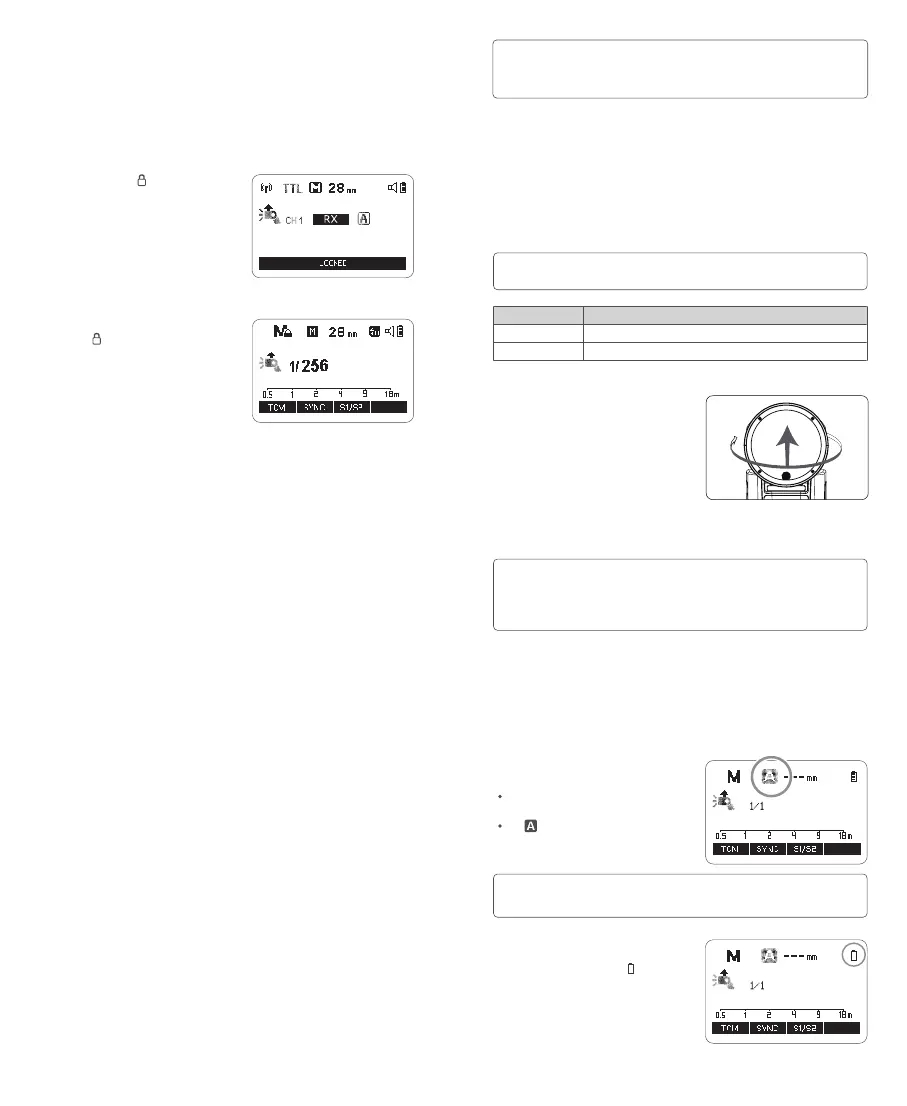
Screen Lock
Press and hold the < > button for 2s
can lock or unlock the screen, “LOCKED”
is displayed on the LCD panel when the
screen is locked.
Mode Lock
Press and hold the <MODE> button to
make the <
> is displayed on the panel,
the current flash mode (TTL/M/RPT
flash mode) is locked, press and hold
again to unlock, then the flash mode can
be switched by pressing the <MODE>
button.


 To Next Page