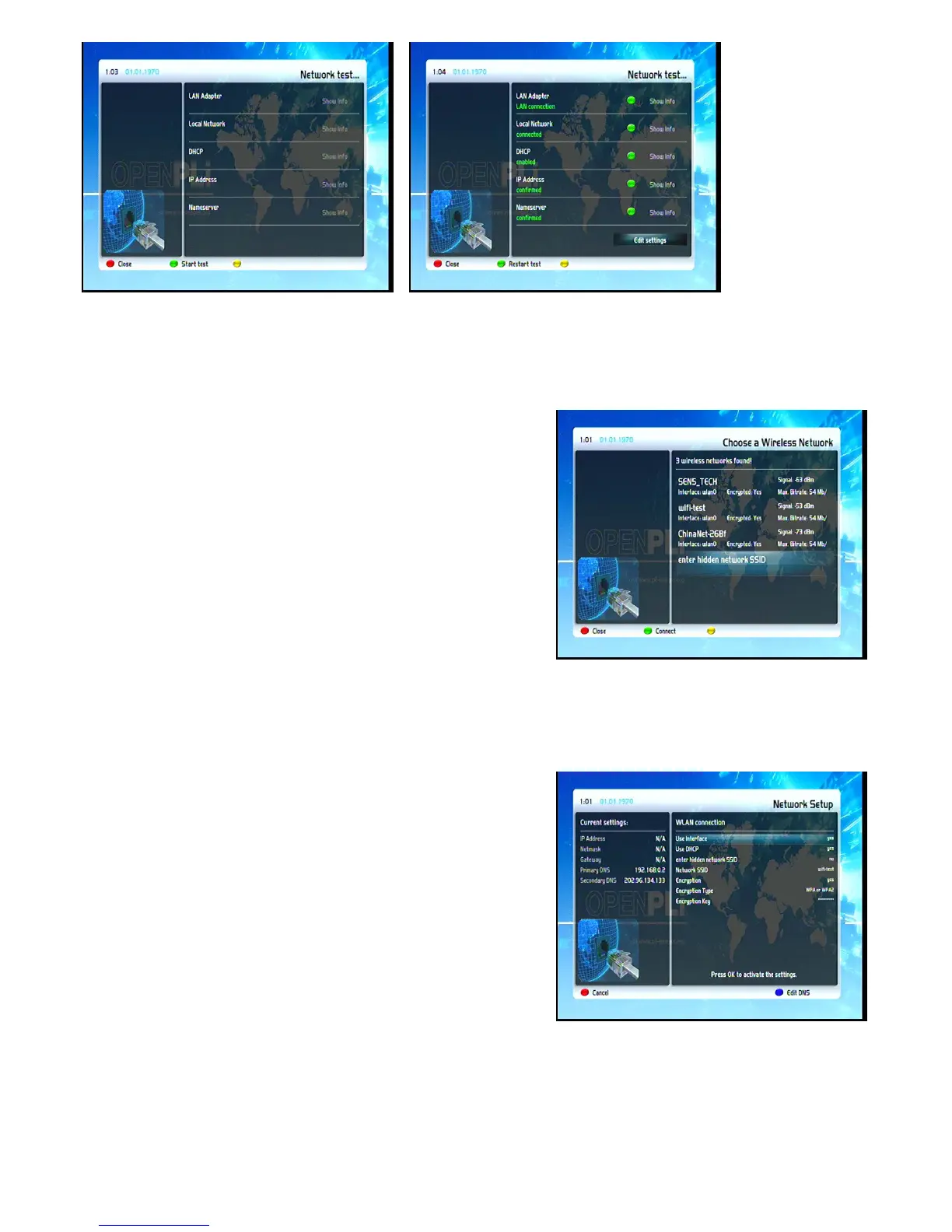
Restart network
Reboot the network configuration of your STB.
11.3.2 Integrated wireless (WLAN)
Select “Integrated Wireless“and press the OK-Button. You can
either use the “Scan wireless networks“option to look for any
existing wireless access points or manually enter all the required
settings.
Automatic
Select the “Scan wireless networks“option and press the
OK-Button. A window with all available networks will pop up.
Select the network that you wish to connect to and press the
green Options-Button. A window for the adapter settings will
open. Use the Navigation-Buttons and the Numeric-Keypad to
change the settings.
Manual
Select the “Adapter settings“option and press the OK-Button. A window for the adapter settings will open. Use
the Navigation-Buttons and the Numeric-Keypad to change the
settings.
27
Adapter settings
Use interface:
This option toggles the integrated Ethernet interface on and off.
Use DHCP:
If set to “yes“your STB will get its IP from a DHCP server. If you
are using a router to access the internet you usually have a
DHCP server. Disable this option to set a static IP address. In
this case you do not need to make any further changes. If set to “no“ you need to manually set an IP address.
Refer to chapter 11.3.1 to section “Manually setting an IP address“ for further information.


 To Next Page