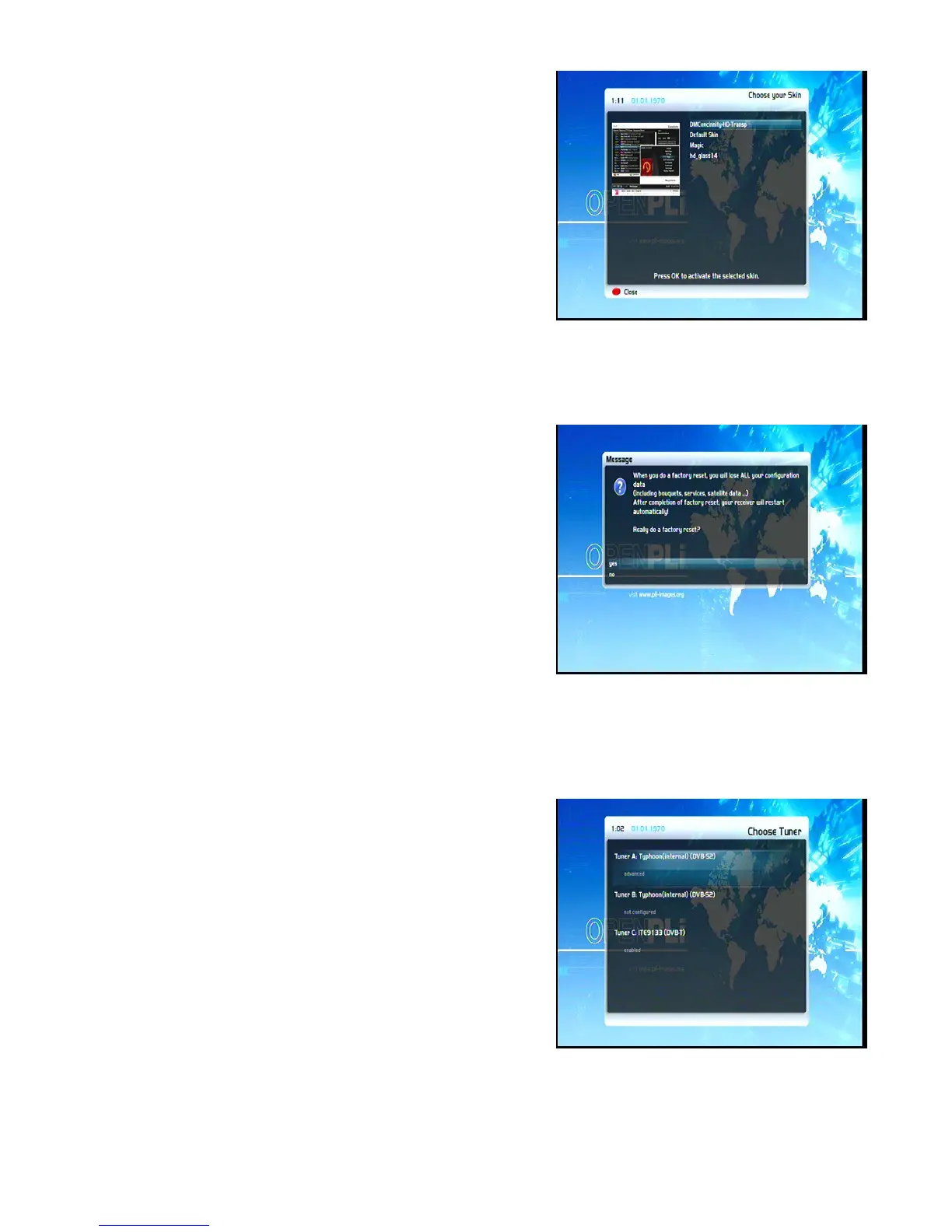
11.4 Skin
Selecting another skin will change the looks of your OSD
(On-Screen-Display).If no OSD menu is visible on your screen,
press the Menu-Button to open the main OSD menu. Navigate to
the option “Setup” and press the OK-Button to select.
1. Navigate to the option “System” and press the OK-Button. The
“System” menu will open up.
2. Navigate to the option “Skin” and press the OK-Button. The
“Skin” menu will open up.
To fully activate the skin the system needs to be restarted.
Use the Navigation-Buttons up/down to select your desired option and press the OK-Button.
11.5 Factory reset
Press the Menu-Button to open the main OSD menu. Navigate to
the option “Setup” and press the OK-Button to select.
Navigate to the option “Factory reset” and press the OK-Button.
You are asked if you really want to reset all you settings to the
factory defaults.
If you choose “yes“all you configuration data including bouquets,
satellite data, etc. will be lost.
Your STB will automatically reboot afterwards.
12. Service searching
12.1 DVB-S2 Tuner configuration
Press the Menu-Button to open the main OSD menu. Navigate to
the option “Setup” and press the OK-Button to select.
1. Navigate to the option “Service searching” and press the
OK-Button. The “Service searching” menu will open up.
2. Navigate to the option “Tuner configuration” and press the
OK-Button. The “Choose Tuner“ menu will open up.
Use the Navigation-Buttons up and down to select the DVB-S2 tuner and press the OK-Button.
28


 To Next Page