to open the main OSD menu. Navigate to the option “Setup” and press the OK-Button to select.
1. Navigate to the option “Service searching” and press the OK-Button. The “Service searching” menu will
open up.
2. Navigate to the option “Automatic scan” and press the OK-Button. The “Automatic scan” menu will open
up.
3. Use the Navigation-Buttons up and down to select the DVB-T Tuner and press the OK-Button.
Set the “Clear before scan” option to “Yes” if you want to delete all services before the scan starts.
The scan is done once you see this menu.It shows how many channels were found during the scan.Press the
OK-Button to close this menu.
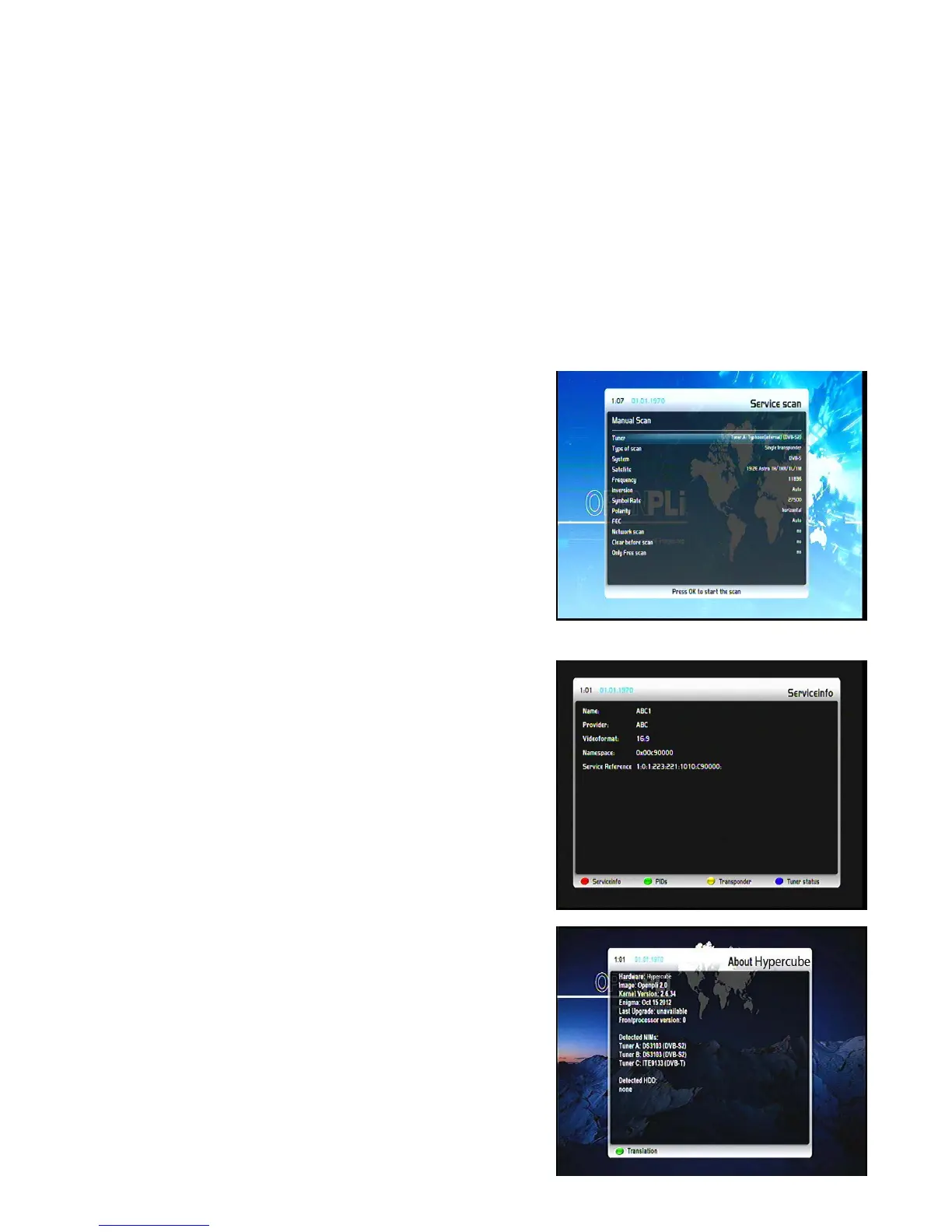
12.4 Manual scan
32
If no OSD menu is visible on your screen, press the Menu-Button
to open the main OSD menu. Navigate to the option “Setup” and
press the OK-Button to select.
1. Navigate to the option “Service searching” and press the
OK-Button. The “Service searching” menu will open up.
2. Navigate to the option “Manual scan” and press the
OK-Button.
Use the Navigation-Buttons left/right to select the tuner on which
you want to run the manual service scan. All other options can be changed by using the Navigation-Buttons
left/right and Press the OK-Button to start the manual scan.
13. System information
13.1 Service
If no OSD menu is visible on your screen, press the Menu-Button
to open the main OSD menu. Navigate to the option “Information”
and press the OK-Button to select.
Navigate to the option “Service” and press the OK Button.
13.2 About (Hard- and Software)
If no OSD menu is visible on your screen, press the Menu-Button
to open the main OSD menu. Navigate to the option “Information”
and press the OK-Button to select.
The “Information” menu will open up.Navigate to the option


 To Next Page