19
08
Deleting a recording
Use the p and q buttons to select a
programme you want to delete. Press
the RED button to delete.
DON’T FORGET! You should stop
the recording first before you can
delete it.
Locking a recording
You can lock a recording so that it can
only be accessed once the parental PIN
has been successfully entered. You may
want to do this to prevent children from
viewing unsuitable programmes.
Use the p and q buttons to select the
recording that you want to lock. Press
the YELLOW button. The lock code
window will appear.
Use the NUMBER buttons to enter
the parental PIN and then press the OK
button. The icon will be shown at the
right hand side of the Status column.
DON’T FORGET! The default
parental PIN is 0 0 0 0. If you have
forgotten your parental PIN, please
contact the call centre on 0871
230 1777 for assistance.
To unlock a recording, use the p and
q buttons to select the recording that
you want to unlock and then press the
YELLOW button. The lock code window
will appear again. Use the NUMBER
buttons to enter the parental PIN and
then press the OK button. The icon
will no longer be displayed.
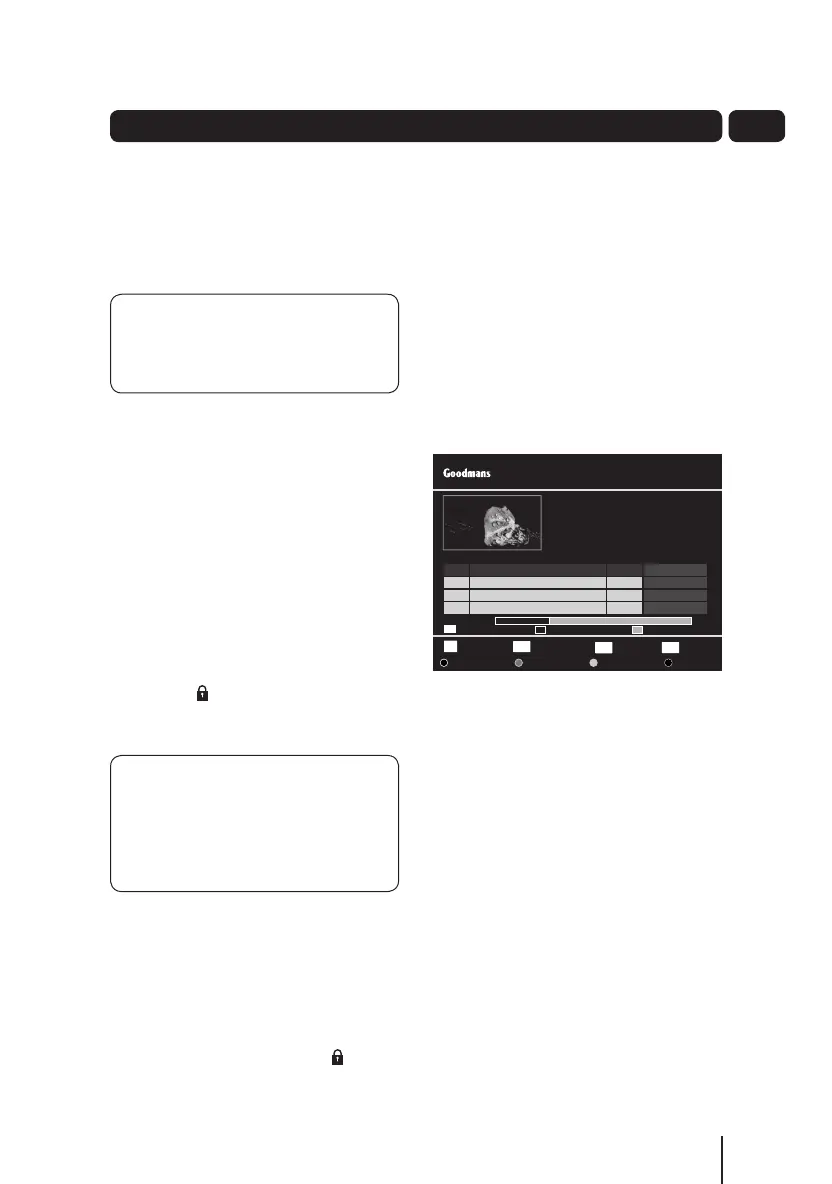
HDD information
The HDD information bar shows state of
the Hard Disk Drive (HDD).
The GREEN part is the amount of free
space.
The RED part is the amount used by
recordings.
The YELLOW part is the amount
of space reserved for scheduled
recordings.
The Library Window
Select P l a yOK
ReturnB A C K
Wed 08 Sep 16:52
Library
Delete
Rename
Lock Preview
Exit MenuEXIT
SI.No Record Event Name Date Status
New Tricks
BBC ONE
1/10 Dead Man Talking: UCOS reinvestigate the death of ...
Recorded at 21:00:00
Total Time 01:02:34
0001
0002
0003
0004
New Tricks
Countdown
BBC News
The One Show
07/09/10
07/09/10
06/09/10
02/09/10
Recorded
Recorded
Recorded
Recorded
HDD Information:
Reserved 0%
Used 32% F r e e 6 8 %
A5 GDB1232DTR_UserGuide.indd 19 3/25/2011 12:43:04 PM


 To Next Page