9
11
Launch the ROBO Master program,
and set the registration marks
1
Launch ROBO Master
Click the New button to display
the Document Settings window.
Select “ISO A4” for Document Size
and “Landscape” for Orientation, and
then click the [OK] button.
2
Set the Document Size
Click the Output Settings button
to display the Output Settings window.
Select the printer you use in the
Printer box, and make sure that
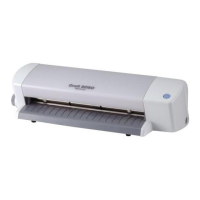
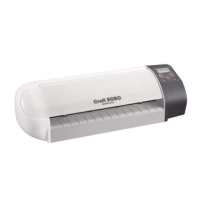
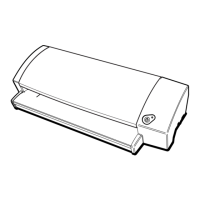
Graphtec Craft ROBO has been
specified in the Craft ROBO box.
3
Make the Print Settings
4
Check the registration marks
A registration mark (a positioning mark)
is a mark that is read by the Craft ROBO
sensor to enable a printout to be cut
precisely. Registration marks are printed
together with the data you create.
Before starting……
What is a registration mark?
Registration marks
(Positioning marks)
A4
Output Settings button
Select Craft ROBO
Click
Check
this checkbox
(Landscape)
Click to remove
the check mark
Landscape
New
Check the registration mark positions!
To Make a Name Label
Menu
Click the desktop icon to launch
[ROBO Master].
ROBO Master
shortcut icon
Registration mark
Media Trial Kit User Guide
2


 To Next Page
 Loading...