12
1.3 Using the Lock Screen
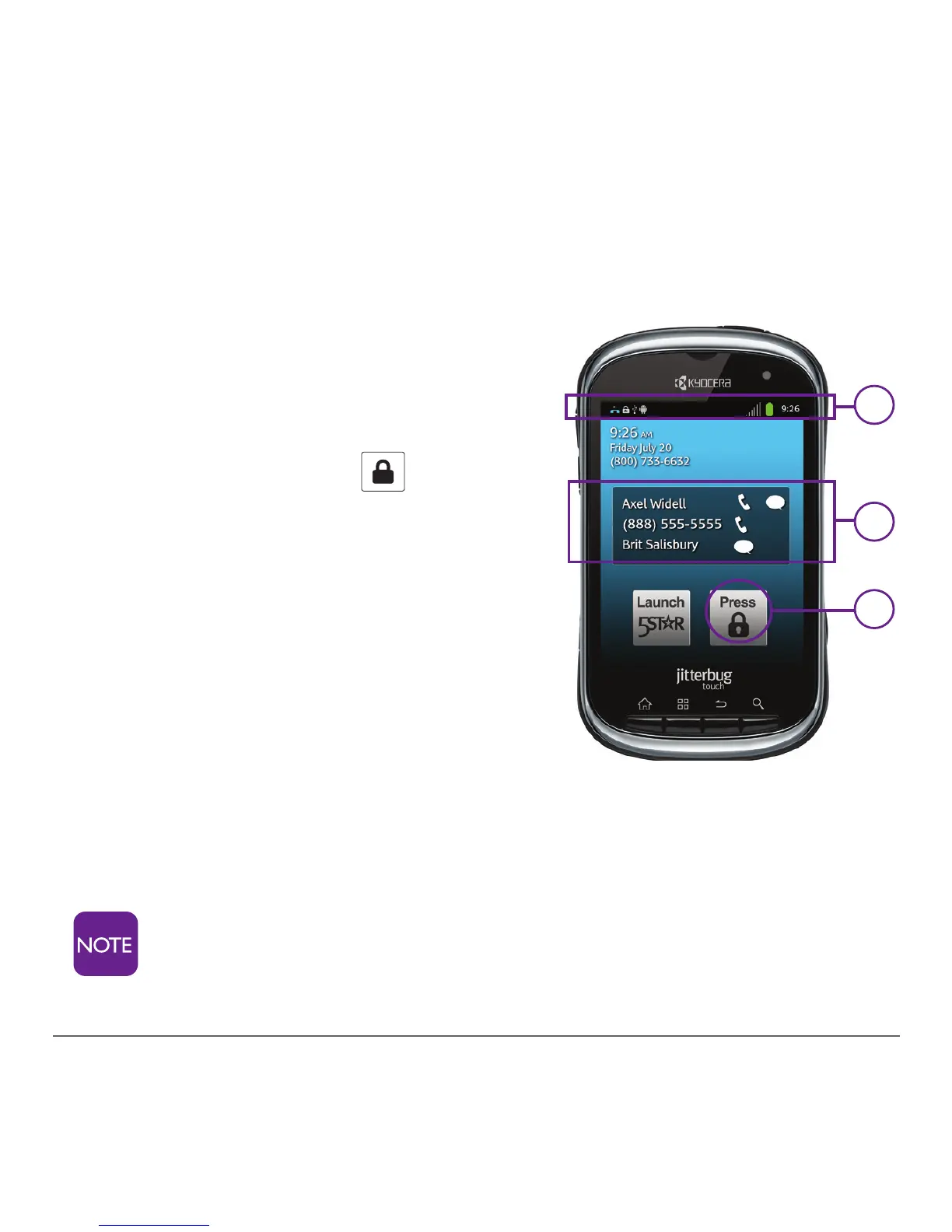
Your phone is equipped with a lock screen that appears when
your phone is not in use, and protects your phone from
accidental dialing.
1. The Unlock Function
– To unlock the screen, touch and
hold the lock icon
and drag
it up all in one motion.
2. The Events Window
– The Events Window shows your
missed messages and calls.
– To access these events, you will
need to unlock the screen.
3. To see General Notications
– After you unlock the screen, tap and hold the top of the
screenanddragitdown.Alistofnoticationsandother
items will appear.
After several minutes of non-use, your phone will “sleep”
to save battery power. To wake your phone, simply
press the power button once.
3
2
1


 To Next Page