Viewing a Picture from the Camera App
1. While in the camera app, simply tap the small image in
the lower right corner of the screen.
2. The last picture taken will appear on screen.
3. Touch and hold the screen and slide it left to see other
pictures.
Recording a video
1. Tap “Camera” on the Apps tab.
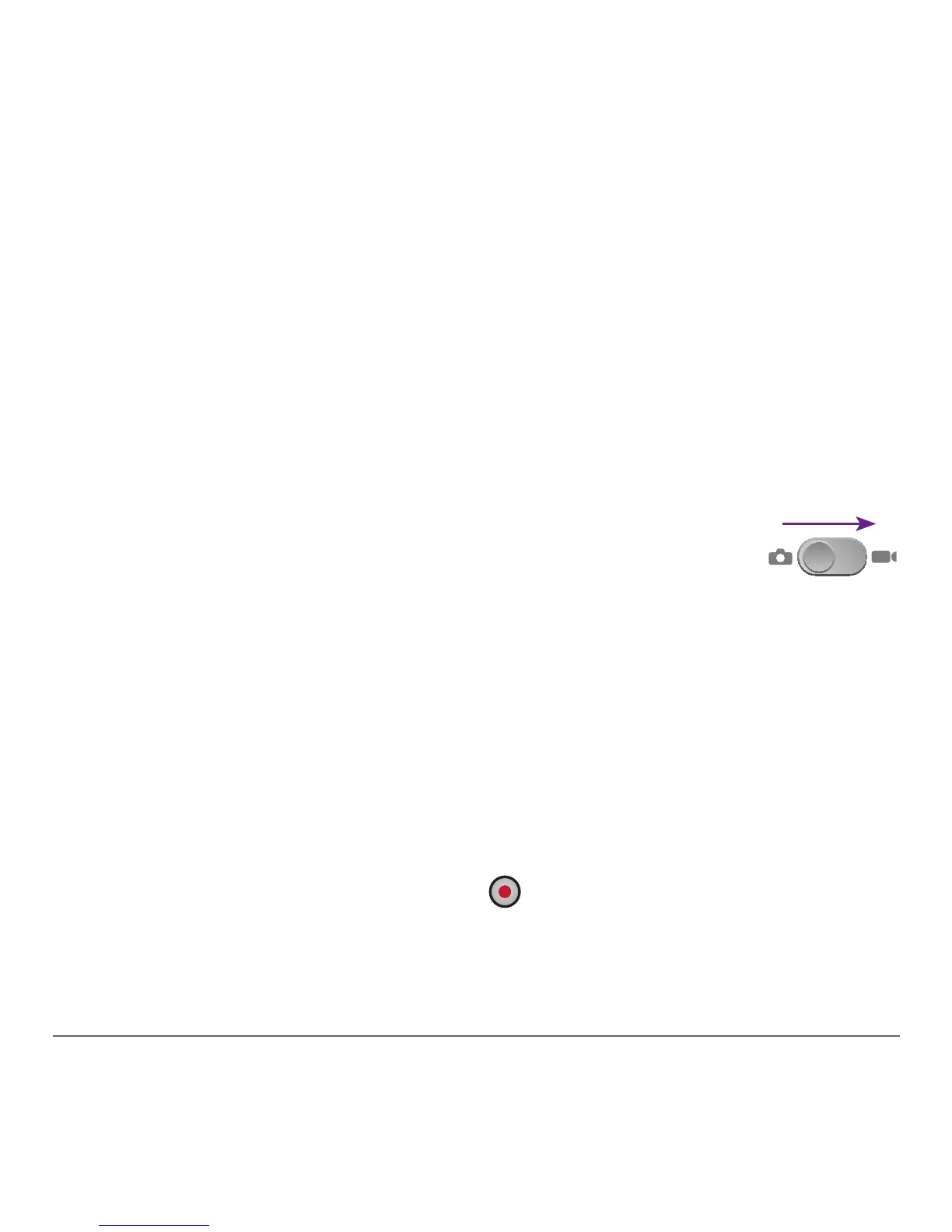
2. Use the center slider control to switch from
camera to video mode.
3. Select video recording mode: Video Mail or Long Video
- Video Mail is used to record a short 60 second
video you can send via picture message or MMS.
- Long Video is used to record a higher quality, longer
video
4. Tap the circular red button on the left corner and
begin recording. Tap it again to stop recording.


 To Next Page