56
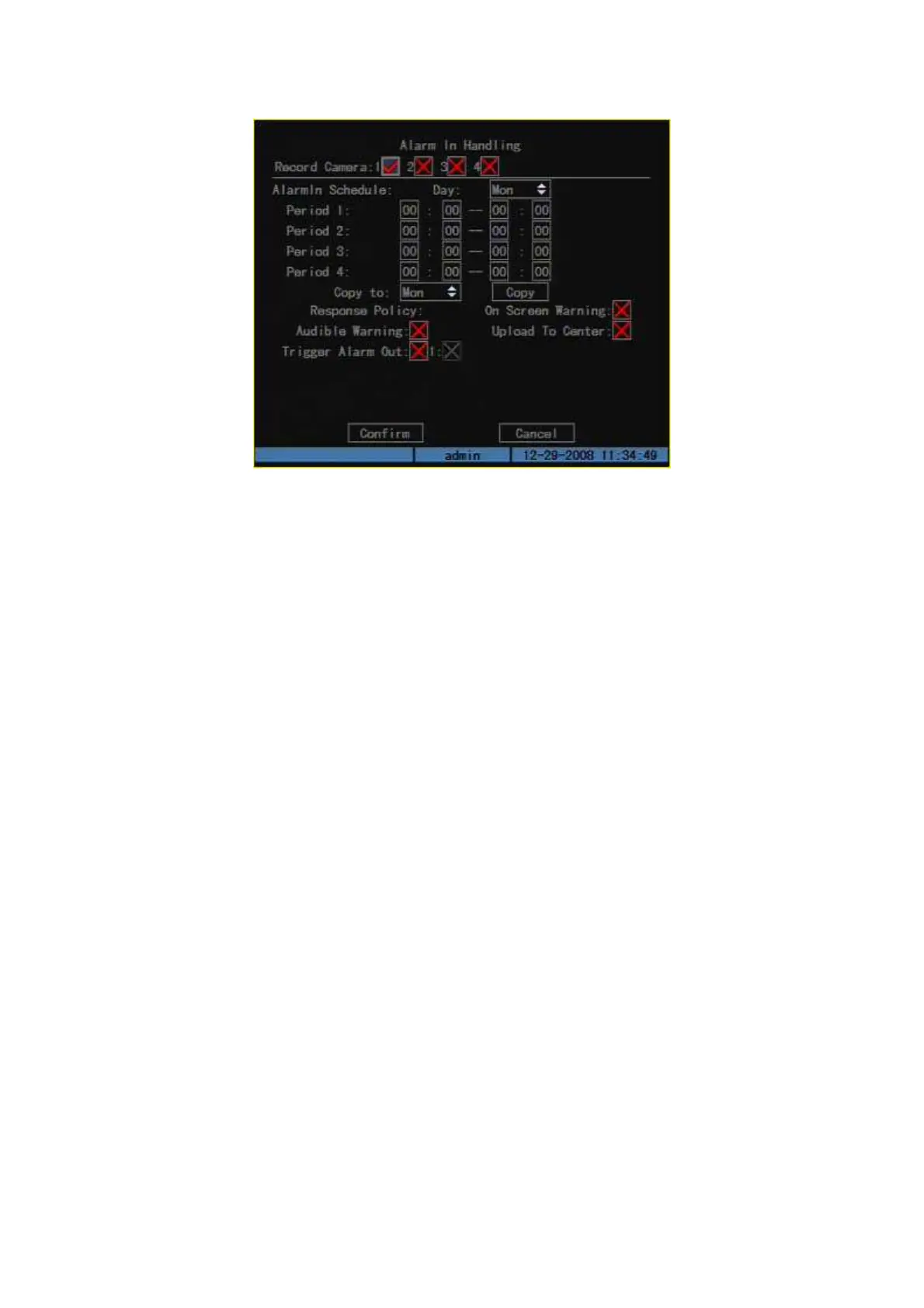
Fig. 5.24 Alarm in handling setup
Step 4: Alarm trigger record channel setup
You can select channels to record for each alarm input. In the sub menu, you can
use [ENTER] or [EDIT] key to enable record channel. “×” means disable and “
means enable.
Note: In order to trigger the channel to record, in “Recording” menu, you
must enable recording and select record type as “Alarm” or other related type.
Please refer to chapter 5.12.
Step 5: Schedule for alarm handle method
When there is external alarm happened in the schedule, DVR will response
according to the handle methods.
Step 6: Alarm handle method
You can select one or more handle method: “On Screen Warning”, “Audible
Warning”, “Upload to Center” and “Trigger Alarm Output”.
Note: If “On Screen Warning” is enabled, when there is external alarm
happened and DVR is in preview mode, DVR will pop-up the related camera. If
you trigger more than one camera, DVR will pop-up them one by one every 10
seconds. When the external alarm is disappeared, DVR will restore preview
mode.
Step 7: Save setup
In “Alarm in Handling” sub menu, press “Confirm” button and return “Alarms”
menu. In “Alarms” menu, press “Confirm” button to save the parameters.
Step 8: PTZ Linkage



 To Next Page