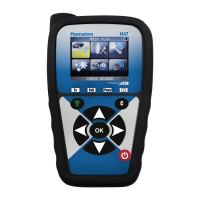
UM-365HaD-U H46 TPMS TOOL User Guide
User Guide Hamaton H46 Page 33/38
3.1. Install WebVT PC Suite
1) Connect the TPMS tool to the USB port and power the tool ON.
2) Insert the CD supplied with your tool into the PC drive and click on the WebVT icon to start
the program.
3) A screen will appear that says “Welcome to the Install Shield Wizard for WebVT.” Click
“Next >”
4) A window will appear for choosing the destination location, click “Next >”
5) Follow the instructions until the window with the “Finish” button appears.
6) Click “Finish” when the WebVT installation is complete.
Note: To order an annual update software license, please see your dealer for availability and
pricing.
3.2. USB Internet Option Updating
Before updating, ensure that the battery is fully charged.
1) Connect the USB cable from the TPMS TOOL to the PC, and turn the device on.
2) Start WebVT software.
3) A screen will appear indicating “Update Device”.
4) Press “Yes” to update to the latest software version. The update will take several minutes to
complete and the status bar will indicate the percentage of update completed.
Warning!
Turn off the screen saver function on your PC and do not disconnect the TPMS TOOL from the PC
or turn off your computer during the update process. Doing so could result in serious damage to
the tool.


 To Next Page