EZ-Guide® Plus
Pause and Resume
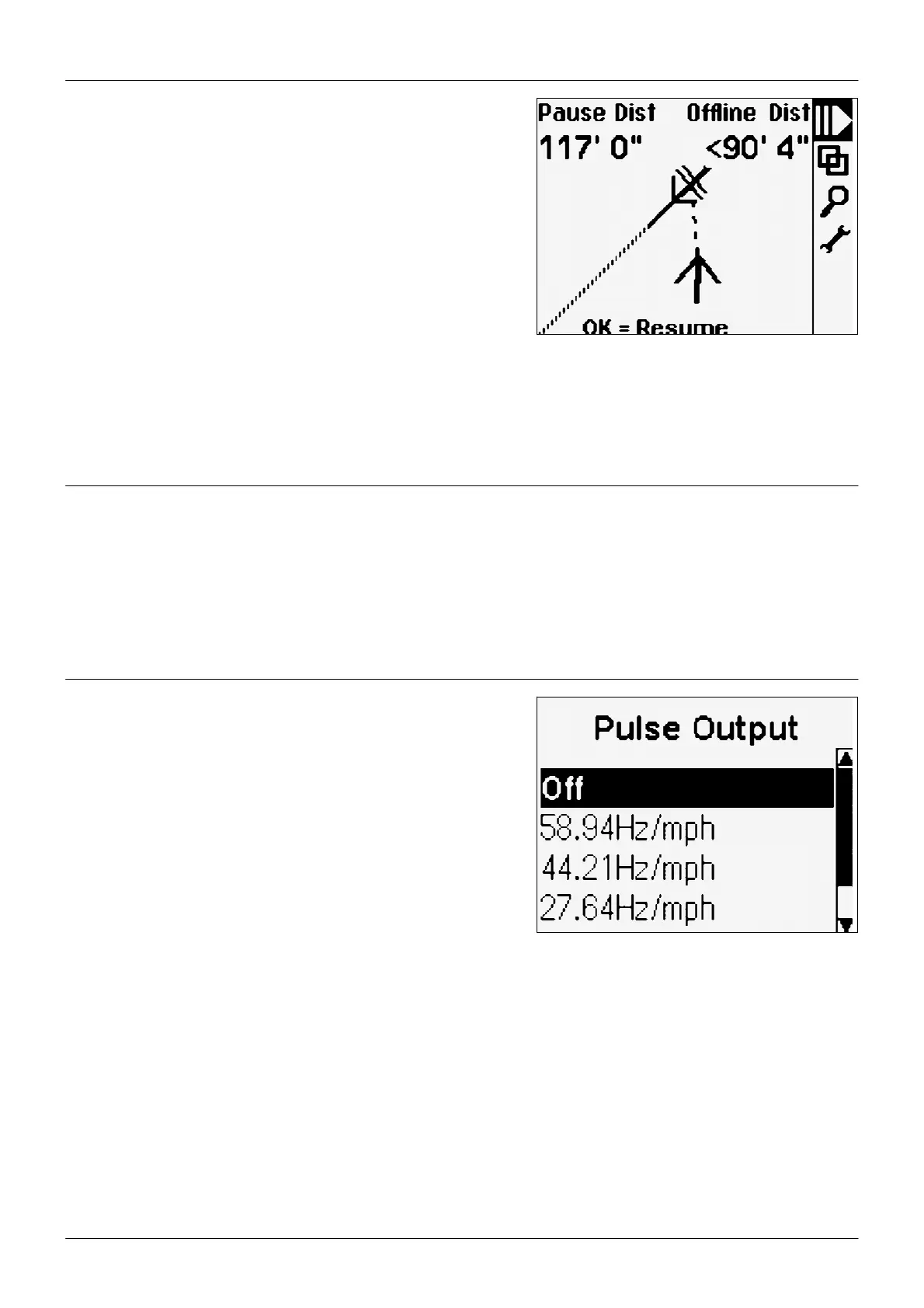
o pause guidance, select 2 or press p on the remote control. When
you pause guidance:
• The display changes to the Plan View map (if the Display Config /
View option is set to Auto).
• An icon appears at the pause location and indicates the direction
pause.
• The pause swath appears on the screen.
• The screen automatically zooms to keep your current position
and the pause icon on the screen. You cannot zoom manually.
• A dotted line joins your current position and the pause point.
• The map status text changes to display the distance to the pause
point and the offline distance from the pause swath.
• The LEDs do not provide offline guidance while you are more
than half a swath from the pause swath.
• Progress lines and adjacent swaths are not displayed.
o resume guidance, select 2 or press p on the remote control.
Speed Pulse Output
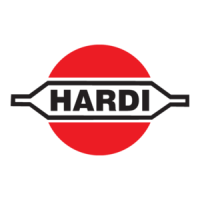
he EZ-Guide Plus lightbar can output speed pulse. This can be used to:
• Replace the radar / true ground speed sensor for speed on the vehicle.
• Send speed to any other agricultural device requiring speed pulses, for example, yield monitor or variable rate control-
ler. For information on connecting a device to the speed pulse outputs, see Connecting other devices, page 3.
o enable pulse output, use Lightbar / Pulse Output to select the output rate expected by your device.
Configuring Guidance Settings
You can configure the guidance and warning settings of the EZ-
Guide Plus lightbar guidance system to suit your personal preferen-
ce and your application.
18


 To Next Page