EZ-Guide® Plus
Guidance Settings
Configure the following lightbar settings from the Guidance menu.
LED mode
here are two LED modes:
Mode Definition
Chase: Chase the lights to stay online. The lights represent the swath location relative to the vehicle.
Pull: Center the lights to stay online. The lights represent the vehicle location relative to the swath.
LED spacing
he LED spacing is the distance represented by one LED. Decrease the LED spacing to increase the sensitivity of the LEDs.
Look ahead
Use the look ahead time to predict your future vehicle path to allow for reaction time
and vehicle turn speed. Set the look ahead time in seconds, as shown below:
Speed Look Ahead Time
0–13 kph (0–8 mph) 1 second
13–24 kph (8–15 mph) 2 seconds
24+ kph (15+ mph) 3 seconds
For larger vehicles that take longer to turn, increase the look ahead time.
Note — For 4WD articulated tractors, always set the look ahead time to 0 seconds.
Auto-detect turn
his setting is used only for the Adaptive Curve pattern. This setting defaults to On, which means that a new swath is
automatically generated when a U-turn is detected. To manually identify the end of each adaptive curve swath, change thi
setting to Off.
Warning Options
Configure the following warning option settings from the Warnings menu. Warnings are displayed as a flashing message
on the screen.
Headland warning
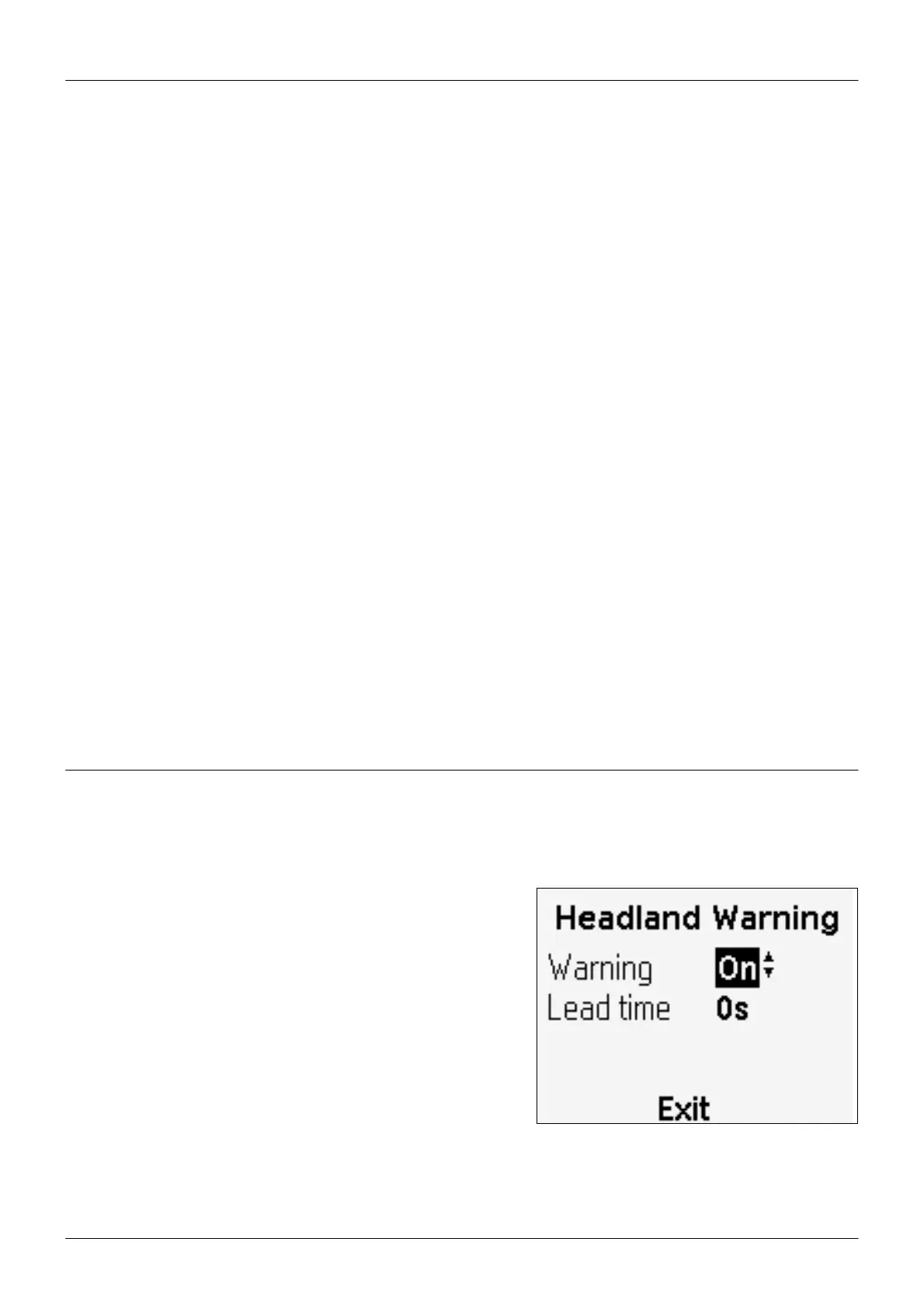
he EZ-Guide Plus system displays a message when you pass the
end of the swath. You can also configure a lead time for the head-
land warning so that the EZ-Guide Plus system warns you as you
approach the end of the swath. By default, this is set to 0 sec. To turn
the headland warning off, or to configure the lead time, use the
Headland Warning configuration screen.
Offline warning
he EZ-Guide Plus system can display a message when you have gone too far offline. By default, this is set to 0'0" (no
warning). To configure an offline warning, use the Offline Warning configuration screen
19


 To Next Page