EasyManua.ls Logo

Hayward OmniLogic - Troubleshoot Manual

Hayward OmniLogic
50 pages
Print Icon
To Next Page IconTo Next Page
Loading...
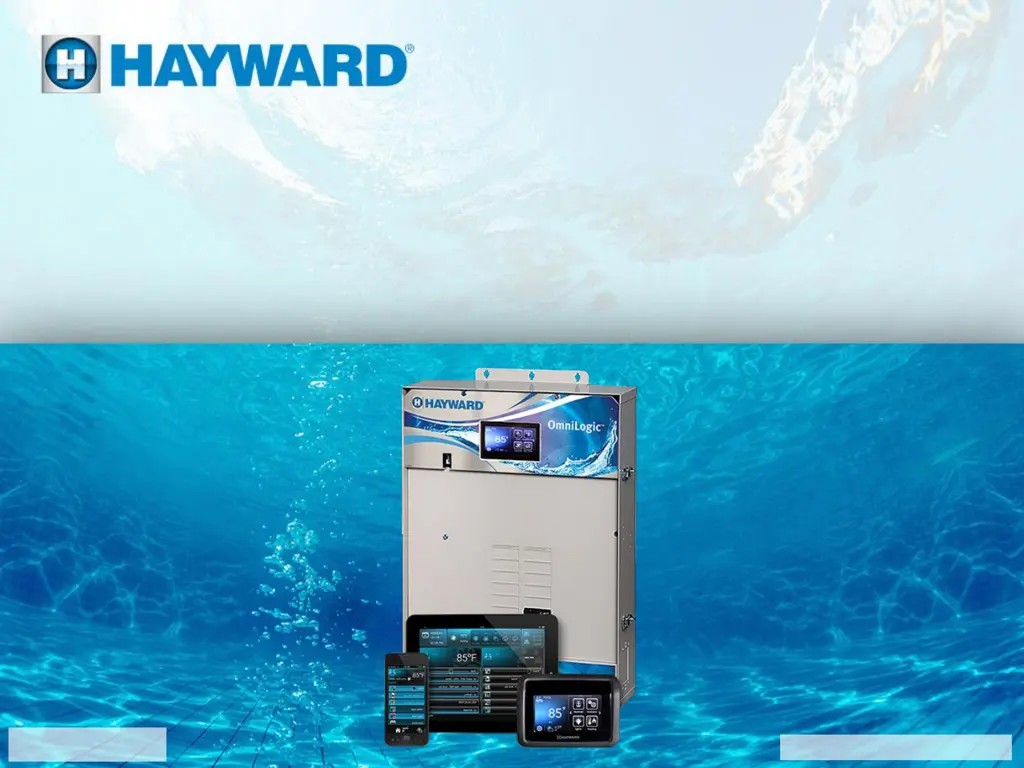
OmniLogic®
Network Troubleshooting Guide
TSG-OLN144c
Copyright 2016 Hayward Industries Inc.

Other manuals for Hayward OmniLogic

Questions and Answers

  • S
    Sally AndradeJul 27, 2025
    What to do if my Hayward OmniLogic Lighting Equipment wired Ethernet shows “MSP Not Found”?
    • L
      Laura KelleyJul 27, 2025
      If you're seeing an “MSP Not Found” error with your Hayward Lighting Equipment's wired Ethernet connection, here are a few things to try: * If the OmniLogic system hasn't been set up yet, either load a backed-up file or finish the configuration. * Make sure your firmware is up-to-date. * Check that the Ethernet cable is firmly plugged into your router or modem and that it’s not in a PoE or WAN port. * Test the Ethernet cable with a LAN tester to confirm it's working correctly. * Try switching the Ethernet cable with another one on your router to see if that helps. * Ensure your router is assigning IP addresses using DHCP. * Reboot your router and modem, wait about three minutes, and then test again.
  • E
    eprinceAug 12, 2025
    What to do if Hayward OmniLogic Lighting Equipment shows “MSP Not Found” on Wi-Fi?
    • F
      fortizAug 12, 2025
      If your Hayward Lighting Equipment displays “MSP Not Found” on Wi-Fi, first ensure the OmniLogic system is configured by loading a backup file or completing the setup. Double-check that the Wi-Fi network name and password you entered are correct. Try connecting to your Wi-Fi network using another device to confirm it's working. You can also power cycle the MSP. Complete login to www.haywardomnilogic.com.

Summary

Safety Precautions

High Voltage Electrocution Hazard

Details the risks associated with high voltage and provides crucial safety measures for handling electrical components.

OmniLogic Wi-Fi Bridge (HLWLAN)

HLWLAN Ports and LEDs

Explains the function of each port and the meaning of each LED indicator on the HLWLAN Wi-Fi Bridge.

Download OmniLogic Firmware

Step-by-Step Firmware Download Process

Guides users through downloading the latest OmniLogic firmware onto a USB drive from the Hayward website.

Upgrade OmniLogic Firmware

Procedure for Upgrading MSP Firmware

Details the steps to upgrade the MSP firmware using a USB drive via the OmniLogic interface.

Upgrade OmniLogic Firmware (cont.)

Completing the Firmware Upgrade Process

Covers selecting the USB drive, the latest file, and initiating the firmware upgrade process to completion.

Connect OmniLogic via Ethernet

Ethernet Cable and Router Connection

Explains how to properly run and connect Ethernet cables to the OmniLogic and home router.

Connect OmniLogic via Wi-Fi

Wi-Fi Network Setup and Speed Test

Covers connecting a device to the target Wi-Fi network and running a speed test for optimal HLWLAN placement.

Wired Ethernet: MSP Not Found

Troubleshooting Workflow for Wired Connection

Flowchart to diagnose and resolve 'MSP Not Found' errors when using a wired Ethernet connection.

Wired Ethernet: MSP Not Found (cont.)

Troubleshooting No IP Addresses

Specific steps to troubleshoot when the MSP is not receiving IP addresses on a wired network.

Wi-Fi Connection: MSP Not Found

Wi-Fi Troubleshooting Workflow

Flowchart to diagnose and resolve 'MSP Not Found' errors when using a Wi-Fi connection.

Wi-Fi Connection: MSP Not Found (cont.)

Troubleshooting No IP Addresses (Wi-Fi)

Steps to address issues when the MSP does not acquire IP addresses via Wi-Fi.

Troubleshooting IP Addresses (Wi-Fi)

Focuses on resolving 'MSP Not Found' issues when IP addresses are present but registration fails.

24 V LED Not Illuminated

Troubleshooting Workflow for 24 V LED

Flowchart to diagnose why the 24V LED on the MSP is not illuminated.

24 V LED Not Illuminated (cont.)

Hayward OmniLogic Specifications

General IconGeneral
ConnectivityWi-Fi, Ethernet
TypeAutomation System
ControlMobile App, Web
ExpandabilityModular, Supports Multiple Devices
CompatibilityHayward pool equipment

Related product manuals