22
When the STB don’t insert CI modual, the Common
Interface menu will show “Slot 1: Not Available ”
When the STB insert a CI modual, user can press OK
on “slot 1: XXXX” to enter into the card information menu.In the
card information menu, user can check the detail informations.
4.4. CA Slot Setting
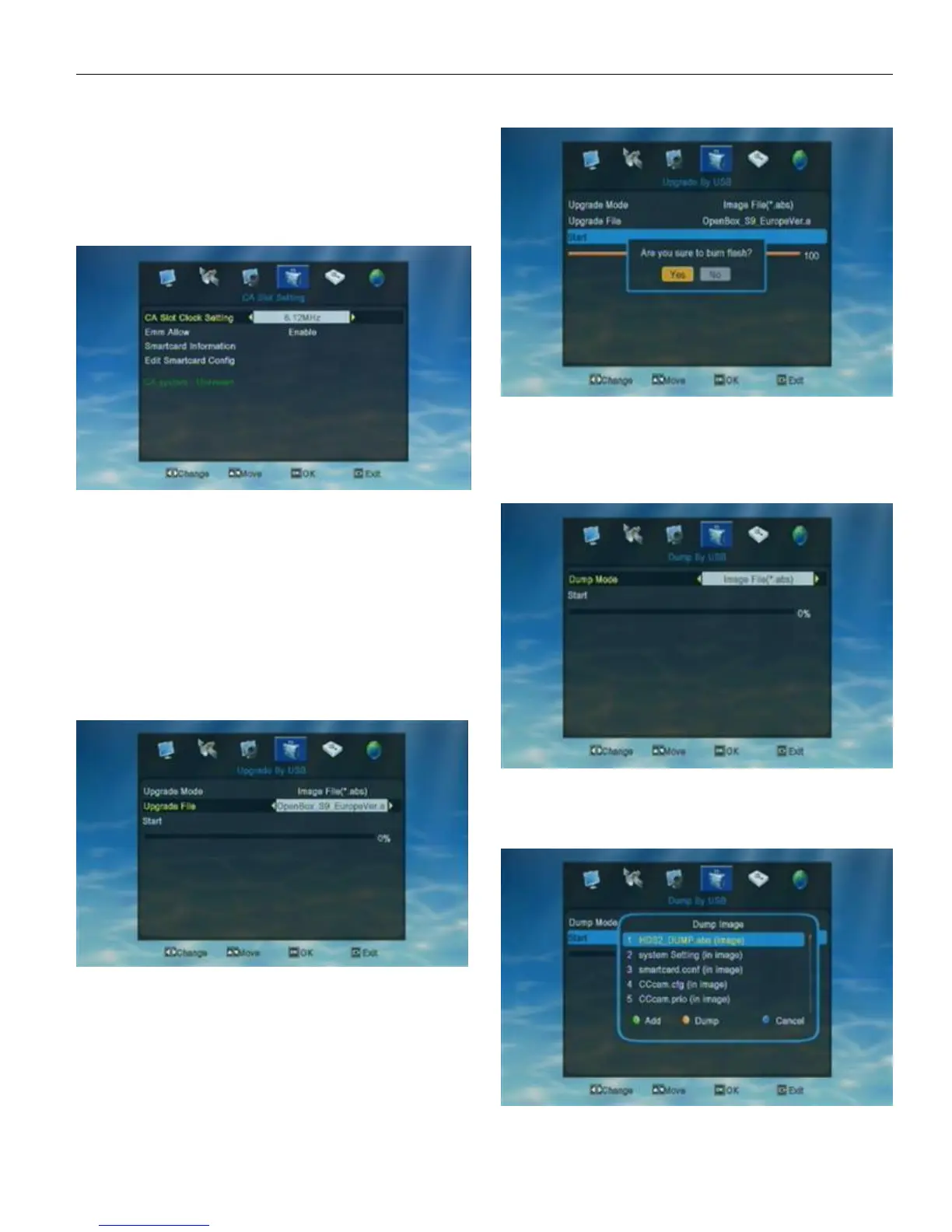
When enter into “CA slot Setting” menu, the system
will show a menu as below.
1 . CA Slot Clock Setting: 6.12MHz/ 3.57MHz
User can set the CA Slot Clock Setting according to
his/her smart card.
2.CASystem
When the STB insert a smart card into the CA slot,
there will show the informations of the inserted smart card on
CA System. When the STB don’t insert any smart card, there
will show “Unknown” on CA System.
After user finished the setting, press EXIT to exit from
current menu. There will show “Clock wil be valid after restart!
4.5. Upgrade by USB
When enter into “Upgrade by USB” menu, the system
will show a menu as below.
1. Copy the firmware into you U-disk, then connect it
with the receiver.
2.
Open the menu of the receiver , Find Tools then you
can see "upgrade by USB".
3.
When in Upgrade by USB window, you can see
"Upgrade Mode", "Upgrade File" and "Start"
"Upgrade Mode"---choose "image Fil(*.abs)"
"Upgrade File" ---choose the name of the new
firmware
"Start"---press OK on "start" to the upgrading
4. when finished the upgrde, receiver will restart
automaticly.
4.6. Dump by USB
When enter into “Dump by USB” menu, the system will
show a menu as below.
If user want to dump a image file, pls chooose the
Dump Mode as "Image File*.abs". Then you'll see the below
window. User can choose the files he/she want to dump by
press green key, then press yellow key to start to Dump.


 To Next Page