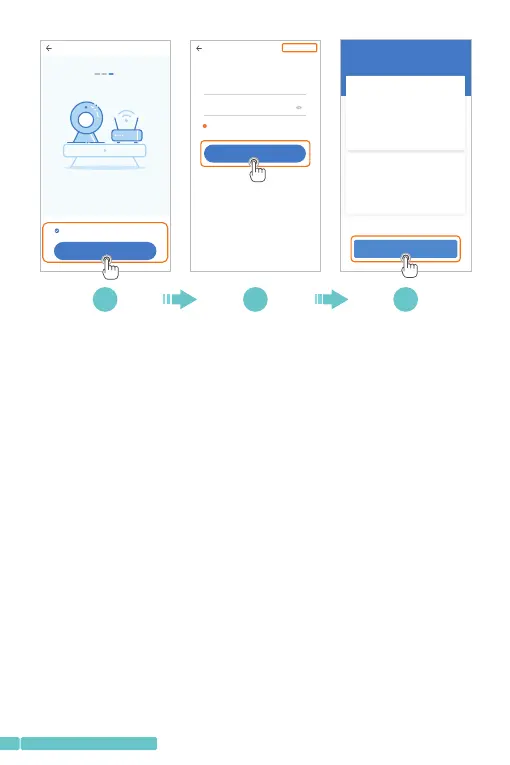
Tip:
TapNetworkTestingintheupperrightcornerofConnectto
Wi-FiinterfacetocheckthestatusofyourWi-Ficonnection.
Step3:
AligntheQRcodeonyourmobiledevicewiththecamera
lensandkeepadistanceof4-8inches.WhentheQRcodeis
clear,slightlymoveyourmobiledeviceforwardand
backwardforbetterscanning.
Step4:
TapIheardthe"beep"voicetoconnecttotheInternetafter
2beepsfromthecamera.Duringtheprocess,youwillhear
"Networkconnecting,pleasewait".Whenyouhear"Wi-Fi
connectionsuccess.Cameraisonline",thecamerais
connectedtoPixplussuccessfully.
4 5 6
Add the d evice
3. Pl ace the d evice a s close t o the rou ter as
pos sible , and thu s reduc e the obs tacle
bet ween th e route r and the c amera
If yo u have fi nishe d the abo ve step s, clic k
Con nect to t he Netw ork
Connec t to th e Network
1/3
Network testing
Switch the network
Input Wi-Fi name
Input Wi-Fi password
!
5GH z wirel ess net work is n ot supp orted
What requirements does the device have on Wi-Fi>
Next
Connect to Wi-Fi
Exit
Network testing results:Normal
Network information
Wi-Fi quality
Server status
Good
Network-induced
delay is 101ms
Network stability
is Good
Connection
success
Test results
Your network is normal
Finish
1.Ifaddingthedevicefails,itisrequiredtoconfirm
whethertheWi-Fifrequencyrangeis2.4G
Finishtheaboveoperationandretrytheadding
Contactusifaddingthedevicefails
04
support@heimvision.com


 To Next Page