Braille Labeler BL-1000 LINK
The Braille Labeler Application Program
Page 11
4.1.2 Emboss a text
Once you have entered a text and converted it to braille by pressing the "Translate" button,
you can print it in four different ways:
1. Via the button "Emboss" in the text input window "Edit the label" or
2. In the main window, via the menu item "Label/Emboss" or
3. In the main window, via the shortcut key "Ctrl+P" or
4. In the main window, via the "Print" icon
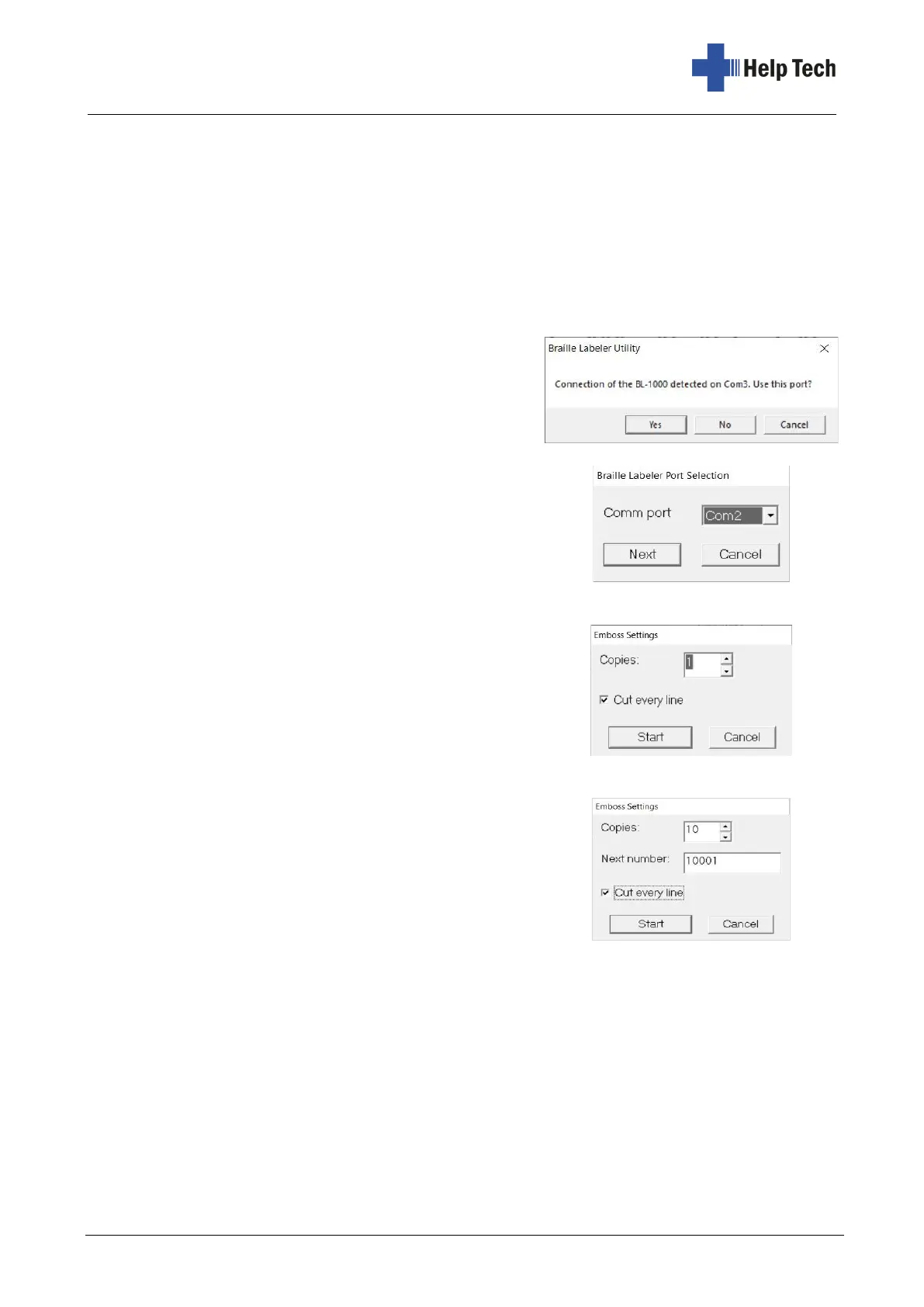
The program automatically detects when the BL-
1000 LINK is connected to the PC and displays an
info box when the first print job is received, asking
you to confirm the interface used by pressing the
"Yes" button.
If the program cannot find the BL-1000 LINK, e.g.
because it is unplugged, a dialog box appears in
which you must specify the interface used.
In the following "Emboss Settings" dialog box, you
must specify how many times the selected text
should be printed and whether printing should stop
after each copy so that you can cut it off with the CUT
key. By default, the text will only be printed once.
Enter the number of copies you want in the "Copies"
field. If you want to print the text several times and
then cut the tape with the scissors, remove the check
mark from the "Cut every line" field.
If you have entered hash marks in your text in order
to use automatic numbering, you must also enter the
number from which counting up is to start in the "Next
number" field in addition to the number of copies.
When the text is printed, the BL-1000 LINK will beep twice in quick succession at intervals
of about 2 seconds. Cut the tape with the CUT button and press the SET button. If you do
not press the SET button, the yellow lamp will remain lit and two short successive beeps at
an interval of about 10 seconds will remind you. After pressing the SET button, the BL-1000
LINK returns to the ready-to-use state. You can recognize this by the fact that the yellow
LED goes out and the red and green LEDs light up.
In a serial printout, i.e. if you print the text several times or print several texts at once, the
next text is printed after pressing the SET key.



 To Next Page