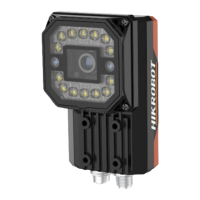
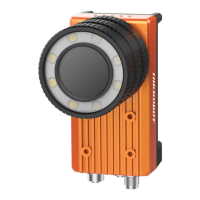
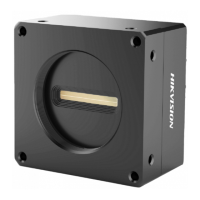
SC5000 Series Smart Camera Quick Start Guide
9
Chapter 5 Device Connection
Device connection to the client software is required for device’s configuration and remote
operations. This section introduces how to install the client software, set PC and device network,
connect the device to the client software, etc.
5.1 Set PC Network
To ensure stable image transmission and normal communication between the PC and the device via
client software, you need to set the PC network before using the client software.
Steps
Note
For different Windows versions, the specific setting path and interface may differ. Please refer to
the actual condition.
Steps
1. Go to PC network settings page: Start → Control Panel → Network and Internet → Network
and Sharing Center → Change adapter settings.
2. Select NIC and set the IP obtainment mode.
●
Select Obtain an IP address automatically to get an IP address of the PC automatically.
●
Or select Use the following IP address to set an IP address for the PC manually.
Figure 5-1 Set PC Network


 To Next Page
 Loading...