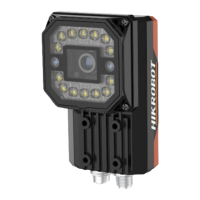
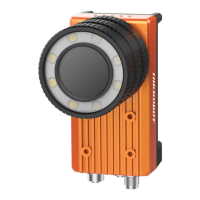
SC5000 Series Smart Camera Quick Start Guide
11
5.3 Set Device Network
You can set and operate the device in the client software only when the device is in the same
network segment with the PC where the client software is installed.
Steps
1. Double click the client software to run it.
2. Click in the device list to find the device.
3. Right click the device to be connected.
4. Click Edit IP Address.
5. Set the IP address of the device in the same network segment with the PC.
Figure 5-3 Edit IP Address
6. Click OK.
5.4 Login
Note
●
Make sure that your device IP address is in the same network segment with the PC where you
installed the client software before connecting the device to it.
●
The default login password is Abc1234, and it is highly recommended to change the password for
the first time use.
●
Follow the guidance to find the password if you forget it.
●
Refer to the user manual of the SCMVS client software for detailed operation.


 To Next Page
 Loading...