EasyManua.ls Logo

HIKVISION DS-8000 Series - User Manual

HIKVISION DS-8000 Series
113 pages
Print Icon
To Next Page IconTo Next Page
Loading...
User Manual of Embedded Net DVR
Page 1 Total 113
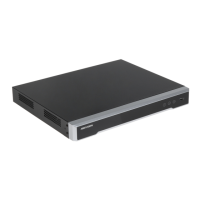
DS-8000 Series Embedded Net DVR
User Manual
(V1.5)
Thank you for purchasing our embedded Net DVR. This manual is applicable for DS-8000HCI,
DS-8000HSI, DS-8000HTI and DS-8000HFI series embedded Net DVR. Please read this User
Manual carefully to ensure that you can use the device correctly and safely.
The contents of this Manual are subject to change without notice.

Table of Contents

Questions and Answers

  • M
    Michelle OrrAug 14, 2025
    What to do if my HIKVISION DS-8000 continuously reboots?
    • J
      Jessica NelsonAug 14, 2025
      If your HIKVISION DVR reboots continuously and makes a 'di' sound every 10 seconds, the issue might be due to upgrading the wrong firmware, problems with the compression board, or problems with the main board. Try reverting to the correct firmware. If that doesn't work, the compression board or the main board may need to be replaced.
  • S
    Susan HarrisAug 17, 2025
    Why HIKVISION DS-8000 cannot find hard disk in reboot process?
    • D
      Debbie SuarezAug 17, 2025
      If your HIKVISION DVR cannot find the hard disk during the reboot process, it could be due to a broken hard disk cable, a disconnected hard disk power cable, or a broken hard disk. Try replacing the hard disk cable or reconnecting the power cable of the hard disk. If the problem continues, the hard disk may need to be replaced.
  • A
    Allen EstesAug 20, 2025
    How to fix no image on monitor connected to HIKVISION DS-8000?
    • S
      sotonicoleAug 20, 2025
      If there are no images on the monitor connected to the HIKVISION DVR via VOUT after starting, the problem could be a broken cable, a faulty real board, or a faulty main board. Try replacing the cable connected to the monitor. If the issue persists, the real board or main board of the DVR might need replacement.
  • K
    keithvegaAug 25, 2025
    What to do if HIKVISION DS-8000 DVR client software can not view live image?
    • J
      John WhiteAug 25, 2025
      If the client software cannot display the live image from your HIKVISION DVR, the issue is likely network-related or due to incorrect DVR connection settings. Check the network connections and ensure that the IP address, port number, username, and password are correct.
  • J
    Jennifer MclaughlinAug 27, 2025
    How to fix HIKVISION DS-8000 not controlling PTZ through RS-485 port?
    • E
      Emma CastanedaAug 27, 2025
      If your HIKVISION DVR cannot control PTZ through the RS-485 port, the RS-485 cable might be incorrectly connected or broken, the PTZ parameters might be incorrect, or the RS-485 port of the DVR might be broken. Check and reconnect the RS-485 cable, verify and correct the PTZ parameters. If the issue persists, the RS-485 port of the DVR may need to be replaced.
  • J
    Jordan BrownAug 30, 2025
    What to do if HIKVISION DS-8000 power light doesn't turn on?
    • X
      xreevesAug 31, 2025
      If the 'POWER' light on the front panel of your HIKVISION DVR doesn't turn on and the fan doesn't work after plugging in the power and turning on the switch, the power cable or the power supply may be broken. Replace the power cable, and if the issue continues, replace the power supply.
  • J
    Jason SanchezSep 3, 2025
    Why is the fan not working on my HIKVISION DS-8000 DVR?
    • M
      Mr. Charles ElliottSep 3, 2025
      If the 'POWER' light on the front panel of your HIKVISION DVR turns green but the fan does not work after plugging in the power and turning on the switch, the front panel cable or the fan itself may be broken. Try replacing the front panel cable, and if the issue persists, replace the fan.
  • B
    Brenda McintyreSep 6, 2025
    What does it mean if the HIKVISION DVR indicator lights turn on but the fan doesn't work?
    • A
      Allison ThompsonSep 6, 2025
      If the 'POWER' light and indicator lights on your HIKVISION DVR turn on, but the fan doesn't work, the ATX plug in the main board might not be properly connected. Re-plug the ATX plug in the main board to ensure it is securely connected.
  • R
    Rachel VelasquezSep 9, 2025
    What to do if no response in HIKVISION DS-8000 HyperTerminal interface?
    • C
      christianmedinaSep 9, 2025
      If there is no response in the HyperTerminal interface of your HIKVISION DVR, the baud rate might not be matched, the RS-232 cable could be broken, the serial port of the PC might be broken, or the RS-232 port of the DVR might be broken. Try matching the baud rate and replacing the RS-232 cable. If the issue continues, the serial port of the PC or the RS-232 port of the DVR may need to be replaced.

Summary

Chapter 1 Product Introduction

1.1 Summary

Provides an overview of the DS-8000 series network digital video recorder.

1.2 Model Description

Explains the naming convention and components of the DS-8000 series models.

1.3 Features

Lists the key compression, recording, preview, and network features of the DVR.

Chapter 2 Installation

2.1 Checking the DVR and Its Accessories

Guides on verifying the DVR unit and all included accessories upon receipt.

2.2 HDD Installation

Step-by-step instructions for installing Hard Disk Drives (HDDs) into the DVR.

2.3 Rear Panel Description

Details the physical interfaces and ports located on the rear of the DVR unit.

2.4 External Alarm In;Out Connection

Explains how to connect external alarm inputs and relay outputs to the DVR.

Chapter 3 Operational Instructions

3.1 Front Panel

Describes the buttons, indicators, and controls on the front panel of the DVR.

3.2 IR Controller

Details the functionality and operation of the infrared remote control.

3.3 Menu Description

Outlines the structure and available items within the DVR's menu system.

3.4 Character Input

Explains the methods for inputting text, numbers, and characters via the interface.

Chapter 4 Basic Operation Guide

4.1 Power on

Step-by-step guide to powering on the DVR and initial system checks.

4.2 Preview

How to access and view live camera feeds on the DVR interface.

4.3 User name and password

Covers logging into the DVR and managing user credentials.

4.4 PTZ Control

Instructions for controlling Pan-Tilt-Zoom (PTZ) enabled cameras.

4.5 Manual Record

Guide on manually initiating and stopping video recordings.

4.6 Playback

Procedures for searching and viewing recorded video footage.

4.7 Backup Recorded Files

Steps for backing up recorded video clips and files to external media.

4.8 Voice Talk

Information regarding the DVR's voice communication capabilities.

4.9 Auxiliary Video Output

Details on utilizing the DVR's secondary video output ports.

4.10 Shut Down DVR

Proper procedures for safely powering off the DVR unit.

Chapter 5 Parameters Setup Guide

5.1 Administrator and Password

Manages the primary administrator account and its password.

5.2 Add and Delete User

Procedures for creating, managing, and deleting user accounts and permissions.

5.3 Unit Name and Device ID

Configures the DVR's system name and unique identification number.

5.4 Video Output Standard and VGA Setup

Sets video output standards (PAL/NTSC) and VGA display resolution/frequency.

5.5 OSD Setup

Customizes On-Screen Display elements like time, date, and camera names.

5.6 Video Parameters Setup

Adjusts video quality settings such as brightness, contrast, saturation, and hue.

5.7 Mask Area Setup

Configures privacy zones to mask sensitive areas from preview and recording.

5.8 View Tampering Alarm

Sets up alarms triggered when a camera's view is obstructed or tampered with.

5.9 Video Loss Alarm

Configures alarms that trigger when a video signal is lost.

5.10 Motion Detection Alarm

Sets up alarms and responses based on detected motion within camera views.

5.11 Preview Properties

Customizes live preview modes, screen layouts, and auto-switching behavior.

5.12 Recording Setup

Configures recording modes, schedules, resolution, bit rate, and pre/post-record times.

5.13 External Alarm Input and Relay Output

Manages the configuration of external alarm inputs and relay outputs.

5.14 Network Parameters

Configures network settings like IP address, port, and PPPoE for remote access.

5.15 PTZ

Setup and control parameters for PTZ cameras, including presets and sequences.

5.16 RS232 setup

Configures serial communication parameters for RS-232 devices.

5.17 Exceptions

Handles system exceptions such as HDD errors, network failures, and illegal access.

5.18 Transaction Information

Captures and overlays transaction data from ATMs or POS systems.

Chapter 6 Utilities

6.1 Save Parameters

Saves current DVR configuration settings to flash memory.

6.2 Restore Parameters

Resets the DVR's configuration settings to their factory default values.

6.3 Upgrade

Instructions for upgrading the DVR's firmware using FTP or USB.

6.4 Hard Disk Management

Tools for checking HDD status, formatting, and managing storage.

6.5 Clear Alarm Out

Manually clears any active alarm output signals.

6.6 Reboot

Restarts the DVR system.

6.7 Power Off

Safely shuts down the DVR unit.

6.8 View Log

Accesses and reviews system event logs for diagnostics.

6.9 System Information

Displays detailed system information about the DVR hardware and software.

Chapter 7 Firmware Upgrade

7.1 FTP Server Setup

Guides on setting up an FTP server to facilitate firmware file transfer.

7.2 Upgrade Mode

Details the different methods for upgrading the DVR firmware (FTP, USB, HyperTerminal).

Appendix A HDD Capacity Calculation

Appendix B DVR Connect Cable Definition

1 RS-485 connect cable made method

Instructions for creating RS-485 serial connection cables.

2 UTP network connect cable made method

Instructions for creating UTP network cables for connectivity.

3 RS-232 connect cable made method

Instructions for creating RS-232 serial connection cables.

Appendix C Specifications

Appendix D Quick Search Function Table

Appendix E Troubleshooting

Appendix F Product Service

Appendix G Customer Information Card

HIKVISION DS-8000 Series Specifications

General IconGeneral
ModelDS-8000 Series
Video Input4/8/16 channels
Video OutputVGA, HDMI
Network Interface1 RJ-45 10/100 Mbps
Audio Output1 channel
Hard DiskInternal SATA interface
USB Interface2x USB 2.0
Operating Temperature-10°C to +55°C
Operating Humidity10% to 90%

Related product manuals