5
Step 3. Get your remote ready
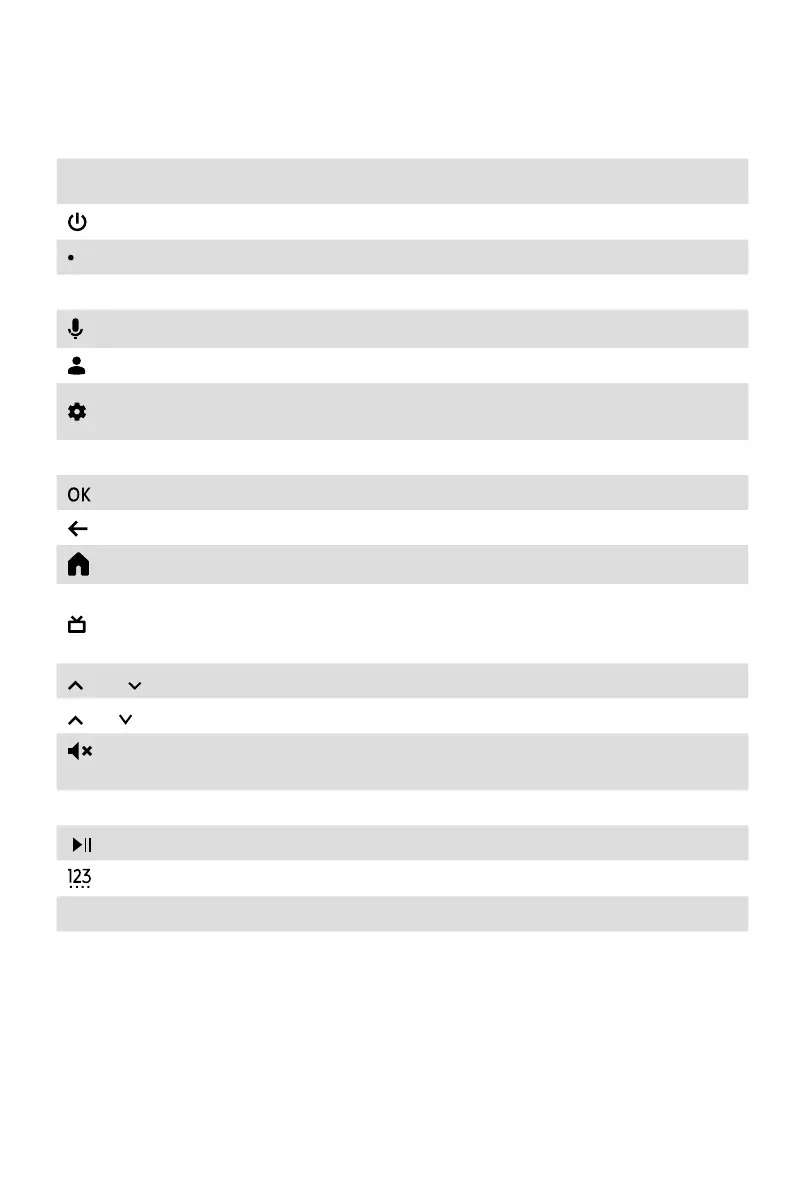
The following table shows the buttons on your remote control and describes what they
are for.
BUTTON DESCRIPTION
Poweron/o
Microphone / Indicator
INPUT Change TV input source
Google Assistant of TV
Accounts&SignInorswitchprole
Accessthesettings(directorthroughthedashboardinGTV)from
any place in the system
˄
/
˅
/
˂
/
˃ D-pad(up/down/left/rightnavigationbuttons)
Conrmationbutton
Return to the previous place in the menu or app
Press to display the Home screen
Enter to Live tab in launcher/Display the Electronic Program
Guide(ifsupport)/ReturntoLiveTV
*
VOL Volume(up/down)
CH Channel(up/down)
CC
Press to mute or restore sound
Hold to display Accessibility menu
MENU Press to enter Menu
Media content control function buttons
Enter Channels/input numbers and special function buttons
App Quickaccessbuttonstoapplications
APPS Quickaccesstoallapplications
NOTE:
• Buttons listed here are for reference only. Actual remote control may vary depending
on model, country/region.
• * Pressing the button in different scenarios will have different responses.


 To Next Page