EasyManua.ls Logo

Hitachi 3700 - 4. Replace the System Unit Cover

Hitachi 3700
16 pages
Print Icon
To Next Page IconTo Next Page
To Previous Page IconTo Previous Page
Loading...
6
Place
the
CD
drive
on
top
of
the
drive
already
installed
. Align
the
two
screw
holes
on
each
side
of
the
drive
with
the
holes
in
the
metal
mounting
plate.
Insert
and
tighten
two
screws
on
each
side
.
Use
the
screws
provided
with
the
drive
.
7
8
If
you
are
missing
one
of
these
screws,
don
't
replace
it
with
a
longer
screw
;
this
could
damage
the
internal
drive
mechanism
.
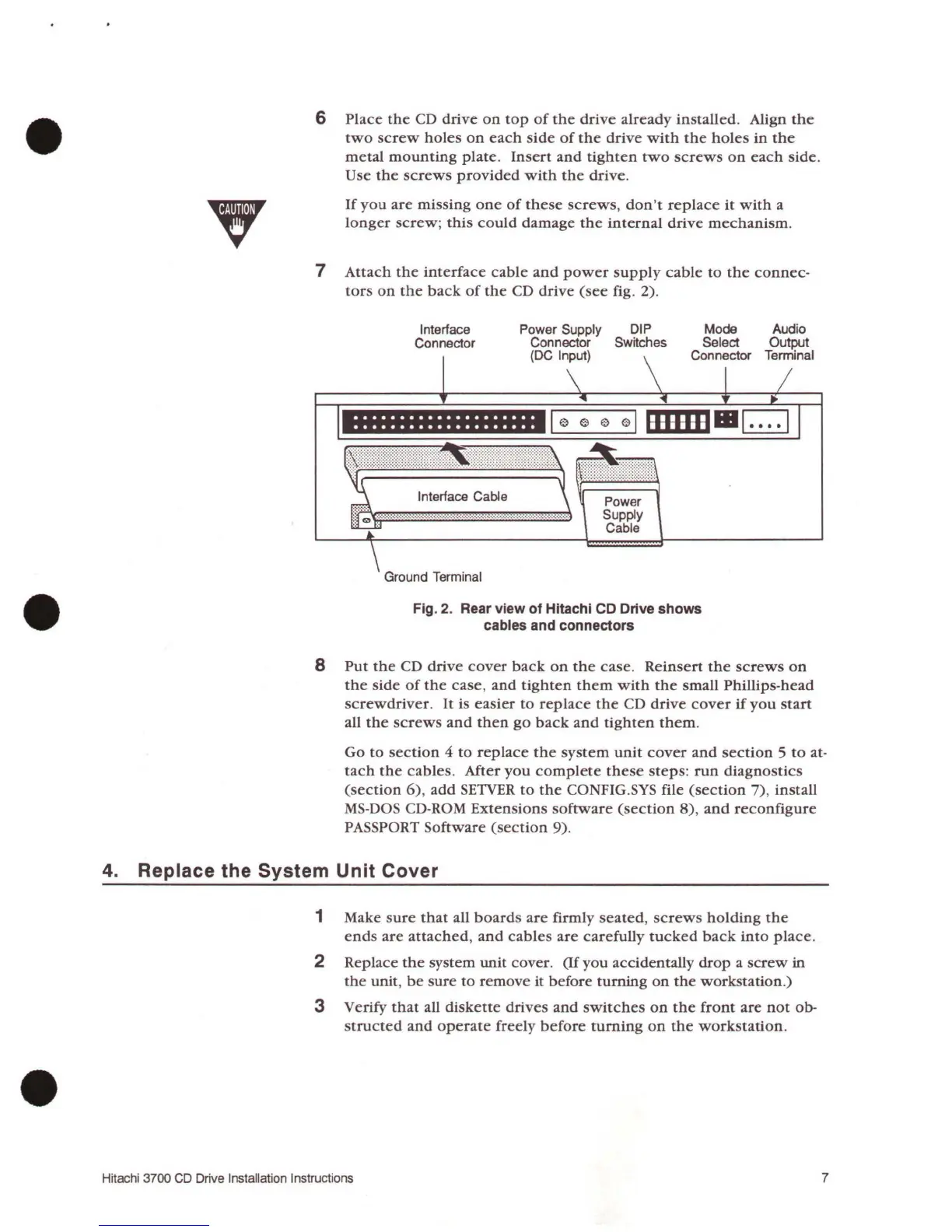
Attach
the
interface
cable
and
power
supply
cable
to
the
connec-
tors
on
the
back
of
the
CD
drive
(see
fig. 2).
Interface
Connector
....................
. . . . . . . . . . . . . . . . . . . .
DIP
Switches
Power
Supply
Cable
Fig. 2. Rear view of Hitachi CD Drive shows
cables and connectors
Audio
Output
Terminal
Put
the
CD
drive
cover
back
on
the
case
.
Reinsert
the
screws
on
the
side
of
the
case,
and
tighten
them
with
the
small Phillips-head
screwdriver
.
It
is
easier
to
replace
the
CD
drive
cover
if
you
start
all
the
screws
and
then
go
back
and
tighten
them
.
Go
to
section
4
to
replace
the
system
unit
cover
and
section
5
to
at-
tach
the
cables
.
After
you
complete
these
steps:
run
diagnostics
(section
6)
,
add
SETVER
to
the
CONFIG.SYS file
(section
7)
,
install
MS-DOS CD-ROM
Extensions
software
(section
8)
,
and
reconfigure
PASSPORT
Software
(section
9).
4. Replace the System Unit Cover
1 Make
sure
that
all
boards
are
firmly
seated
,
screws
holding
the
end
s
are
attached
,
and
cables
are
carefully
tucked
back
into
place.
2 Replace
the
system
unit
cover.
(If
you
accidentally
drop
a
screw
in
the
unit,
be
sure
to
remove
it
before
turning
on
the
workstation
.)
3 Verify
that
all
diskette
driv
es
and
switches
on
the
front
are
not
ob-
structed
and
operate
freely
before
turning
on
the
workstation
.
Hitachi 3700
CD
Drive Installation Instructions 7

Related product manuals