–
23
–
EN
PLAYING A DISC
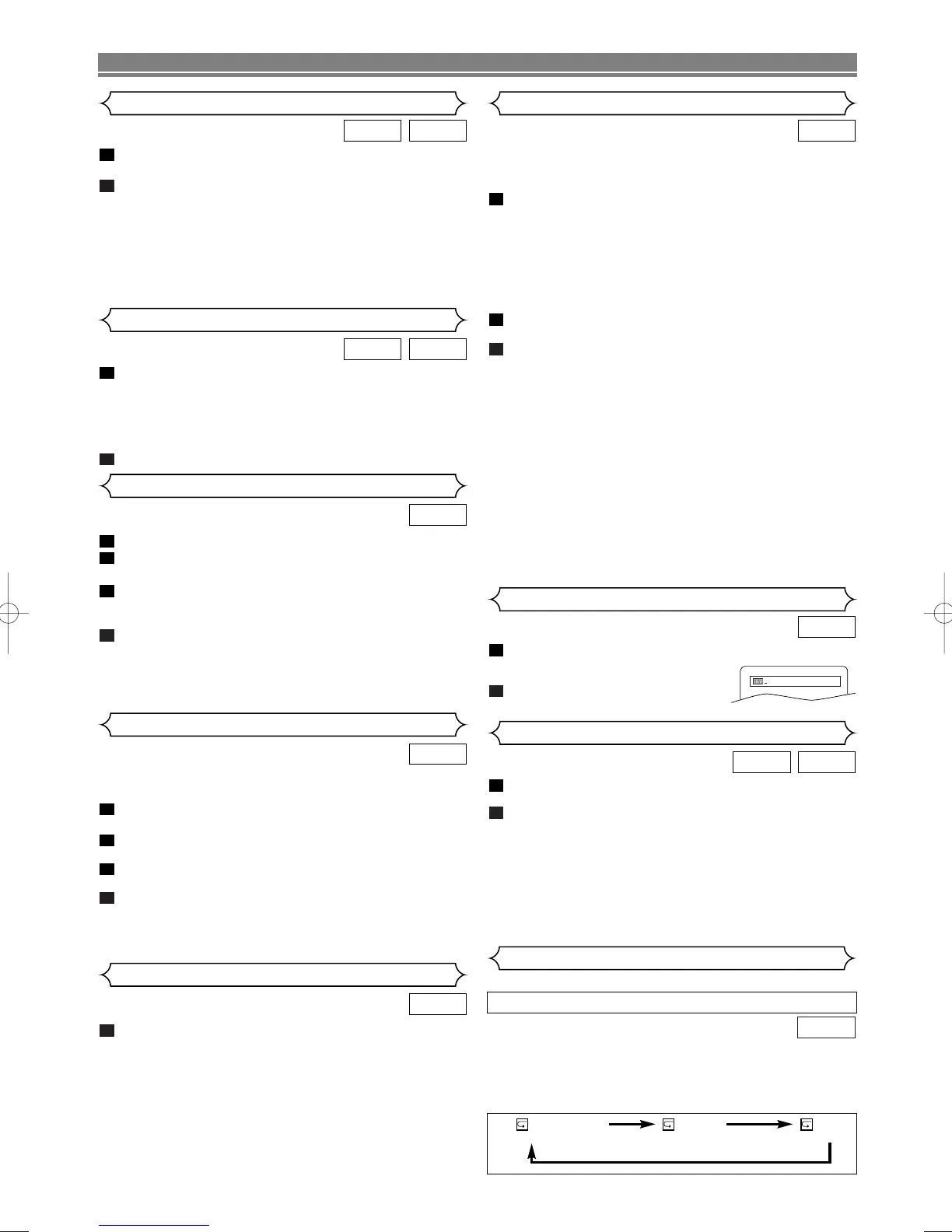
During playback, press
CC
.
• Resume message will appear on the TV screen.
Press
B (PLAY), playback will resume from the point at
which playback was stopped.
•To cancel resume, press
CC
twice.
NOTES:
• The resume playback takes a little longer to take place
compared to the normal playback.
• The resume information stays on even when the power
is turned off.
2
1
CDDVD
Resume
The Zoom function allows you to enlarge the video image and to
pan through the enlarged image.
Press
ZOOM during playback.
• Playback will continue.
Press
ZOOM repeatedly to select the required zoom factor:
x2, x4 or OFF.
Use CURSOR buttons (L/K/B/s) to move the zoomed pic-
ture across the screen.
To exit zoom mode, press ZOOM.
NOTES:
• Zooming function does not work while disc menu is shown.
• x4 zoom is not available on some discs.
4
3
2
1
DVD
During playback, press g or h repeatedly to select
the required forward or reverse speed.
• For DVDs, fast forward or reverse search speed is dif-
ferent depending on the disc. Approximate speed is
1(x2), 2(x8), 3(x50), 4(x100).
• For Audio CDs, the approximate speed is x16.
To return to normal playback, press B (PLAY).
2
1
CDDVD
Fast Forward / Reverse Search
During playback, press
FF
.
Press
gg
or
hh
.
• Slow motion playback will begin and sound will be muted.
Press
gg
or
hh
repeatedly to select the required speed.
• Slow forward or reverse speed is different depending on
the disc. Approximate speed is 1(1/16), 2(1/8), 3(1/2).
To return to normal playback, press B (PLAY).
NOTE:
• On DVDs, set “STILL MODE” to “FIELD” on the Display
menu, if pictures in the slow playback mode are blurred.
(Refer to page 26.)
4
3
2
1
DVD
Slow Forward / Slow Reverse
Zoom
There are three ways to begin playback of an Audio CD at a
specific Track.
Using the Number buttons
Press the number buttons to enter the desired Track
number.
• Playback will start at the selected track.
• For single digit tracks (1-9), press a single number
(eg. track 3, press
3).
•To play track 26, press
+10, 2, 6 on the number but-
tons.
Using the SEARCH MODE
Press SEARCH MODE.
• The Track search display appears.
Within 30 seconds, select a desired track number using
the
number buttons. For single digits press 0 first if the
total track of the disc is more than 10 tracks.
• Playback will start at the selected track.
Using the SKIP
HH GG
During playback, press
SKIP
GG
to move to the next track.
Press it repeatedly to skip subsequent tracks. Press
SKIP
HH
to go back to the beginning of the current track. Press it
repeatedly to go to the previous tracks.
•Track number will appear briefly on the front display panel.
• If any
SKIP is pressed while the playback is paused,
the playback will be paused again after skipping to the
next track.
NOTE:
• SKIP HGare not available when playback is
stopped.
2
1
1
CD
Press SEARCH MODE once for the Chapter search,
twice for the Title search during
playback.
Enter the desired chapter/title num-
ber using the number buttons.
2
1
DVD
Title / Chapter Search
Press SEARCH MODE repeatedly until the Time Search
appears during playback.
Within 30 seconds, enter a desired disc time using the
number buttons.
• Playback will start at the specified time.
• Press
CLEAR to erase the incorrect input.
NOTE:
• For Time Search, “0” appears automatically when there
is no need to enter a number. For example, “0:0_:_ _”
appears in the Time Search display if the total time of
the disc is less than 10 minutes.
2
1
CDDVD
Time Search
Track Search
CHAPTER TITLE OFF
(current chapter repeat) (current title repeat) (repeat off)
To activate the repeat function, press REPEAT during play-
back.
• The repeat mode changes as described below every
time you press the button.
DVD
Repeat
REPEAT TITLE / CHAPTER
• REPEAT is available only during playback.
Press AUDIO repeatedly during playback to select
between “STEREO”, “L-CH” or “R-CH”.
STEREO- both right and left channels are active
L-CH - only left channel is active
R-CH - only right channel is active
NOTES:
• If the Virtual Surround setting is “1” or “2”, the sound
mode will be fixed to STEREO, and can not be changed.
1
CD
Stereo Sound Mode



 To Next Page