–
24
–
EN
PLAYING A DISC
NOTES:
• Repeat Title/Chapter is not available on some scenes.
• The REPEAT setting will be cleared when moving to
other titles or chapters.
A-B REPEAT
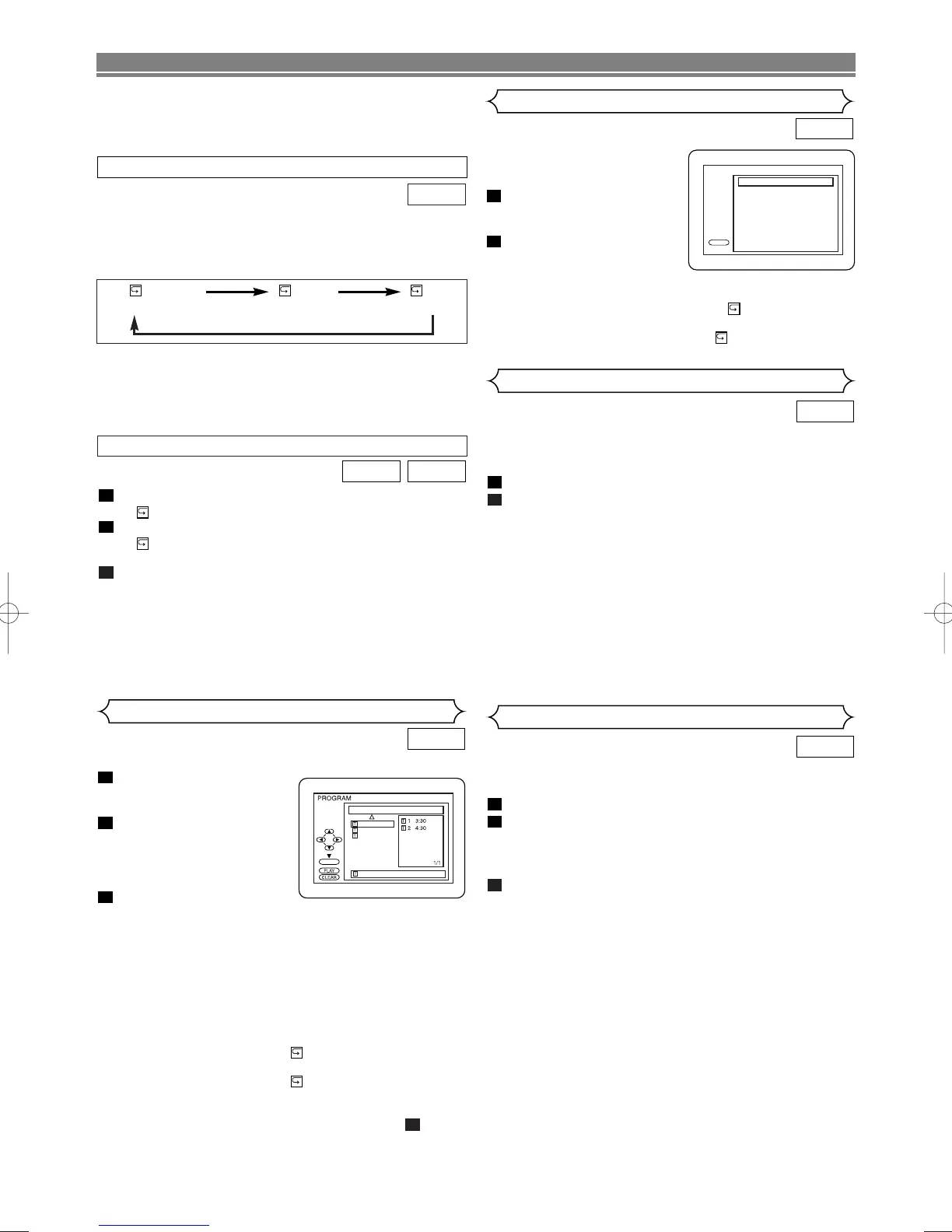
Press A-B REPEAT at your chosen starting point.
•“ A-” appears briefly on the TV screen.
Press
A-B REPEAT again at your chosen end point.
•“ A-B” appears briefly on the TV screen, and the
repeat sequence begins.
To exit the sequence, press
A-B REPEAT.
NOTES:
• The A-B repeat section can only be set within the cur-
rent title (for DVDs), or current track (for Audio CDs).
• A-B Repeat is not available with some scenes in DVD.
•To cancel the A point which was set, press CLEAR.
• A-B Repeat playback does not function during title,
chapter, track or all repeat playback.
3
2
1
CDDVD
NOTES:
• The repeat setting will be cleared by moving to another
track.
• Repeat playback does not function during A-B repeat
playback.
To activate the repeat function, press
REPEAT during play-
back.
• The repeat mode changes as described below every
time you press the button.
CD
REPEAT TRACK
TRACK ALL OFF
(current track repeat) (
entire disc repeat) (repeat off)
You may determine the order in which tracks will play.
In stop mode press MODE.
• The PROGRAM screen
will appear.
Press
▲ or ▼ to select a
track, then press ENTER.
• Press
CLEAR to erase the
most recently entered pro-
gramme.
Press B (PLAY) to play the
programmed tracks.
NOTES:
• Press
CC
once and then
BB
(PLAY), playback will restart
from the point where
CC
was pressed. (Programme con-
tinued)
• Press
CC
twice and then
BB
(PLAY), playback will restart
from the track in the usual way. (Programme cleared)
• Up to 99 programs can be entered.
•To repeat the current track in the programme, press
REPEAT repeatedly until “ TRACK” appears during
playback. To repeat the entire programme press
REPEAT repeatedly until “ ALL” appears during play-
back.
•To erase all tracks in the program at once, select ALL
CLEAR and press the ENTER button at step .
2
3
2
1
CD
Programme Playback
CD-DA TOTAL 0:08:00
ENTER
ALL CLEAR
8 3:30
8 3:30
9 2:30
10 1:30
2/2
This shuffles the order of tracks
instead of playback of in the
original sequence.
In STOP mode, press
MODE twice.
• RANDOM screen appears.
Press
B (PLAY) to start ran-
dom playback.
NOTE:
•To repeat the current track in the random selection,
press REPEAT repeatedly until “ TRACK” appears
during playback. To repeat the entire random selection
press REPEAT repeatedly until “ ALL” appears during
playback.
2
1
CD
PLAY
CD-DA TOTAL 0:45:55
RANDOM PROGRAM
--no indication--
RANDOM
Random Playback
The DVD/VCR allows you to select a specific language
during DVD disc playback when multiple languages are
available.
Press AUDIO during playback.
Press
AUDIO repeatedly to select your desired language.
NOTES:
• If your language is not shown after pressing AUDIO
several times, the disc may not have that language.
However, some discs allow you to change audio lan-
guage setting in the disc menu. (Operation varies
depending on the disc, so refer to the manual included
in the disc.)
• If you choose a Language that has a 3 letter language
code, the code will be displayed every time you change
the Audio language setting. If you choose any other
languages, “---” will be displayed instead. (Refer to
page 27.)
2
1
DVD
Audio Language
Subtitle Language
The DVD/VCR allows you to select a language for subtitle (if
available) during DVD disc playback.
Press
SUBTITLE during playback.
Press
SUBTITLE repeatedly to select your desired subti-
tle language.
• The selected language will be displayed on the display
bar at the top of the screen.
To turn off subtitles, press
s or B until “OFF” appears.
NOTES:
• If your language is not shown after pressing SUBTITLE
several times, the disc may not have that language.
However, some discs allow you to change subtitle lan-
guage setting in the disc menu. (Operation varies
depending on the disc, so refer to the manual included
in the disc.)
• If you choose a Language that has a 3 letter language
code, the code will be displayed every time you change
the Subtitle language setting. If you choose any other
languages, “---” will be displayed instead. (Refer to page
27.)
3
2
1
DVD
H97H1BD(EN).qx4 04.10.27 5:11 PM Page 24



 To Next Page