Advanced Techniques - 34 -
Note: EIS may not function if you use a wide or tele converter lens.
Note: When the EIS function is engaged in the vicinity of the zoom range with ZOOM displayed in the
viewfinder or LCD monitor, when moved from the wide-angle end, the image size will change, but this is
normal.
Note: When the EIS function is engaged, the picture becomes rough.
Note: When the EIS function is engaged, the angle of view at the wide-angle end becomes narrower.
Note: It is recommended that you do not use the EIS function when using a tripod. The sensor would detect
vibrations from the tripod in which case the picture would be blurred.
Using Fade
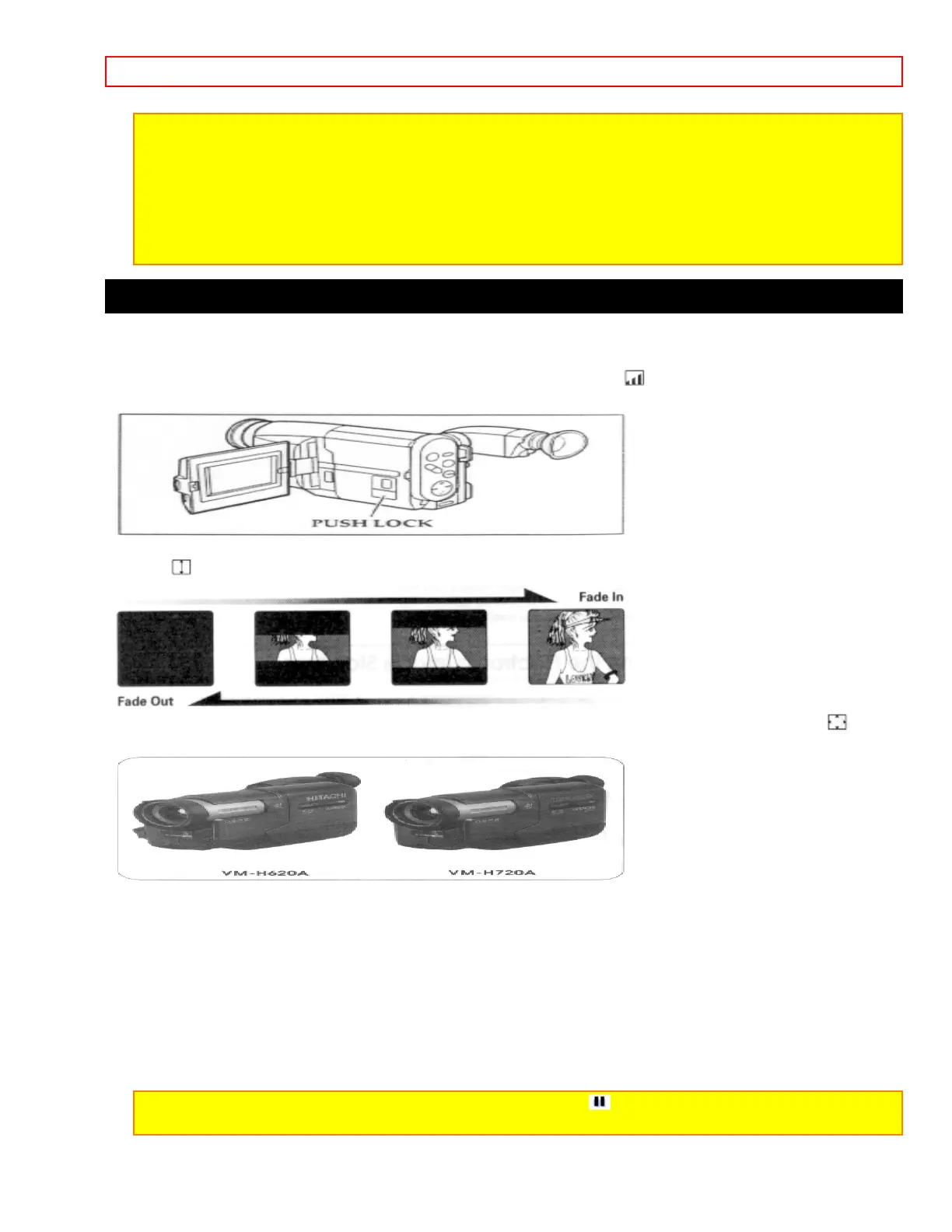
Use the fade feature to add a professional touch to your recordings. Use the FADE button to select one of the
three fade options.
• White fade: Fades in from a white screen or fades out to a white screen.
appears in the upper left corner of
the viewfinder or LCD monitor.
• Wipe fade: The picture opens gradually from the center of a black screen or closes into the center to a black
screen.
appears in the upper left corner of the viewfinder or LCD monitor.
• Zoom fade: Fades in while zooming from a white screen or fades out while zooming to a white screen.
appears in the upper left corner of the viewfinder or LCD monitor.
Fading In
1. Use the FADE button to select a fade option before recording.
2. Press the Start/Stop button to start recording; fade begins automatically.
Fading Out
1. While recording with the camcorder use the FADE button to select a fade option.
2. Press the Start/Stop button to stop recording; the fade begins automatically and REC flashes until the fade
ends.
Note: When fading out be sure to wait until the PAUSE indicator ( ) is visible in the viewfinder or LCD
monitor before attempting to put the camcorder into the record mode again.



 To Next Page