EasyManua.ls Logo

Honeywell QuantumT 3580 - User Manual

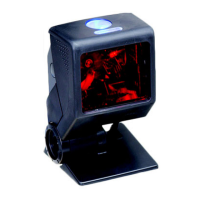
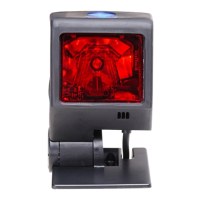
Honeywell QuantumT 3580
60 pages
Print Icon
To Next Page IconTo Next Page
Loading...
QuantumT
®
3580
Omnidirectional Laser Scanner
User’s Guide

Questions and Answers

  • M
    Michelle ReedAug 18, 2025
    How to troubleshoot Honeywell QuantumT 3580 Scanner with no LEDs, beeper, or motor spin?
    • R
      Ryan MurphyAug 18, 2025
      If your Honeywell Scanner has no LEDs, beeper, or motor spin, check the transformer, outlet, and power strip. Ensure the cable is securely plugged into the scanner. Some host systems might not supply enough current; in this case, use the power supply included with your Honeywell Scanner.
  • M
    marylaneAug 20, 2025
    Why is the Honeywell Scanner scanning but the data is not correct?
    • S
      Samantha KellyAug 21, 2025
      If your Honeywell Scanner scans but the data is incorrect, the unit may not be configured correctly. Verify that the correct country code and data formatting are selected.
  • T
    tina61Aug 23, 2025
    Why Honeywell QuantumT 3580 Scanner data format does not match requirements?
    • A
      amy64Aug 23, 2025
      If your Honeywell Scanner scans, but the data format does not match the requirements, the scanner’s data format may not match what is required by the host. Make sure that the scanner is connected to the proper host port.
  • M
    Marissa JonesAug 26, 2025
    How to fix Honeywell QuantumT 3580 Scanner COM port issues?
    • R
      Robin MooreAug 26, 2025
      If the COM port at the host is not working or configured properly when using your Honeywell Scanner, the cable may not be connected to the proper COM port. Check to make sure that the baud rate and parity of the scanner and host match.
  • T
    tsnyderAug 28, 2025
    Why Honeywell Scanner scans bar code but there is no data?
    • J
      Joseph Franco DVMAug 28, 2025
      If your Honeywell Scanner scans the bar code but there is no data, the unit may not be configured correctly. Make sure that the proper PC type (i.e., AT, PS2, or XT) is selected.
  • A
    Alec CainAug 30, 2025
    How to fix Honeywell Scanner that powers up but does not beep?
    • C
      Christopher HintonAug 30, 2025
      If your Honeywell Scanner powers up but does not beep, the beeper may be disabled. In this case, enable the beeper. Alternatively, no tone may be selected, so select a tone.
  • R
    rhodesrobertSep 1, 2025
    Why Honeywell QuantumT 3580 Scanner scans multiple times on the same symbol?
    • C
      Christine BowenSep 1, 2025
      If your Honeywell Scanner performs multiple scans upon presentation of the same symbol, the timeout may be set too short. Adjust the same symbol timeout for a longer time increment.
  • M
    Martha LynchSep 3, 2025
    Why Honeywell QuantumT 3580 Scanner beeps at some barcodes but not others?
    • M
      Matthew FergusonSep 3, 2025
      If your Honeywell Scanner beeps at some bar codes but not others of the same symbology, the scanner is not configured correctly for the type of bar code. Check if check digits are set properly.
  • R
    robert73Sep 6, 2025
    Why Honeywell QuantumT 3580 Scanner is dropping characters?
    • L
      lawsonlisaSep 6, 2025
      If characters are being dropped when using the Honeywell Scanner, the intercharacter delay needs to be added to the transmitted output. Add some intercharacter delay to the transmitted output by using the MetroSelect Configuration Guide (MLPN 00-02407).
  • M
    Matthew AndersonSep 8, 2025
    Why minimum symbol length setting does not work with Honeywell QuantumT 3580 Scanner?
    • R
      Ricky GriffinSep 8, 2025
      If the minimum symbol length setting does not work with the bar code on your Honeywell Scanner, check if the correct minimum symbol length is set.

Summary

Introduction

Scanner Components

Identifies and describes the physical parts of the Quantum T scanner.

Mounting Specifications and Stand Assembly

Details how to mount the scanner using pedestal or flex stands.

Installation

Interface Connections

Instructions for connecting the scanner via RS232, RS485, USB, and emulation interfaces.

Scanner Operation

Scan Patterns and Button Functions

Explains scan modes, button functions, and related settings.

Depth of Field Specifications

Details scanning range for normal and reduced depth of field.

Troubleshooting Guide

General Troubleshooting

Solutions for common scanner issues across interfaces.

Design Specifications

Operational and Mechanical Specs

Lists operational parameters, laser specs, physical dimensions, power, and operating conditions.

Default Settings - Communication Parameters

Parameter Defaults

Shows default enabled/disabled states for symbologies and parameters.

Upgrading the Firmware

Firmware Update Process

Step-by-step guide for updating firmware using MetroSet2.

Scanner and Cable Terminations

Pinout and Connector Configurations

Details scanner pin assignments and host cable connector configurations.

Regulatory Compliance

Safety and EMC Information

Critical safety warnings and electromagnetic compatibility standards.

Customer Support

Technical Assistance and Service

Contact information for technical support, service, and repair.

Honeywell QuantumT 3580 Specifications

General IconGeneral
Dimensions (WxDxH)67 x 66 x 108 mm
TypeFixed bar code reader
Scan speed80 sec/page
Wavelength650 nm
Sensor typeLaser
Scanner type1D
Linear (1D) barcodes supported-
2D (matrix & stacked) barcodes supportedNot supported
Standard interfacesRS-232
Connectivity technologyWired
Product colorBlack
Storage temperature (T-T)-40 - 60 °C
Operating temperature (T-T)-20 - 40 °C
Operating relative humidity (H-H)5 - 95 %
Power source typeDC
Harmonized System (HS) code84716070
Weight and Dimensions IconWeight and Dimensions
Weight170 g

Related product manuals