19
HP StorageWorks Disk System 2120
English
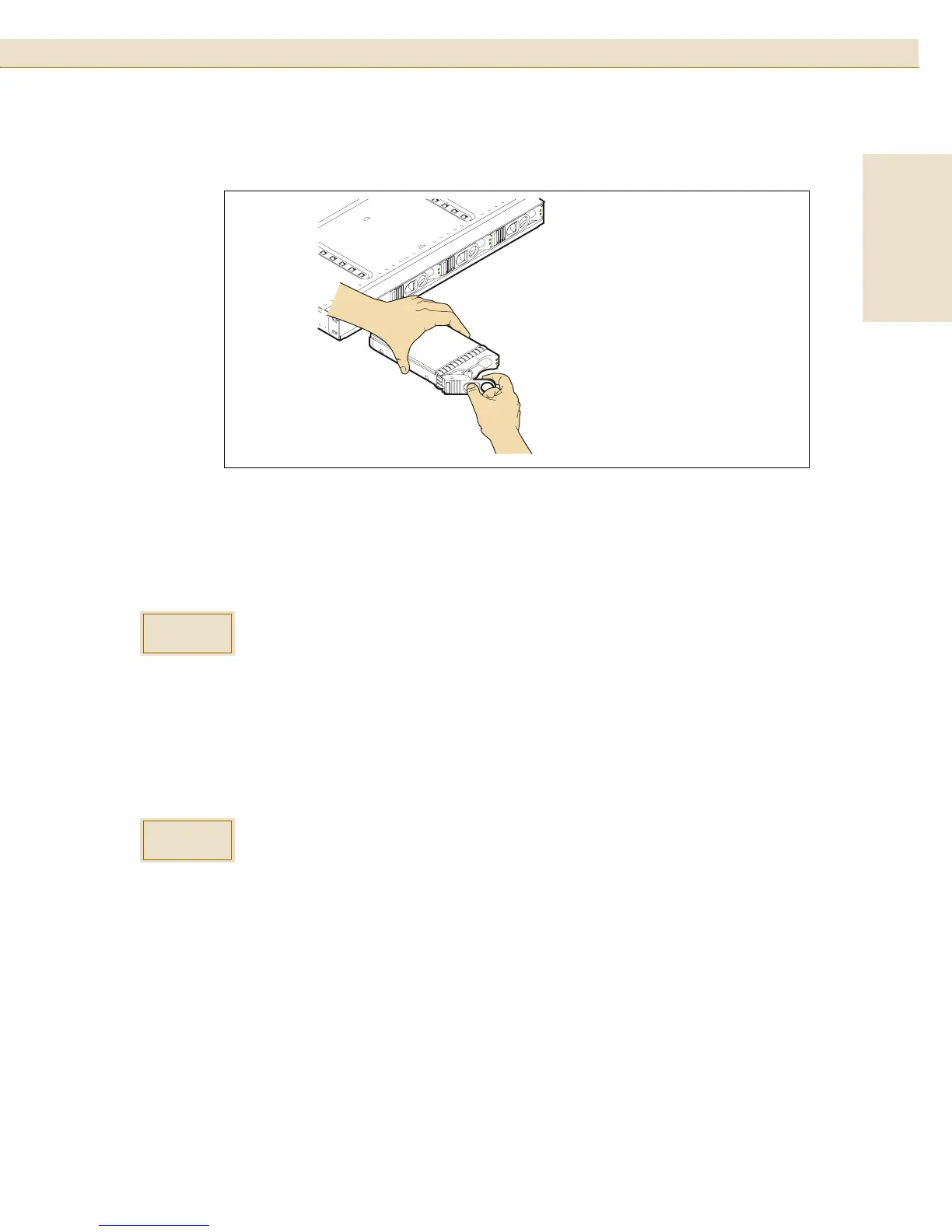
FIGURE 11
Installing a Disk Module
Configure the new Disk Module
Configure a new disk module within your application.
Remove and Replace A Disk Module
Remove a Disk Module
1 Ensure there is no activity on the drives.
If the Disk Drive LED for that disk module is flashing green, the disk drive is
active. When the Disk Drive LED off, the disk module is either idle or
completely off (see Table 1 on page 8). In this state, it is safe to remove the disk
module.
These procedures should be performed only by qualified system
administrator. Performing hot-plug operations on an active disk drive can
result in data loss or corruption.
If the disk system is running and a disk module slot does not contain a disk
drive or filler panel, the disk system will not cool properly and may
overheat. If you are not replacing the disk module immediately, a filler
panel must be installed to maintain proper cooling.
Ensure that you have a replacement disk or filler panel before removing the
disk module from the disk system unless you are returning a defective disk
system.
CAUTION
CAUTION




 To Next Page