3,
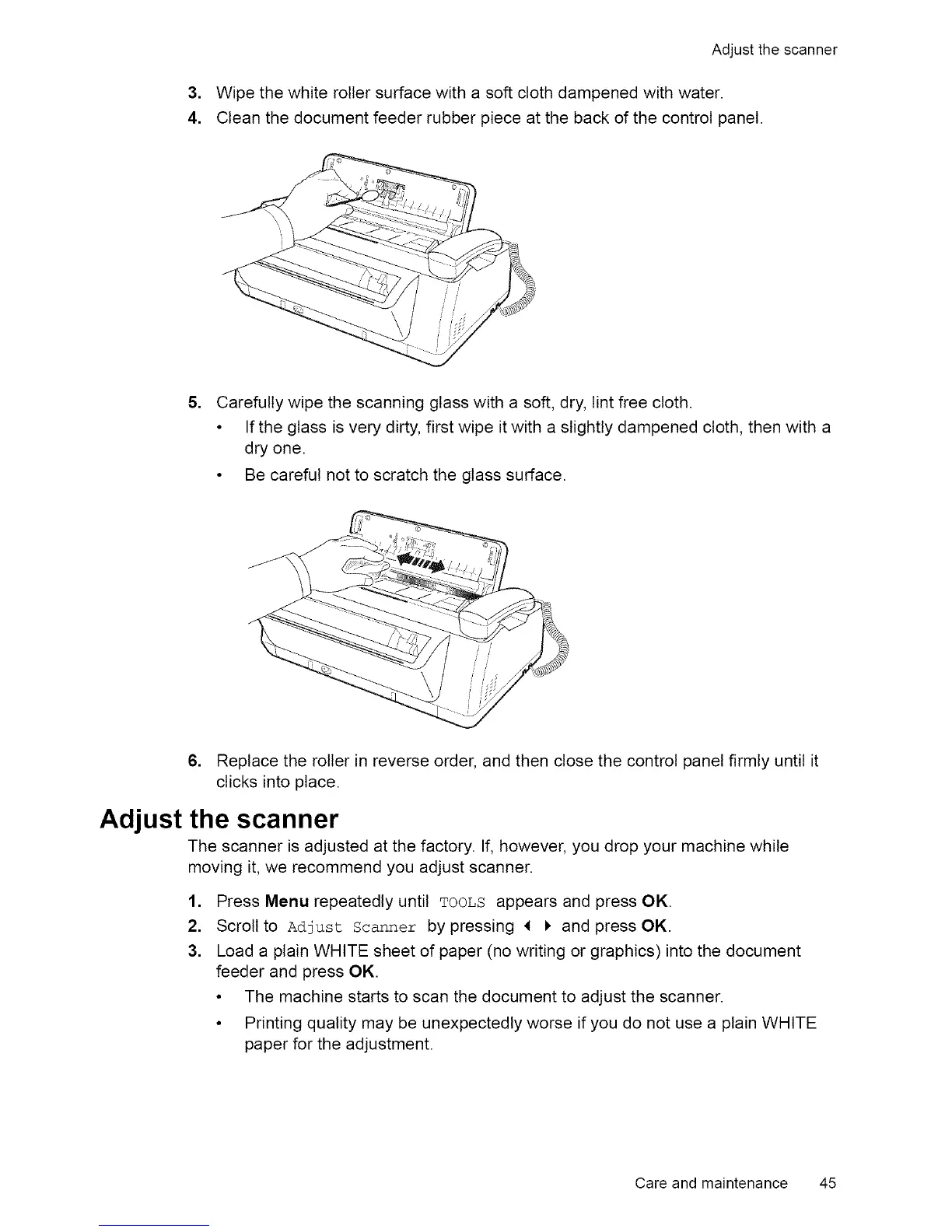
4.
Adjust the scanner
Wipe the white roller surface with a soft cloth dampened with water.
Clean the document feeder rubber piece at the back of the control panel.
5,
Carefully wipe the scanning glass with a soft, dry, tint free cloth.
• If the glass is very dirty, first wipe it with a slightly dampened cloth, then with a
dry one.
• Be careful not to scratch the glass surface.
6. Replace the roller in reverse order, and then close the control panel firmly until it
clicks into place.
Adjust the scanner
The scanner is adjusted at the factory. If, however, you drop your machine while
moving it, we recommend you adjust scanner.
1,
2.
3.
Press Menu repeatedly until TOOLS appears and press OK.
Scroll to Adjust Scanner by pressing 4 I, and press OK.
Load a plain WHITE sheet of paper (no writing or graphics) into the document
feeder and press OK.
• The machine starts to scan the document to adjust the scanner.
• Printing quality may be unexpectedly worse if you do not use a plain WHITE
paper for the adjustment.
Care and maintenance 45


 To Next Page