39
4.2 Wi-Fi connecting
1. Press the Power button to switch on the camcorder.
2. Enter Menu and go to Wi-Fi option; choose “ON” to activate the
wireless network.
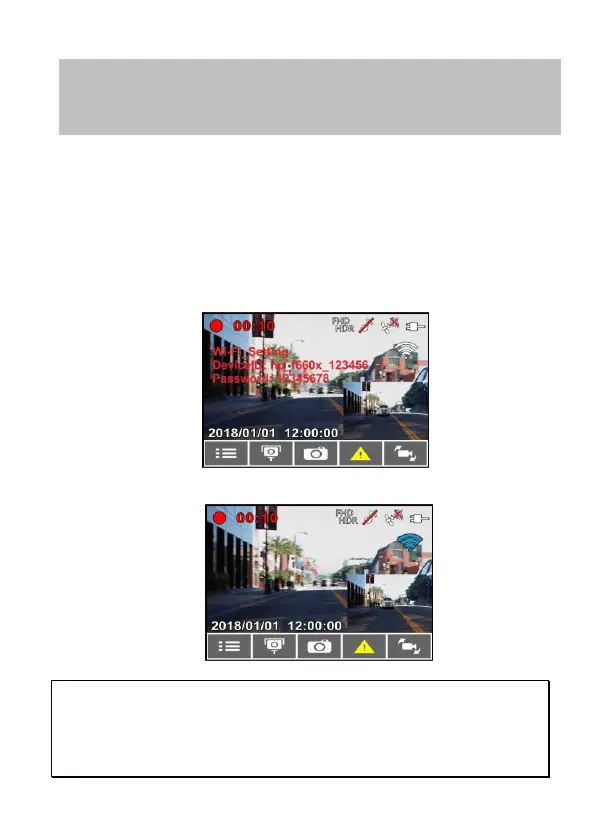
3. The camcorder’s screen will display Wi-Fi Device ID and
Password. Using the Wi-Fi function of your mobile device,
search for the camcorder ID “hp_f560x_123456” from the list
(last 6 numbers are system random numbers). Enter default
password 12345678.
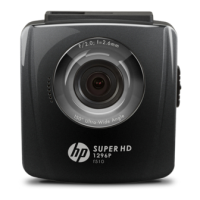
4. There is a Wi-Fi icon on the camcorder’s screen. Once the icon
is blue, your connection has been successfully established.
Note:
1. The mobile device shall be within a maximum of a 5m distance from the camcorder without
any buildings in between.
2. When the Wi-Fi function of the camcorder is ON but not yet connecting with your mobile
device, or the connection is disconnected, the Wi-Fi icon on camcorder’s screen will be
white, and you will need to re-activate the Wi-Fi and re-pair with your mobile device.
APP layout and features may be changed subject to
different software versions. Please refer to Google Play
or APP Store for update.


 To Next Page