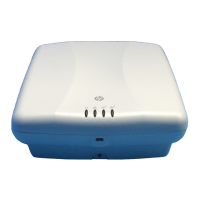
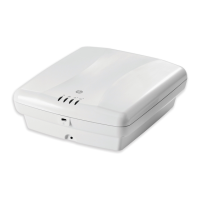
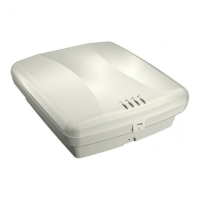
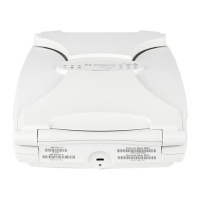
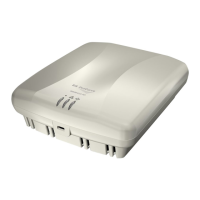
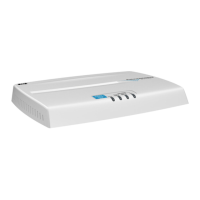
HP E-MSM430, E-MSM460, E-MSM466 Dual Radio 802.11n Access Points Quickstart 6 Initial configuration (autonomous mode)
After the discovery process is complete, and the AP has established a secure
management tunnel to a controller, the Power light remains on and the
Ethernet and Radio lights blink to indicate the presence of traffic.
Status light behavior in autonomous mode
Initial configuration (autonomous mode)
This procedure describes how to switch a factory-default AP to autonomous
mode and then perform its initial configuration that enables you to establish a
wireless connection through the AP to the Internet.
Note: For controlled-mode configuration, see Working with controlled APs in
the MSM7xx Controllers Management and Configuration Guide.
In autonomous mode, the AP is managed via its Web-based management tool
using at least Microsoft Internet Explorer 7/8 or Mozilla Firefox 3.x.
Caution:
Wireless Protection: A factory-default AP that has been switched
to autonomous mode has wireless protection options disabled. It is
recommended that you either follow the procedure in Configure basic wireless
protection on page 7 or configure protection of your choice.
See also Wireless protection in the MSM3xx / MSM4xx Access Points
Management and Configuration Guide.
Note: Do not power on the AP until directed.
A. Configure your computer
1. Disconnect your computer LAN port and configure it to use a static IP
address in the range
192.168.1.2 to 192.168.1.254, and a subnet mask
of
255.255.255.0. Set the default gateway to 192.168.1.1, and DNS
server to
192.168.1.1. For example to do this in Windows Vista, use
Control Panel > Network and Sharing Center > Manage network
connections, right click Local Area Connection, select Properties then
select Internet Protocol Version 4 (TCP/IPv4) > Properties.
2. Disable any wireless connection on your computer.
B. Connect the cables and power on the AP
1. Connect the cables:
• If using a PoE switch, use Ethernet cables to connect your
computer and the AP to an unused factory-default PoE switch.
• If using a PoE injector, use Ethernet cables to connect your
computer to the data in port of the PoE injector and the AP to the
data and power out port of the PoE injector.
2. Power on the AP by powering on the PoE switch or injector.
Initially, the AP power light will blink once every two seconds. Wait
approximately a minute until it begins blinking once per second before
proceeding to the next step.
C. Switch the AP to autonomous mode
Note:
A factory-default AP is assumed.
1. In a Web browser, enter the address: https://192.168.1.1.
2. A security certificate warning is displayed the first time you connect to the
management tool. This is normal. Select whatever option is needed in
your Web browser to continue to the management tool.
3. On the Login page, specify admin for both Username and Password
and then select
Login. The AP management tool home page opens.
4. Select Switch to Autonomous Mode and confirm the change. The AP
restarts in autonomous mode.
Note: To avoid a delay after switching modes, clear the ARP (address
resolution protocol) cache on your computer. In Windows for
example, from the
Windows Start menu, select Run and enter
“arp -d” (without the quotes). Select
OK.
Light State Description
Power
Off The AP has no power.
Blinking The AP is starting up. If the Power light
continues to blink after several minutes, it
indicates that the software failed to load.
Reset or power cycle the AP. If this condition
persists, contact HP customer support.
On The AP is fully operational.
Ethernet
Off The port is not connected or there is no
activity.
Blinking The port is transmitting or receiving data.
Radio
Blinking The radio is transmitting or receiving data.
E-MSM430-460-466-QS-Jan11-5998-0615-v55.fm Page 6 Wednesday, January 19, 2011 5:38 PM


 To Next Page