EasyManua.ls Logo

HP ProCurve Wireless Access Point 530 - User Manual

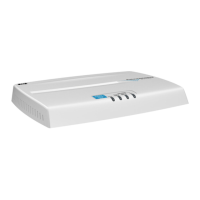
HP ProCurve Wireless Access Point 530
114 pages
Print Icon
To Next Page IconTo Next Page
Loading...
Installation and
Getting Started Guide
www.procurve.com
ProCurve Wireless Access Point 530
Power over Ethernet Devices
In

Table of Contents

Questions and Answers

  • A
    Amanda KiddJul 31, 2025
    What to do if my HP ProCurve 530 Wireless Access Point is not turning on?
    • J
      John OconnorJul 31, 2025
      First, ensure the power cord is securely plugged into both an active power source and the HP Wireless Access Point's AC power adapter. If the Power LED remains off, test the AC power source by plugging in another device or try a different outlet and power cord. If the issue persists, the AC power adapter might be faulty, and you should contact your HP-authorized network reseller.
  • E
    eleonardAug 5, 2025
    What to do if my HP ProCurve 530 Wireless Access Point is not getting power from PoE?
    • S
      Scott ArcherAug 6, 2025
      First, verify that the HP Wireless Access Point’s 10/100Base-TX port is connected to a PoE source device. Next, ensure that the PoE source device is powered on and that the PoE function is enabled on the port connected to the access point.
  • R
    richardmayAug 12, 2025
    How to fix a 10/100Base-TX network connection issue on my HP ProCurve 530?
    • G
      Gary AliAug 12, 2025
      First, check that both ends of the network cable are properly connected to the HP Wireless Access Point and the connected device. Ensure both devices are powered on and functioning correctly. Verify the duplex operation. If the problem persists, try using a different network cable.
  • S
    Suzanne LarsenAug 17, 2025
    Why is the wireless link disabled on my HP Wireless Access Point?
    • E
      Emily CoxAug 18, 2025
      Verify that the wireless port has not been disabled through an access point configuration change. Use the console or Web browser interface (if an IP address is configured) to check the wireless port's status and re-enable it if necessary. Also, confirm that the country code has been set on your HP Wireless Access Point.
  • B
    Bryan RiceAug 25, 2025
    What to do if my HP Wireless Access Point has a software failure during initialization?
    • J
      James PatelAug 25, 2025
      Reset the HP Wireless Access Point by pressing the Reset button on the back or by power cycling it. If the fault recurs, connect a console to the access point and reset it again. Note any error messages displayed on the console screen and the LED pattern, then contact your HP-authorized network reseller.

Summary

Installing the Access Point 530

Installation Procedures

Details the essential steps for setting up and installing the access point.

Getting Started With Access Point Configuration

Minimal Configuration

Guides through essential IP address, subnet mask, and password setup.

CLI Configuration

Covers configuring user name, password, IP address, country code, and radio settings via CLI.

Remote Management

Explains how to manage the access point remotely via Telnet, SSH, and Web browser.

Using an External Antenna with the Access Point 530

Installation and Configuration

Provides steps for planning, mounting, connecting, and configuring external antennas.

Troubleshooting

Basic Troubleshooting Tips

Offers fundamental tips and checks to resolve common problems.

Restoring Default Configurations

Guides on restoring the access point to custom or factory default settings.

Safety and EMC Regulatory Statements

HP ProCurve Wireless Access Point 530 Specifications

General IconGeneral
BrandHP
ModelProCurve Wireless Access Point 530
CategoryWireless Access Point
LanguageEnglish

Related product manuals