Using the QuickPlay buttons
NOTE Media button and DVD button (select models only) functions vary, depending on the
software installed on your computer. Refer to the following table for more information.
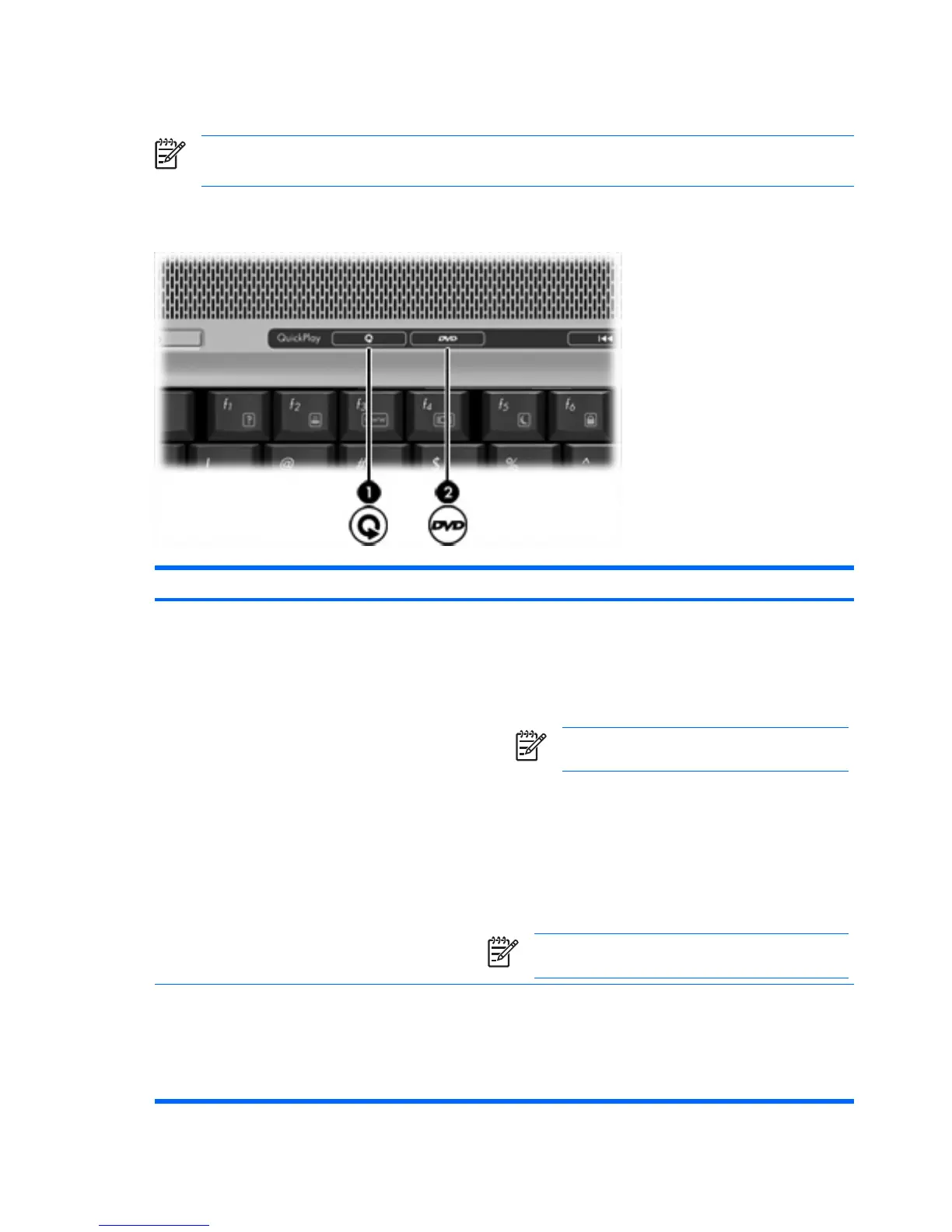
The media button (1) and the DVD button (2) allow you to listen to music, play DVDs, and watch movies
with the touch of a button.
Component Description
(1) Media button If QuickPlay is installed and the computer is
●
On, opens a music program or the Media menu allowing you
to select a multimedia program.
●
Off, opens a music program or the Media menu allowing you
to select a multimedia program.
NOTE Press the power button to exit the
multimedia program.
●
In standby, resumes from standby into Windows.
If QuickPlay is not installed and the computer is
●
On, opens the default media player.
●
Off, does not function.
●
In standby, resumes from standby into Windows.
NOTE This button does not affect the procedure for
restoring from hibernation.
(2) DVD button (select models only) If QuickPlay is installed and the computer is
●
On, opens the default DVD program to start a DVD in the
optical drive.
●
Off, opens QuickPlay to start a DVD in the optical drive.
6 Chapter 1 Multimedia hardware ENWW



 To Next Page