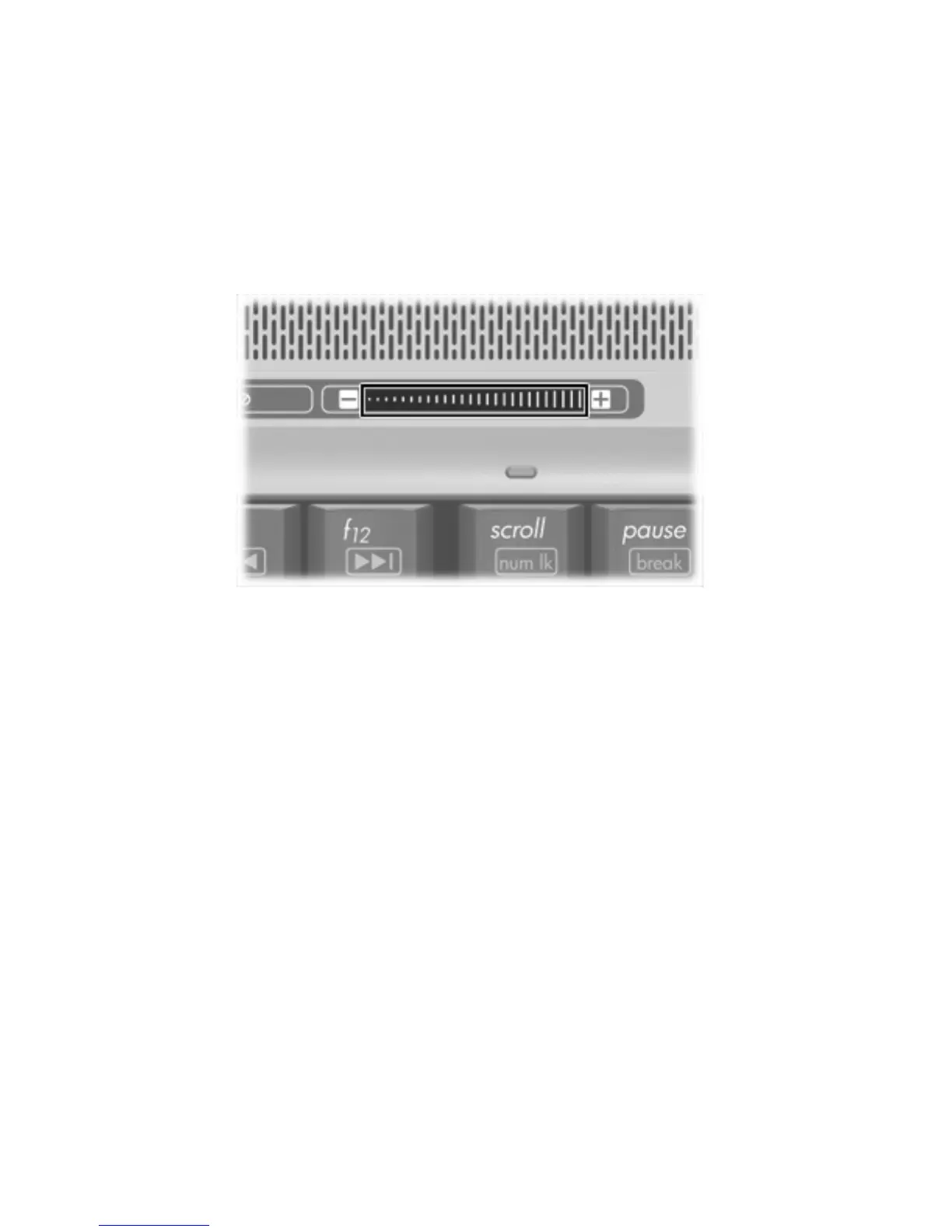
Adjusting the volume
You can adjust the volume using the following controls:
●
Computer volume buttons:
●
To mute or restore volume, press the mute button.
●
To decrease volume, slide your finger across the volume scroll zone from right to left.
●
To increase volume, slide your finger across the volume scroll zone from left to right.
●
Microsoft® Windows® volume control:
a. Click the Volume icon in the notification area, at the far right of the taskbar.
b. Increase or decrease the volume by moving the slider up or down. Select the Mute check box
to mute the volume.
– or –
a. Double-click the Volume icon in the notification area.
b. In the Master Volume column, you can increase the or decrease the column by moving the
Volume slider up or down. You can also adjust the balance or mute the volume.
If the Volume icon is not displayed in the notification area, follow the steps below to place it there:
a. Select Start > Control Panel > Sounds, Speech, and Audio Devices > Sounds and Audio
Devices.
b. Click the Volume tab.
c. Select the Place volume icon in the taskbar check box.
d. Click Apply.
●
Program volume control:
Volume can also be adjusted within some programs.
ENWW Using the audio features 5







 To Next Page