Cabling the Poly Studio Base Kit G9 Plus
system
3
To help you in cabling the system components, Poly Studio Base Kit G9 Plus ships with color-coded ports
and cables.
Connect Poly TC10 to the HP Mini IP Conferencing PC
Connect your Poly TC10 device to the HP Mini IP Conferencing PC. The HP Mini IP Conferencing PC
provides power and network connectivity to Poly TC10 to use it as a room controller.
NOTE: Before powering on the HP Mini IP Conferencing PC, ensure all connections have been made
from the HP Mini IP Conferencing PC to the Poly TC10 and other peripherals.
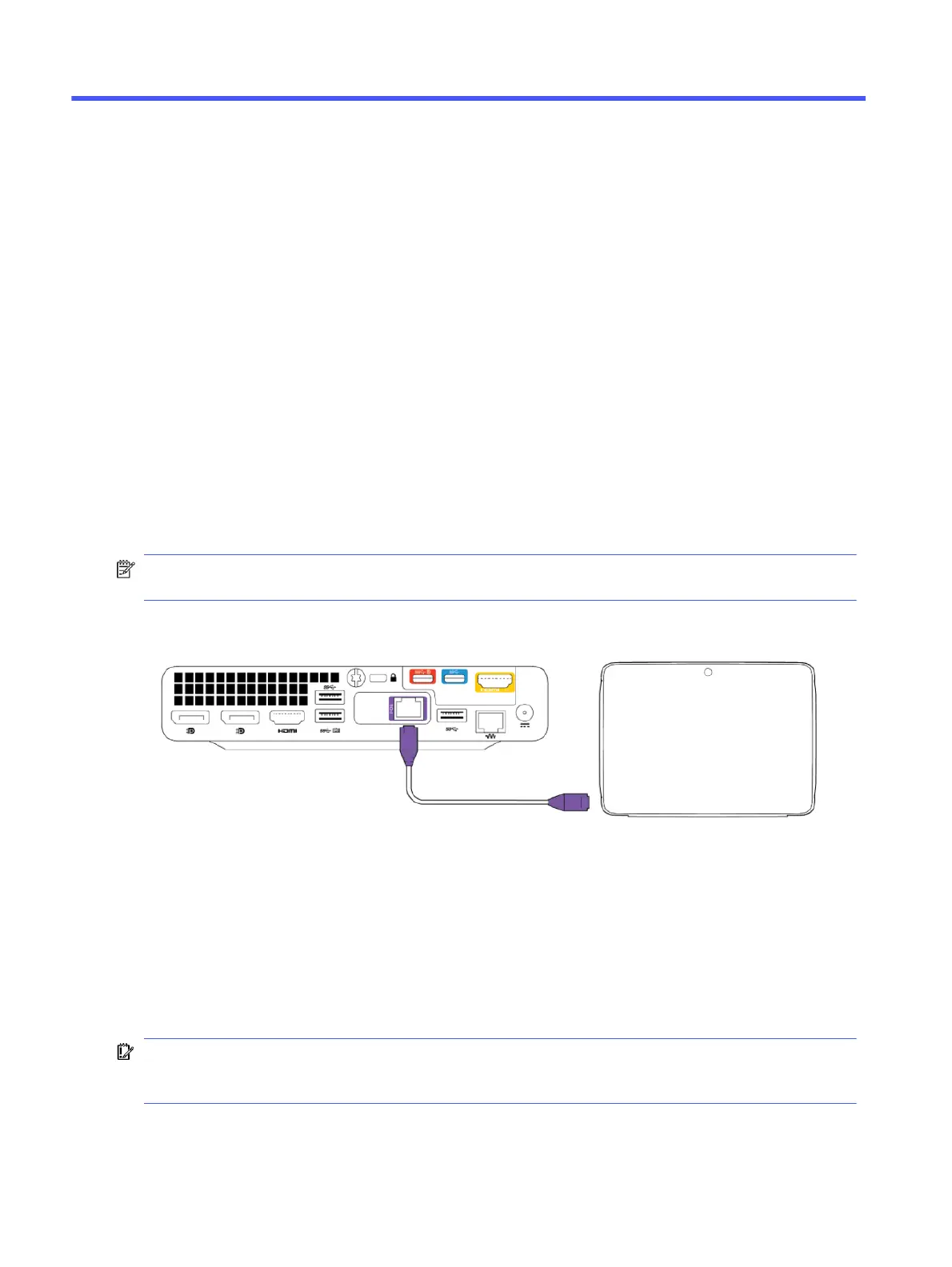
Figure 3-1 Connecting the PoE cable from the HP Mini IP Conferencing PC to Poly TC10
■
Connect the Ethernet cable with purple boot covers (included with the conferencing PC) from the
purple Ethernet port on the HP Mini IP Conferencing PC to the POE port on the Poly TC10 device.
Connect a Poly Studio video bar to the HP Mini IP Conferencing
PC
Connect a supported Poly Studio video bar or standalone camera to the HP Mini IP Conferencing PC.
IMPORTANT: The Poly Studio video bar automatically updates if Poly Lens identifies a newer version
of the device software. On Poly devices, the LED blinks amber indicating that a software update is in
progress. Don't disconnect or turn off the device while it's updating.
6
Chapter 3 Cabling the Poly Studio Base Kit G9 Plus system


 To Next Page