HP Premium Autofocus Notebook Webcam User’s Guide 13
Taking a Picture
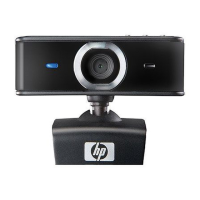
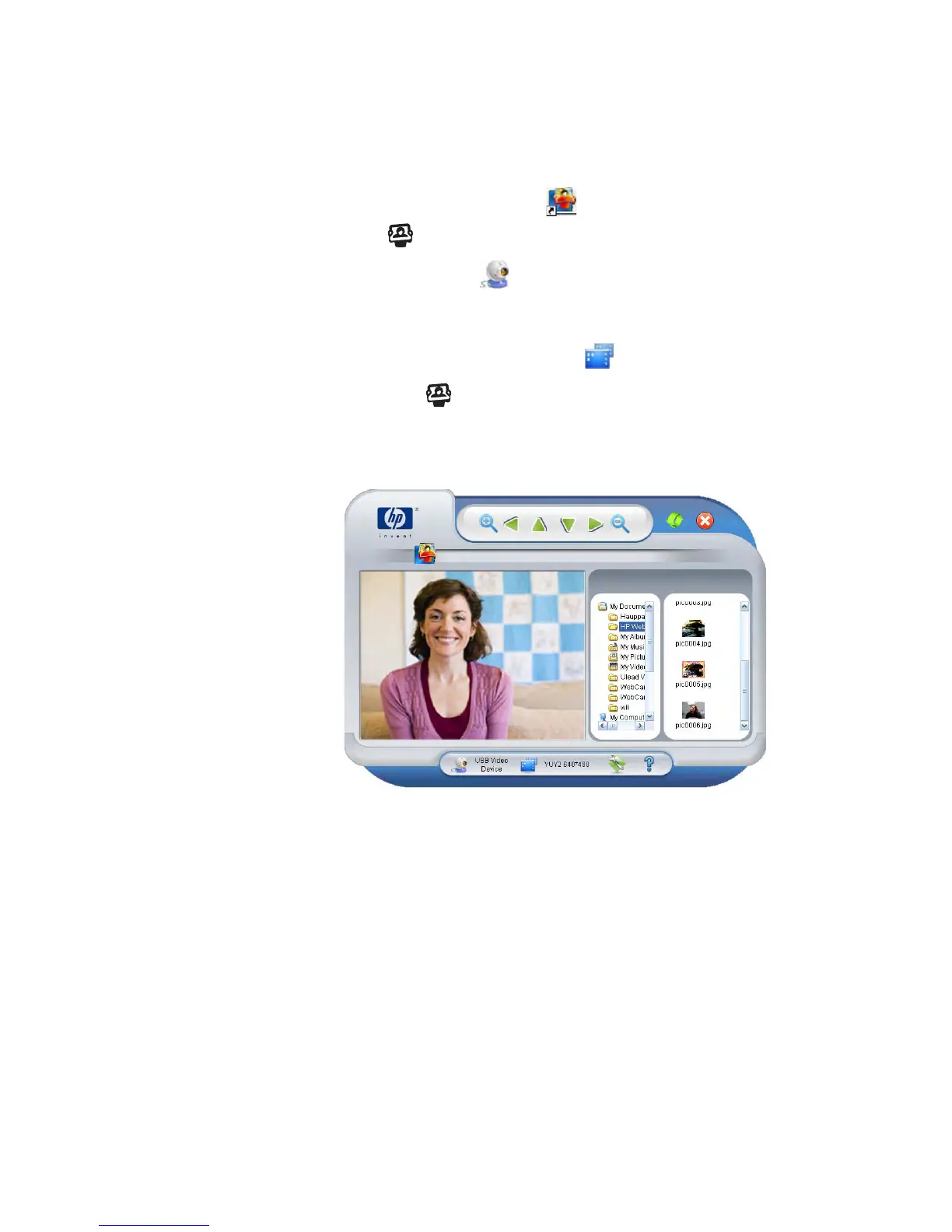
1 Double-click the HP Image Capture icon on the Windows desktop, or press
the Snapshot button on the webcam.
2 Click the Device Selection icon in the lower-left portion of the screen and
select USB Video Device (Windows XP) or HP Webcam GJ502AA
(Windows Vista
®
).
3 (Optional) Click the Resolution Selection icon and select a different setting.
4 Press the Snapshot button on the webcam to take a picture.
To learn more about using HP Image Capture, click the Help ? icon in the lower-right
portion of the HP Image Capture window.


 To Next Page
 Loading...