9
Installing the Module
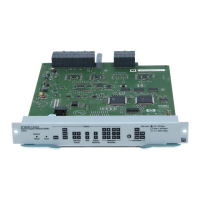
7. Check the port LEDs for the newly-installed module to ensure that the
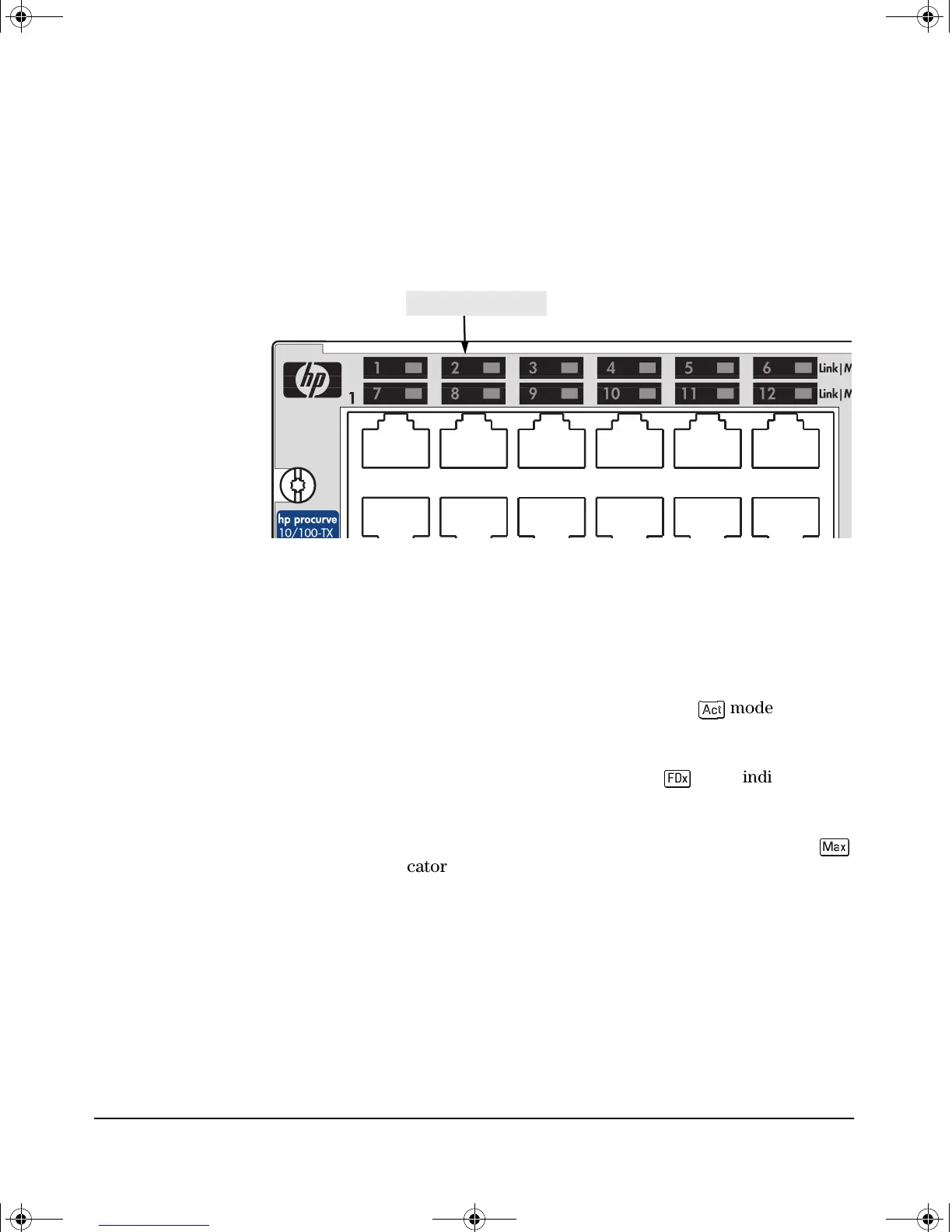
port(s) connected in the preceding step are operating correctly. Each port
on the switch modules has Link and Mode LEDs near it as shown in the
next illustration.
Example Link and Mode LEDs
• The Link LED will be lit for each port that is connected properly to
an active network device.
If the Link LED does not go on when an active network cable is
connected to the port, there may be something wrong with the cable,
the cable connectors, or the device at the other end of the cable. See
the troubleshooting information on page 13.
• If the switch Mode is set to display activity (the
mode indicator
LED is lit), then the Mode LED for each port that is transmitting and/
or receiving packets will flicker when traffic is detected on the port.
• If the Mode is set to display full duplex (the
mode indicator LED
is lit), then the Mode LED will be lit for each port that is operating in
full duplex.
• If the Mode is set to display maximum link speed operation (the
mode indicator LED is lit), then the Mode LED will be lit for each port
that is operating at its maximum possible link speed. For gigabit-
capable ports, that speed would be 1000 Mbps (Gigabit); for 10/100
ports, that speed would be 100 Mbps.
8. Customize the port configuration, if necessary. (See “Customizing the Port
Configuration” on page 10.)
Link and Mode LEDs
gamma-mod.book Page 9 Friday, April 6, 2001 10:23 PM




 To Next Page