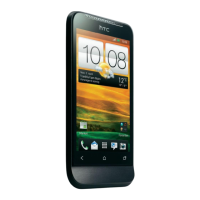
Rotate HTC One X+ for a better view
For many screens, you can
automatically change the screen
orientation from portrait to
landscape by turning HTC One X+
sideways.
When entering text, you can turn
HTC One X+ sideways to bring up
a bigger keyboard.
Sleep mode
Sleep mode saves battery power by putting HTC One X+ into a low power state while
the display is off. It also stops accidental button presses when HTC One X+ is in your
bag.
Switching to Sleep mode
Briefly press the POWER button to turn off the display and switch to Sleep mode.
HTC One X+ also automatically goes into Sleep mode when it’s left idle for a while.
You can change the time before HTC One X+ sleeps in the Display, gestures & buttons
(or Display & buttons) settings.
Waking up from Sleep mode
To wake HTC One X+ up manually, press the POWER button. You’ll need to unlock the
screen.
HTC One X+ automatically wakes up when you have an incoming call.
25 Your first week with your new phone



 To Next Page